Install HandyMCP, connect Claude, ChatGPT or Cursor to WordPress, and get your first task done in a few minutes. Looking for ideas? Browse the prompt library.
01Introduction
HandyMCP is a WordPress MCP server plugin. MCP (Model Context Protocol) is an open standard that lets AI apps use tools. Once connected, an app like Claude, ChatGPT or Cursor can read and change your site with the permissions you give it: build pages, write content, manage WooCommerce, run updates and more.
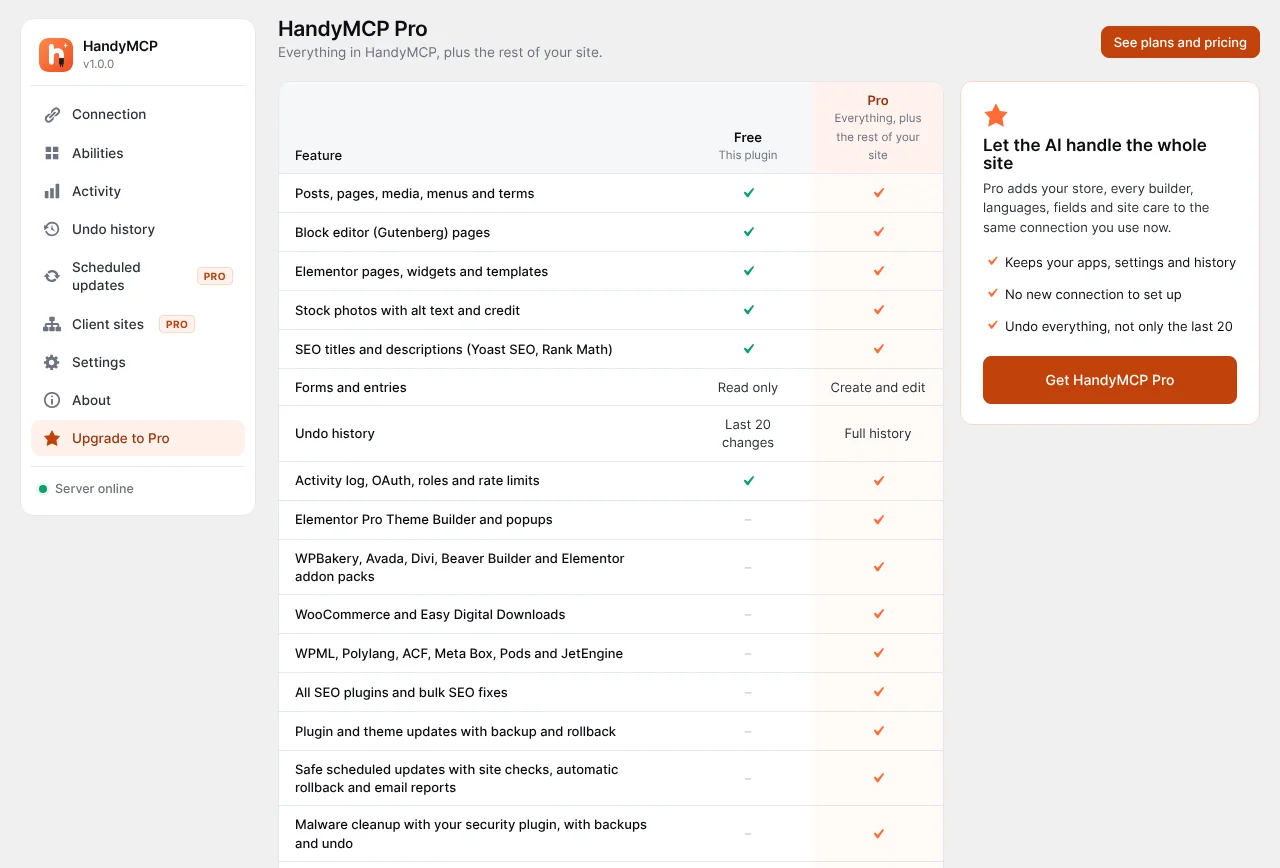
Everything goes through four screens in your dashboard under HandyMCP: Connection, Abilities, Activity and Undo history. The free plugin covers Gutenberg, Elementor, content, media, SEO, basic WooCommerce (products, prices, stock and orders) and Contact Form 7 and WPForms forms. HandyMCP Pro adds every other builder, full WooCommerce, safe updates, backups, security, languages and client sites.
02Requirements and installation
WordPress 6.2 or newer and PHP 7.4 or newer.
HTTPS on your site (AI apps only connect to secure addresses).
An administrator account to approve AI apps.
Install HandyMCP Pro
After buying, sign in to your account and open Downloads.
Download the zip, then in WordPress go to Plugins › Add New › Upload Plugin and install it.
Activate it. If the free version is installed, Pro takes over and keeps all your settings and history, and offers to delete the free copy.
03Connect your AI app
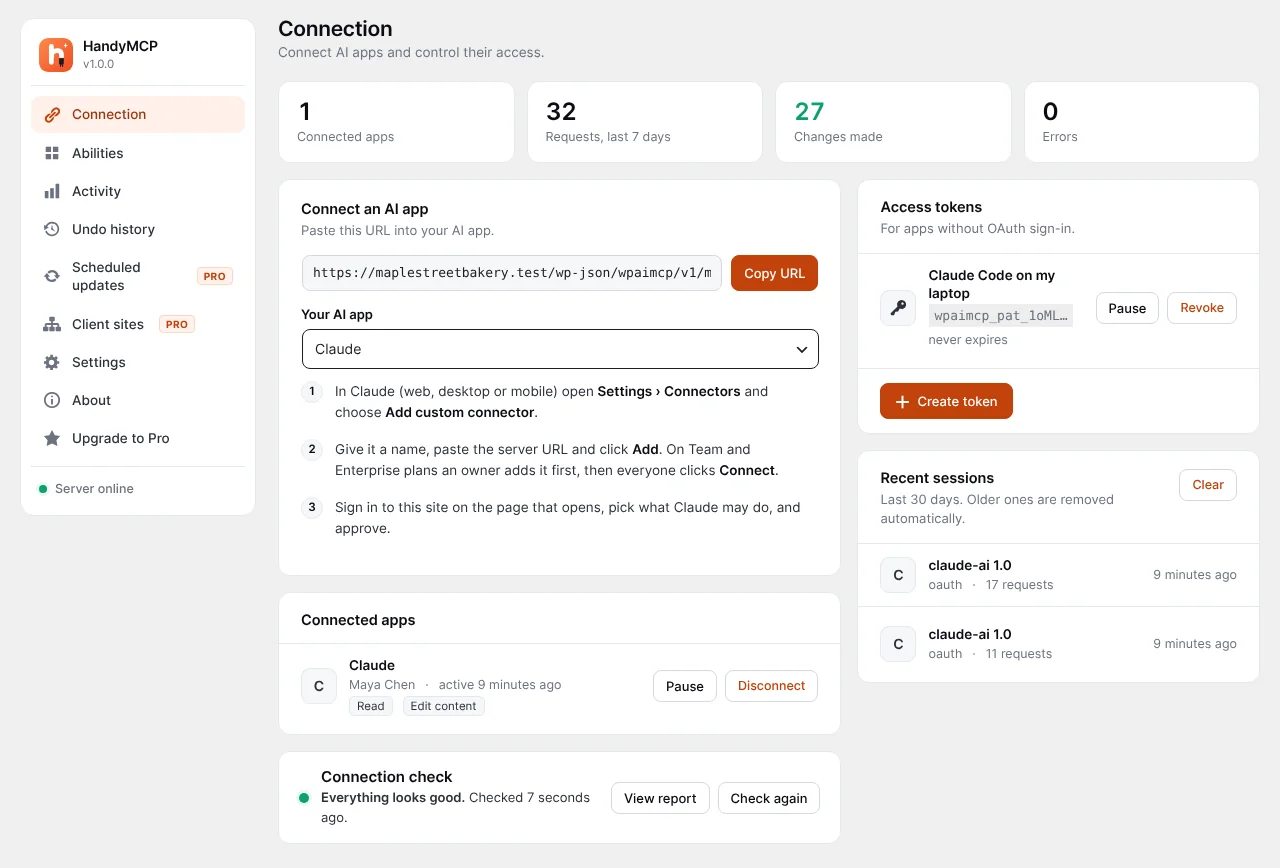
Open HandyMCP › Connection. Copy the server URL (it looks like https://your-site.com/wp-json/wpaimcp/v1/mcp) and pick your app from the list. The screen shows the exact steps for more than 20 apps.
Claude (web, desktop or mobile)
Open Settings › Connectors and choose Add custom connector.
Give it a name, paste the server URL and click Add. On Team and Enterprise plans an owner adds it first, then everyone clicks Connect.
Sign in to your site on the page that opens, pick what Claude may do, and approve.
ChatGPT
Open Settings › Apps and turn on Developer mode.
Create an app, paste the server URL and choose OAuth.
Sign in to your site and approve the access you want to give.
Cursor, VS Code, Windsurf and other code apps
These apps can sign in with OAuth, or use an access token. Create a token under Access tokens on the Connection screen, then add the server to the app's MCP settings, for example in Cursor's ~/.cursor/mcp.json:
Treat access tokens like passwords. You can pause or revoke any token or connected app on the Connection screen at any time.
handymcp
The Connection screen: server URL, steps for your app, access tokens and recent sessions.
04Choose what AI may do
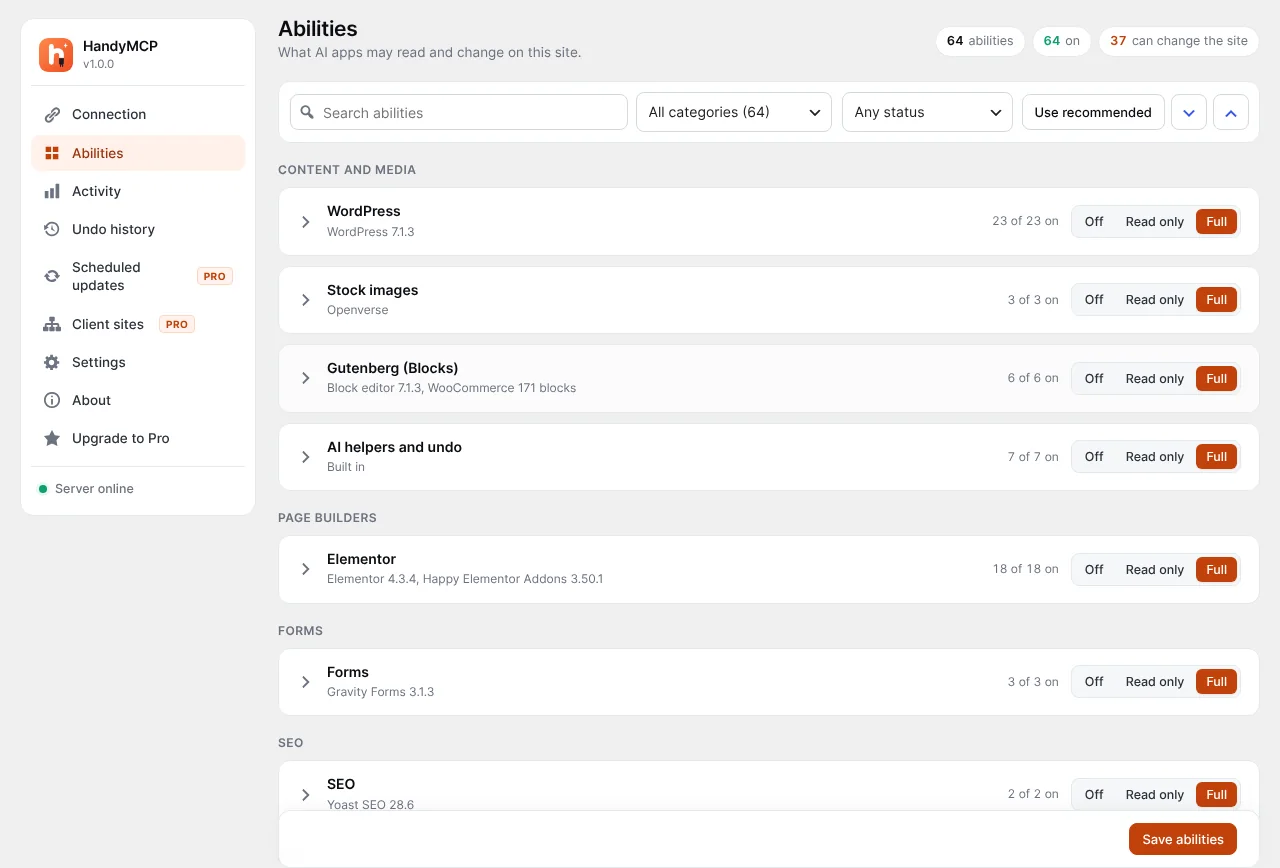
HandyMCP › Abilities lists every tool the AI app can use, in groups such as content, design, WooCommerce, files and site management. Turn a whole group off, or single abilities.
Scopes on the approval screen decide what each app may do: read only, edit content, manage the store or manage the site.
Risky actions such as deleting content always need a confirmation from you.
Read-only mode in Settings lets apps read and report while every change is refused. Good for audits.
handymcp
Abilities: switch groups or single tools on and off.
05Your first prompts
Talk to your AI app the way you would brief a colleague. Name the page or product, say what should change, and say if it should be a draft.
"Build a landing page for my webinar with Elementor as a draft, using my brand colours."
"Write SEO titles and meta descriptions for pages that are missing one."
"Put all hoodies on a 15 percent sale until Sunday."
"Update all plugins safely and tell me what changed."
"Scan the site for malware and show me what you found before cleaning anything."
Want more ideas? The prompt library has ready-made prompts for design, content, WooCommerce, maintenance and security.
When you ask for a redesign or a new version, HandyMCP creates a new draft and leaves the live page alone. Live pages are only replaced when you clearly ask for it.
06Page builders
HandyMCP edits pages with the builder that owns them, using that builder's own widgets and settings, so the result stays editable by hand.
Free: Gutenberg and Elementor.
Pro: WPBakery, Divi, Beaver Builder and Avada.
Small edits, like changing a heading or a button, change only that element instead of rewriting the page.
07WooCommerce
With Pro, AI apps can list and edit products, prices, stock and variations, create coupons and look up orders. Customer emails and phone numbers are masked in lists. Bulk changes of more than 10 products ask for your confirmation first.
08Activity log
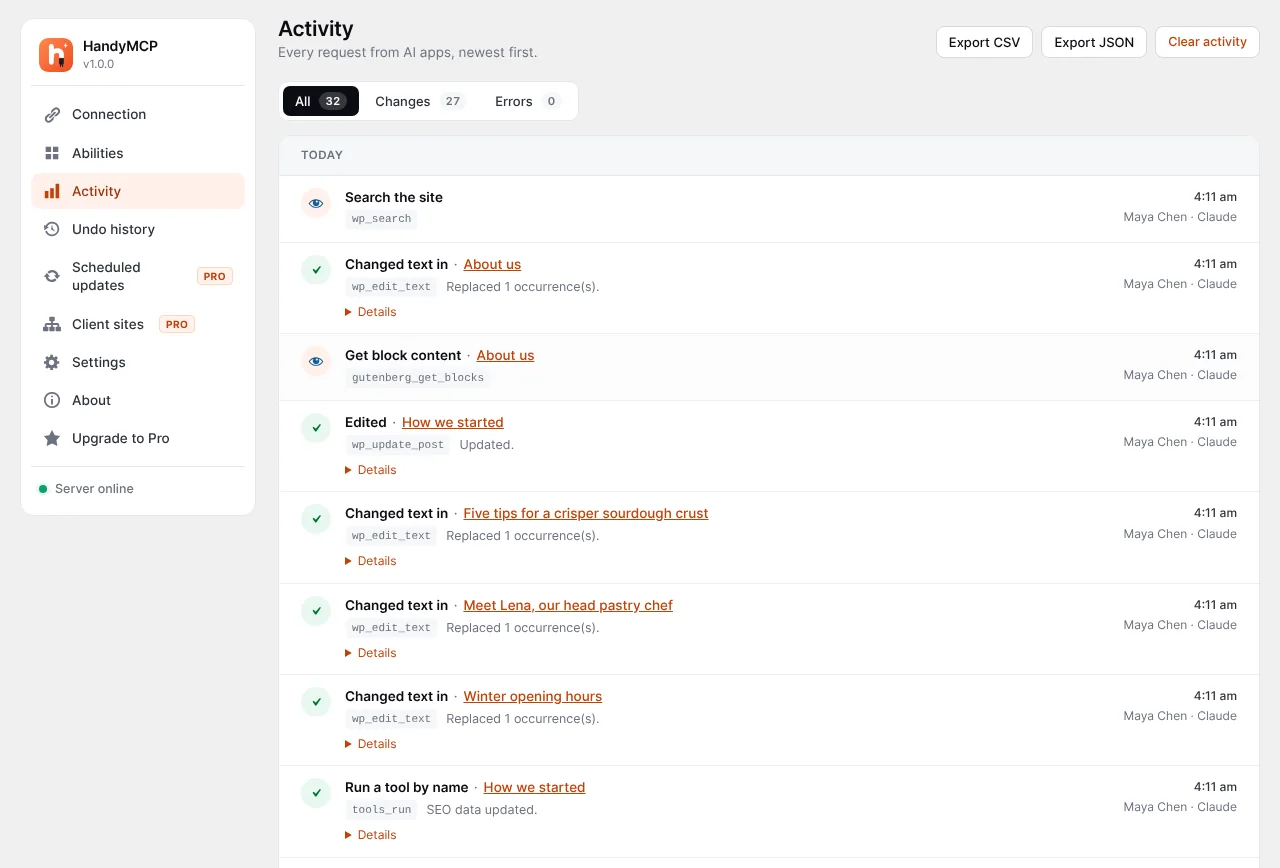
HandyMCP › Activity shows every request from every AI app, newest first: which app, which tool, which page or product it touched and whether it worked. Errors are flagged so you can spot problems quickly.
handymcp
Activity: every request from AI apps, with the page it touched.
09Undo history
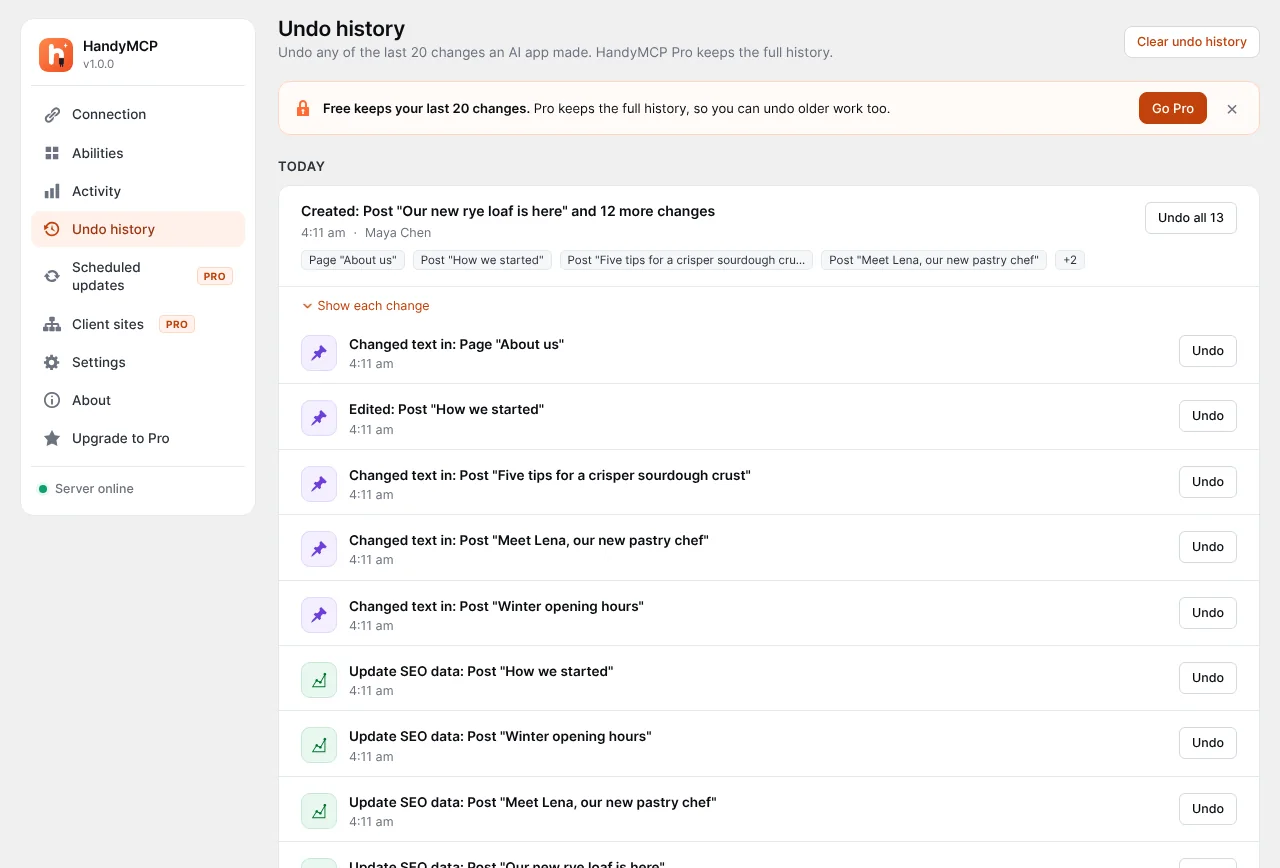
Before HandyMCP changes anything, it saves what was there. HandyMCP › Undo history groups changes by task, so you can undo everything an AI did for one request, or a single change.
The free plugin keeps your last 20 changes. Pro keeps the full history.
Code edits to theme and plugin files are checked, backed up and undone automatically if the site breaks.
handymcp
Undo history: changes grouped by task, with undo for one change or the whole task.
10Safe and scheduled updates
Pro updates plugins and themes one at a time. Before each update it checks the new version's requirements and saves a backup. After the update it loads your home page and login page. If anything breaks, the old version is put back on its own.
Under Scheduled updates pick a day and time, what to update, what to leave alone, and who gets the email report.
11Update HandyMCP
Updates bring new tools, fixes and support for new AI apps, so keep the plugin current.
Automatic (recommended)
Make sure your license is active under HandyMCP › License. Pro updates are delivered through it.
Go to Plugins, find HandyMCP Pro and click Enable auto-updates.
One click
When a new version is out you will see a notice on Dashboard › Updates and on the Plugins screen.
Click Update now. Your settings, tokens, connected apps and undo history are kept.
Go to Plugins › Add New › Upload Plugin, choose the zip and click Install now.
WordPress asks to replace the current version. Click Replace current with uploaded.
After updating, start a new chat in your AI app. Most apps load the list of tools when a chat starts, so new tools show up in new chats.
12Security and malware cleanup
Pro can scan your files and database for malware, spam links and changed WordPress core files, show you what it found, and clean it up with your approval. It also works with security plugins you already use.
13Client sites and white label
The Agency plan connects many client sites to one hub, so one AI chat can check and update all of them. With white label (Agency plan) the plugin shows your own name and logo in your clients' dashboards.
In WordPress open HandyMCP › License, paste the key and activate.
To move a license, deactivate it on the old site first, or remove the site in your account.
Yearly licenses include one year of updates and support. If you do not renew, the plugin keeps working; you just stop getting updates. See pricing and the refund policy.
handymcp
What the free plugin includes and what Pro adds.
15Troubleshooting
The AI asks for permission before every action
That prompt comes from your AI app, not from HandyMCP. Apps ask before using a tool from a new connector until you allow it. HandyMCP still applies your scopes, abilities and confirmations for risky actions, so allowing tools in the app is safe. Here is how to stop the prompts in each app:
Claude (web, desktop, mobile): open Settings › Connectors, click your WordPress connector and set its tools to Always allow. You can also choose Always allow on the prompt itself the next time it appears.
Claude Code: choose Yes, and don't ask again on the prompt, or add "mcp__wordpress" to permissions.allow in .claude/settings.json. Use your connector's name in place of wordpress.
ChatGPT: in developer mode ChatGPT asks to confirm actions that change data. Tick Remember on the confirmation so it stops asking for that tool in the conversation.
Cursor: open Settings › Chat (or Agents) and turn on Auto-run. Add the WordPress tools to the allow list if you use one.
VS Code with GitHub Copilot: on the tool prompt open the Continue menu and choose Always allow, or turn on chat.tools.autoApprove in settings.
Windsurf: in Cascade settings turn on Auto execution for MCP tools.
Gemini CLI: add "trust": true to the server in ~/.gemini/settings.json, or choose Always allow on the prompt.
Want the AI to work without stopping, but only on safe things? Approve only the read and content scopes when you connect, then turn on auto-approve in the app. Anything outside those scopes is refused by your site.
The app cannot connect
Open the Connection screen and click Check again under Connection check. It tests the server, sign-in and your host.
Make sure the site uses HTTPS and the MCP server is turned on in Settings.
Some security plugins or firewalls block the REST API. Allow /wp-json/wpaimcp/ in their settings.
The app connects but cannot change anything
Check the scopes you approved, and that read-only mode is off.
Check that the ability is switched on under Abilities.
Sign-in page shows "Not found" or a 404
Go to Settings › Permalinks and click Save changes without changing anything. This rebuilds the URLs HandyMCP needs.
Plain permalinks (?p=123) are not supported. Pick any other structure.
Error 401 or "Unauthorized"
The sign-in expired or the token was revoked. Disconnect and connect the app again, or create a new access token.
Some hosts strip the Authorization header. Ask your host to pass it through, or use OAuth sign-in instead of a token.
Error 403 or "Forbidden"
A firewall (Wordfence, Cloudflare WAF, Sucuri, your host) blocked the request. Allow /wp-json/wpaimcp/ and the /oauth/ URLs, then try again.
The user who approved the app does not have permission for that task. Connect with an administrator account.
Requests time out on big jobs
Ask for the work in smaller steps, for example one page or 20 products at a time.
Raise max_execution_time to at least 60 seconds with your host.
Changes do not show on the live site
Clear your cache plugin or host cache (LiteSpeed, WP Rocket, Cloudflare), or ask the AI to purge the cache.
Check if the AI made a draft. Redesigns are saved as drafts so the live page stays safe.
Elementor page looks broken after an edit
Open Elementor › Tools and click Regenerate files and data.
Still wrong? Open HandyMCP › Undo history and undo the last change for that page.
New tools do not appear in the AI app
Start a new chat. Apps load the tool list when a chat starts.
In Claude, open the connector and click Reconnect if the list is still old.
License will not activate
Check the key has no spaces, and that the plan has a free site slot. Remove old sites in your account.
Your server must be able to reach handymcp.com. Ask your host if outgoing requests are blocked.
Still stuck? Contact support with your AI app's name and what you see on screen.
14-day money-back guarantee
GiveyourAIthekeys,keepthebrakes.
Connect your site in a few minutes. Every change is logged, and every change can be undone.