

Skip to content

WordPress MCP troubleshooting, fixed fast.

Fixes for the problems people hit when they connect Claude, ChatGPT or Cursor to WordPress: connection errors, permission prompts, 401, 403 and 404 errors, rate limits, stock photos, scheduled updates, white label and client sites.

01Connecting an AI app

The AI app cannot connect to my WordPress site

  • Open HandyMCP › Connection and click Check again under Connection check. It tests the server, sign-in and your host.
  • Make sure the site uses HTTPS and Settings › Server › MCP server is on.
  • Security plugins and firewalls (Wordfence, Cloudflare WAF, Sucuri, your host) can block the REST API. Allow /wp-json/handymcp/ and the /oauth/ URLs.

Claude or ChatGPT says the connector failed to register

Turn on Settings › Server › OAuth sign-in and Automatic app registration. Both are needed by Claude and ChatGPT connectors. You still approve every app.

The sign-in page shows "Not found" or a 404

  • Go to Settings › Permalinks and click Save changes without changing anything.
  • Plain permalinks (?p=123) are not supported. Pick any other structure.

Error 401 or "Unauthorized"

  • The sign-in expired, or the token was paused, revoked or expired. Resume it, or disconnect and connect again.
  • Some hosts strip the Authorization header. Ask your host to pass it through, or use OAuth instead of a token.

Error 403 or "Forbidden"

  • A firewall blocked the request. Allow /wp-json/handymcp/ and the /oauth/ URLs.
  • The user who approved the app has a role that is not in Settings › Access › Allowed roles, or lacks permission for that task. Connect with an administrator.

The connection check says the site is not on HTTPS

Claude and ChatGPT only connect to sites on HTTPS.

  • Install an SSL certificate. Most hosts offer a free one (Let's Encrypt) in their control panel.
  • Then set both addresses in Settings › General to https://.
  • Local test sites on http:// work with Cursor, VS Code and Claude Code through an access token.

A firewall or cache blocks the MCP endpoint

  • In your security plugin or firewall (Wordfence, Sucuri, Cloudflare WAF, your host), allow /wp-json/handymcp/ and the /oauth/ URLs.
  • In your cache plugin or CDN, exclude /wp-json/handymcp/ from caching. The MCP endpoint must never be cached.
  • Click Check again on the Connection screen to confirm.

Application Passwords are turned off by a security plugin

This is only a note, not a problem. Claude and ChatGPT sign in with OAuth, and Cursor, VS Code and Claude Code use HandyMCP access tokens. Neither needs Application Passwords.

  • If an app can only sign in with an Application Password, click Allow them for MCP only on the Connection screen. They then work for HandyMCP requests and stay off everywhere else.
  • Or turn the option off in your security plugin, for example Wordfence › Login Security › Settings › Disable WordPress application passwords.

The site address and WordPress address do not match

Open Settings › General and make WordPress Address and Site Address the same, with the same www or no www and both on https://. Apps connect to the Site Address.

The connection check warns about the object cache

A persistent object cache (Redis or Memcached) is fine, but if sign-ins fail at random, flush it from your cache plugin or host panel and try again. HandyMCP does not need an object cache.

Cursor or VS Code connects but shows no tools

  • Check the token is pasted with Bearer in front, and that it has not expired.
  • Restart the app or reload its MCP servers. Most apps load tools when they start.
02Permissions and prompts

The AI asks for permission before every action

That prompt comes from your AI app, not from HandyMCP. HandyMCP still applies your scopes, abilities and confirmations, so allowing tools in the app is safe.

  • Claude: Settings › Connectors, click your WordPress connector and set its tools to Always allow.
  • Claude Code: choose Yes, and don't ask again, or add "mcp__wordpress" to permissions.allow in .claude/settings.json.
  • ChatGPT: tick Remember on the confirmation.
  • Cursor: Settings › Chat, turn on Auto-run.
  • VS Code: choose Always allow on the prompt, or turn on chat.tools.autoApprove.
  • Windsurf: turn on Auto execution for MCP tools.
  • Gemini CLI: add "trust": true to the server in ~/.gemini/settings.json.

The app connects but cannot change anything

  • Turn off Settings › Server › Read-only mode.
  • Check the scopes you approved (or the token's scopes) include Edit content or what the task needs.
  • Check the tool is on under Abilities.
  • Check the app is not paused on the Connection screen.

The AI says it has no tool for that

  • The tool group may be off on the Abilities screen, or it may be a Pro or Agency feature. See Free, Pro and Agency.
  • With Tool list: Compact, the AI finds tools on demand. Ask it to "look for a tool that can do this".
  • Start a new chat after updating HandyMCP or adding keys.

An Editor or Shop manager cannot connect

Add the role under Settings › Access › Allowed roles and save. The AI can never do more than that role allows.

03Limits, speed and timeouts

The AI stops with a rate limit message

Each connection may make a set number of reads and changes per minute. For big bulk jobs, raise Changes per minute under Settings › Limits, or ask the AI to work in smaller batches.

My address is blocked after failed sign-ins

After too many wrong sign-ins (10 by default) an address is blocked for 15 minutes. Wait, then sign in again. You can change the number under Settings › Limits.

Requests time out on big jobs

  • Ask for the work in smaller steps, for example one page or 20 products at a time.
  • Raise max_execution_time to at least 60 seconds with your host.

The AI uses a lot of tokens or is slow to start

Set Settings › Server › Tool list to Compact. It sends core tools first and looks up the rest only when needed.

Changes do not show on the live site

  • Clear your cache plugin or host cache (LiteSpeed, WP Rocket, Cloudflare), or ask the AI to purge the cache.
  • Check if the AI made a draft. Redesigns are saved as drafts so the live page stays safe.

04Pages, Elementor and undo

An Elementor page looks broken after an edit

  • Open Elementor › Tools and click Regenerate files and data.
  • Still wrong? Open Undo history and undo the last change for that page.

I cannot undo an older change

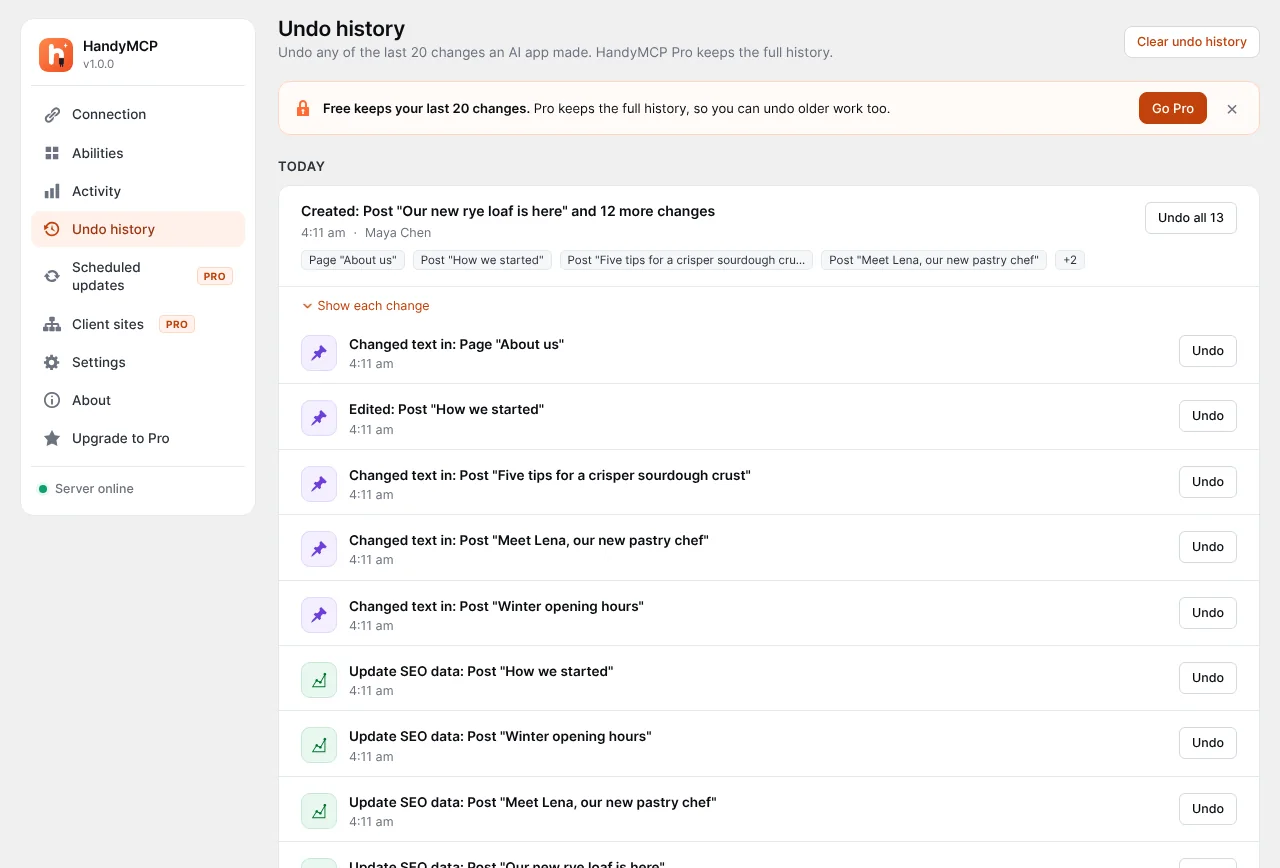
The free plugin keeps the last 20 changes. Pro keeps everything for the days set in Settings › Limits › Keep undo history. Raise it to keep changes longer.

The AI edited the wrong page

Undo it from Undo history, then repeat the request with the exact page URL.

05Stock photos and videos

The AI finds few photos, or none from Pexels or Unsplash

  • Without keys, photos come from Openverse only. Add a free key under Settings › Photos.
  • For Unsplash use the Access Key, not the Secret Key, and paste it without spaces.
  • Ask by name: "search Unsplash for a bright office photo". Start a new chat after saving keys.

There are no video tools

Video search needs a Pexels key (Unsplash has no videos). Save the key, update HandyMCP to the latest version and start a new chat.

Photos or videos cannot be added to the media library

Your host may block outgoing downloads or limit upload size. Ask them to allow requests to images.pexels.com, videos.pexels.com and images.unsplash.com, and to allow uploads of at least 64 MB.

06Scheduled updates

Scheduled updates did not run

  • Check Automatic updates is on and the schedule shows "Next run" under the Schedule title.
  • The schedule uses WP-Cron, which runs when someone visits the site. On quiet sites, ask your host to run WP-Cron from a real server cron.
  • Click Save and run now to test it.

An update was rolled back

HandyMCP found an error on the home page, login, REST API or admin-ajax after the update and restored the old version. The email report names the plugin. Tick it under Never update until its developer fixes the issue.

I do not get the update report email

  • Check the address under Email the report to and the frequency setting.
  • Make sure your site can send email. An SMTP plugin such as WP Mail SMTP helps.

07White label and client sites

I hid the plugin and cannot find the settings

  • Open the private link you saved, signed in as an administrator.
  • Or ask your AI app: "turn white label off".
  • Or delete the handymcp_hide_from_admins option with your host's database tool.
  • It also shows itself after 30 days without MCP activity.

A client site will not connect to the hub

  • The client site needs HandyMCP installed and active, and an access token with Site admin.
  • Paste the full address with https://.
  • A firewall on the client site may block the hub. Allow /wp-json/handymcp/.

A client site shows "token expires soon" or disconnected

Create a new access token on that site and add the site again on the hub. Old tokens stop working on their expiry date.

Client sites are locked on my dashboard

The client sites hub is part of the Agency plan. Upgrade from your account; you keep the same key.

08License and trial

My license will not activate

  • Check the key has no spaces, and the plan has a free site slot. Remove old sites in your account.
  • Your server must reach handymcp.com. Ask your host if outgoing requests are blocked.

My trial key arrived but Pro features are locked

Install HandyMCP Pro (the trial email has the download link), then paste the key under HandyMCP › License. The free plugin alone cannot use a key.

I did not get my trial or license email

Check spam and promotions. You can get your keys again from your account, or contact support.

14-day money-back guarantee

Give your AI the keys, keep the brakes.

Connect your site in a few minutes. Every change is logged, and site edits can be undone in one click.

Undo history in HandyMCP, with changes grouped by task

HandyMCP Pro · 7-day trial

Try every Pro feature, free

Your key arrives by email in under a minute. Nothing to cancel.