

Letting Claude, ChatGPT or Cursor edit your WordPress site saves hours. It also means a machine can change a live page in seconds, and sometimes it changes the wrong thing. If you want AI help without that worry, you need a way to undo AI changes in WordPress that covers more than post text.
HandyMCP is a WordPress plugin that turns your site into an MCP server and saves a copy of everything before an AI app touches it. This page explains what gets saved, how undo works, and how to set it up.
Quick answer: Install HandyMCP and connect your AI app to your own site. Every change the AI makes is saved first and gets a history ID. To undo AI changes in WordPress, open HandyMCP > Undo history and reverse one change, a whole task, or every change on a page, or simply tell the AI “undo that”.
No limits: no daily caps, no credits, no page limits and no per-call fees. Let the AI work as much as you need, knowing site edits can be reversed.
Why you need undo when AI edits WordPress
AI apps are good at WordPress work, but they still make mistakes. They misread a request. They edit the services page when you meant the about page. They rewrite a paragraph you liked. On a test site that does not matter. On a live business site it can mean lost copy, a broken layout or a product with the wrong price.
Many MCP plugins give an AI a way in and stop there. WordPress revisions help a little, but they only store post content. They do not store Elementor layout data, menus, settings, SEO fields, terms or WooCommerce product data. If the AI breaks one of those, revisions cannot bring it back.
HandyMCP saves all of those before it changes them, so a bad edit is a short annoyance, not a lost afternoon.
What HandyMCP saves before each change
Before any write, HandyMCP stores the current state of the thing it is about to change. Undo covers:
- Posts and pages: title, content, excerpt, status and custom fields.
- Elementor layout data: the full layout, so a broken section comes back exactly as it was.
- Menus: items, order and labels.
- Media details: titles, captions and alt text.
- SEO fields: titles, descriptions, focus keywords and noindex in Yoast or Rank Math.
- WooCommerce products: price, sale price, stock, SKU, descriptions and categories.
- Settings and theme options the AI was allowed to change.
- Categories and terms: including recreating a deleted term with its posts.
Deleted content goes to the trash first, never straight out. Every change also returns a history_id to the AI app, so the app knows exactly what it did and can reverse it on request.
What undo cannot reverse
Undo puts back data stored on your site. It cannot pull back things that already left it, so be honest with yourself about these:
- Permanently deleted media files. Deleting a file from the media library removes it from disk. Details like alt text can be restored, the file itself cannot.
- Emails already sent. Order emails, notifications or newsletters cannot be unsent.
- Payments and refunds. Money moved through a payment gateway has to be handled in that gateway.
- Effects on other services. Anything pushed to an outside API, CRM or marketplace stays there.
- Your own edits made after the AI’s change. Undo restores the saved version, which may overwrite later manual work.
For those cases, keep a regular full backup and turn off the tools you do not want the AI to use.
How it works
- You ask. You type a request in Claude, ChatGPT or another MCP client, for example “tighten the copy on the pricing page”.
- The AI calls a tool on your site. The request goes straight to https://your-site.com/wp-json/wpaimcp/v1/mcp. There is no relay or vendor server in the middle.
- HandyMCP saves first. The current version is stored in Undo history before anything is written.
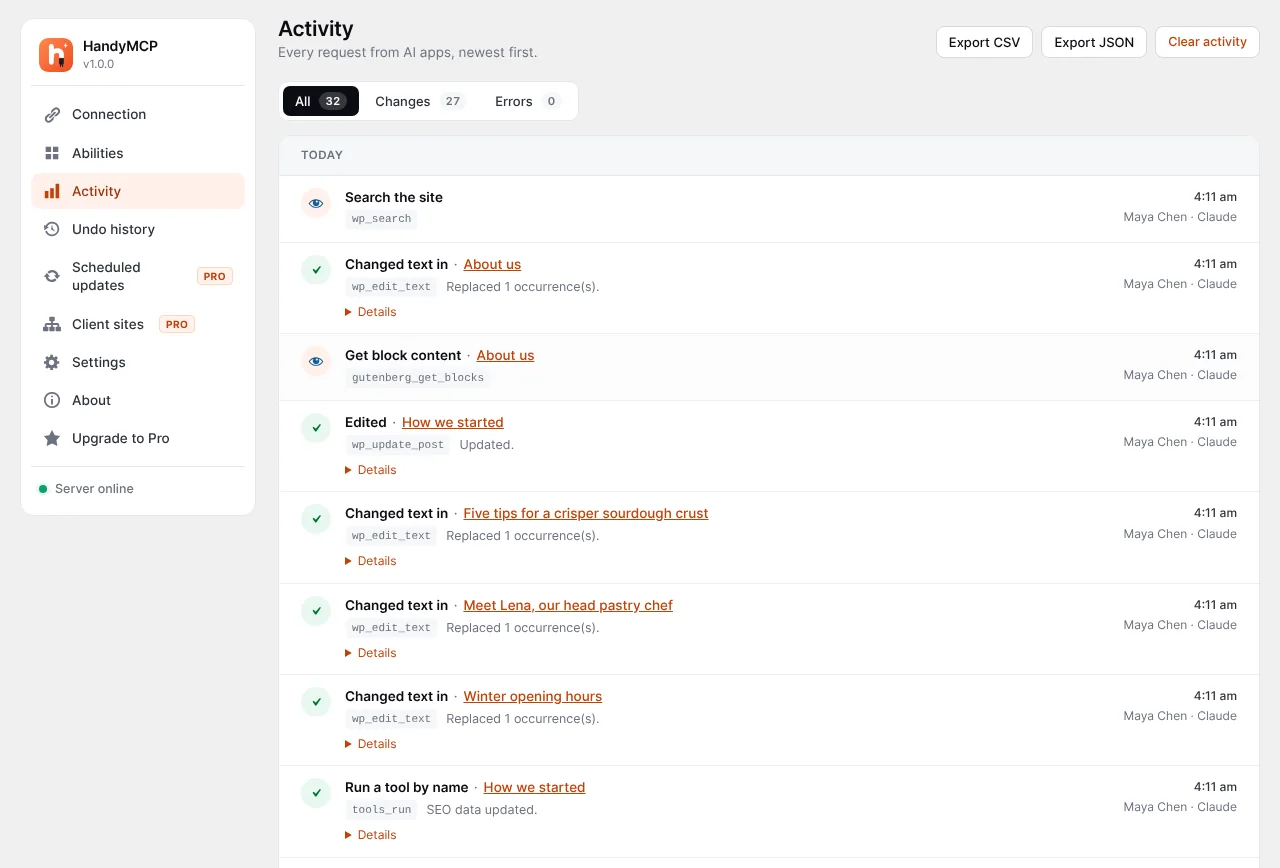
- The change is made and logged. The Activity log records the request, the app and the page touched.
- You review. If you do not like the result, undo it from the admin screen or from the chat.
Three ways to undo
Undo one change
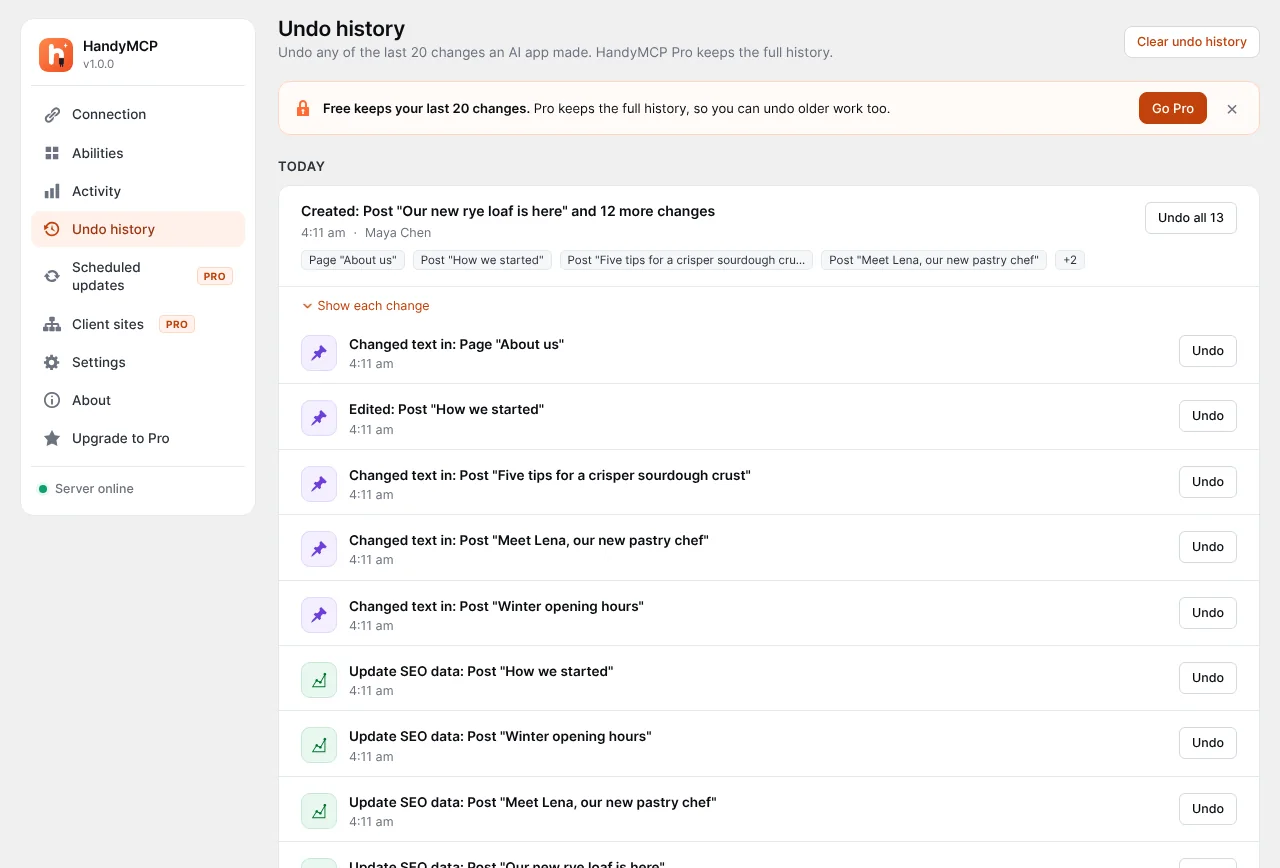
Find the line in Undo history and click Undo. Only that change is reversed. Use this when the AI did five good things and one bad one.
Undo a whole task
When you ask for something big, like “rewrite all the services pages”, every change from that request is grouped as one task. Click Undo all on the task and every page goes back together.
Undo everything on one page
Pick a page and reverse every AI change made to it, no matter how many tasks touched it. Useful when a page has drifted over a week of small edits and you want the original back.
Undo from the chat
You do not have to open wp-admin. Because the AI receives a history ID for every change, you can ask it to reverse its own work. Prompts that work well:
- “Undo the last change you made.”
- “Undo everything you did in this task.”
- “Put the homepage back the way it was before today.”
- “Show me the last 10 changes on this site, then undo the one on the contact page.”
- “You deleted the Events category. Bring it back with its posts.”
More ready-made prompts are on the prompts page.
Undo compared with other options
| What you need back | WordPress revisions | Backup plugin restore | HandyMCP undo |
|---|---|---|---|
| Post and page content | Yes | Yes, whole site | Yes, per change |
| Elementor layout | No | Yes, whole site | Yes |
| Menus | No | Yes, whole site | Yes |
| SEO fields | No | Yes, whole site | Yes |
| WooCommerce products | No | Yes, whole site | Yes |
| Settings and theme options | No | Yes, whole site | Yes |
| Keeps other edits made since | Yes | No | Yes |
| Grouped by AI task | No | No | Yes |
A full backup is still a good idea. But rolling a whole site back to fix one AI edit throws away new orders, comments and your own work. Targeted undo avoids that.
Use cases with real prompts
Copy rewrites
“Rewrite the about page in a warmer tone, keep it under 300 words.” If you prefer the old version, undo that one change.
Elementor layout edits
“Move the testimonials section above pricing and make the hero heading shorter.” If the section spacing breaks, undo restores the exact layout data. See Elementor MCP for more.
Bulk SEO
“Write SEO titles and meta descriptions for every blog post missing one.” Bulk SEO updates of up to 50 posts share one undo, so one click puts them all back.
Store changes
“Set a 15 percent sale price on all products in the Mugs category.” If the wrong category was picked, undo the task. See WooCommerce MCP.
Safety that works before you need undo
Undo is the last line of defence. HandyMCP adds checks so you reach for it less often.
- Live page guard. Ask for a “redesign”, “new version” or “draft” and the AI gets a draft copy. A published page is only replaced when you clearly ask.
- Conflict check. If someone edited the page after the AI read it, the save is refused instead of overwriting the newer edit.
- Confirmation for destructive tools. Deleting needs explicit confirmation after you agree. Bulk WooCommerce changes over 10 products ask first.
- Permissions. Switch whole tool groups or single tools off, or use read only mode.
- Activity log. Every request, app, tool and page is recorded.
- No raw SQL or arbitrary PHP tools. Secrets like API keys and payment gateway keys are never returned.
- Prompt injection protection. Site content is treated as data, not instructions.
For a deeper look, read is it safe to let AI edit a live WordPress site.
Set it up in a few minutes
- Check the requirements: WordPress 6.2 or newer, PHP 7.4 or newer, HTTPS and an administrator account.
- Install and activate HandyMCP. Steps are in the install guide.
- Open HandyMCP > Connection and copy your server URL.
- Add it to your AI app. In Claude it is Settings > Connectors > Add custom connector. Menu names can change, so follow the per-app steps on the Connection screen. Full guide: connect Claude to WordPress.
- Sign in through OAuth on your own site and choose scopes, or use a personal access token.
- Make a small test edit, then undo it so you know where everything is.
Common mistakes and troubleshooting
- Editing by hand after the AI, then undoing. Undo restores the version saved before the AI’s change. Your later manual edit may be lost, so check the page or use WordPress revisions.
- Running out of free history. Free keeps the last 20 changes. On a busy day of AI edits, older ones drop off. Pro keeps full history.
- Cached pages. If an undo does not show on the front end, purge the cache. HandyMCP can purge it for you.
- Retention too short. Check the retention period in Settings.
Connection problems are covered in WordPress MCP not connecting.
Free vs Pro
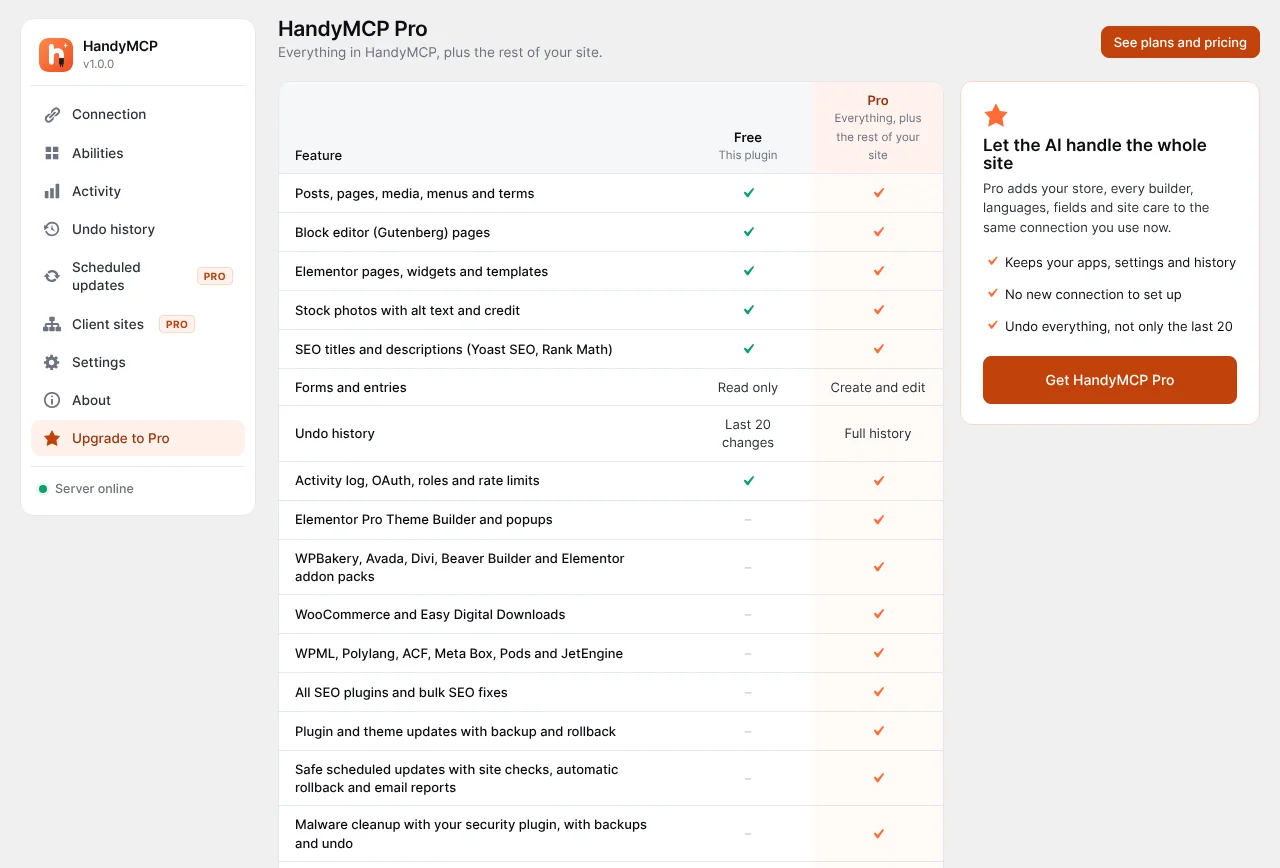
| Feature | Free | Pro |
|---|---|---|
| Undo history | Last 20 changes | Full history |
| Undo one change, task or page | Yes | Yes |
| Activity log | Yes | Yes |
| Elementor, Gutenberg, menus, SEO, basic WooCommerce | Yes | Yes |
| Other builders (Divi, WPBakery, Beaver Builder and more) | No | Yes |
| Plugin and theme updates with automatic restore on error | No | Yes |
| File editing with backup and auto revert | No | Yes |
Plans are on the pricing section, with a 14-day money-back guarantee.
Frequently asked questions
Can I undo changes Claude made to my WordPress site?
Yes. With HandyMCP, every change Claude makes is saved first. Open Undo history and click Undo, or ask Claude to undo it using the history ID it received.
Does WordPress have a built-in way to undo AI edits?
Only partly. Revisions store post content, but not Elementor layouts, menus, settings, SEO fields or WooCommerce data. HandyMCP covers those too.
How long are changes kept?
You set the retention period in Settings. Free keeps the last 20 changes. Pro keeps full history.
What if the AI deletes a page?
Deleting needs your confirmation, and deleted pages go to the trash first. The change is also in Undo history.
Does undo remove my own edits too?
Undo puts back the version saved before the AI’s change. If you edited by hand afterwards, check the page after undoing.
Does undo work with ChatGPT and Cursor too?
Yes. Undo lives on your site, so it works the same for any connected MCP client.
Can I undo a bulk SEO update?
Yes. Bulk SEO updates of up to 50 posts share one undo, so a single click reverses them all.
Ready to try it? Install HandyMCP free and connect your AI app, or read the full guide to undoing AI changes in WordPress.