
WordPress MCP not connecting? You added your site to Claude, ChatGPT or Cursor, and it will not connect. Or it connects, then nothing works. This is frustrating, but WordPress MCP not connecting almost always comes down to a short list of causes, and most take a few minutes to fix.
Below are the 12 fixes we see most often. Each one has the symptoms, the cause and the fix. Work through them in order: the early ones are the most common.
Quick answer: WordPress MCP not connecting almost always comes from four things: the site is not on HTTPS, a security plugin or firewall blocks the REST API, a cache serves stale sign-in pages, or the connection was approved with too few permissions. Run the connection check on HandyMCP > Connection first, then work through the 12 fixes below in order.
Before you start: run the connection check
Open HandyMCP > Connection in wp-admin. It shows your server URL, steps for 20+ apps, your access tokens, active sessions and a connection check. Run the check before anything else. When MCP not connecting is the problem, it often points straight at the cause.
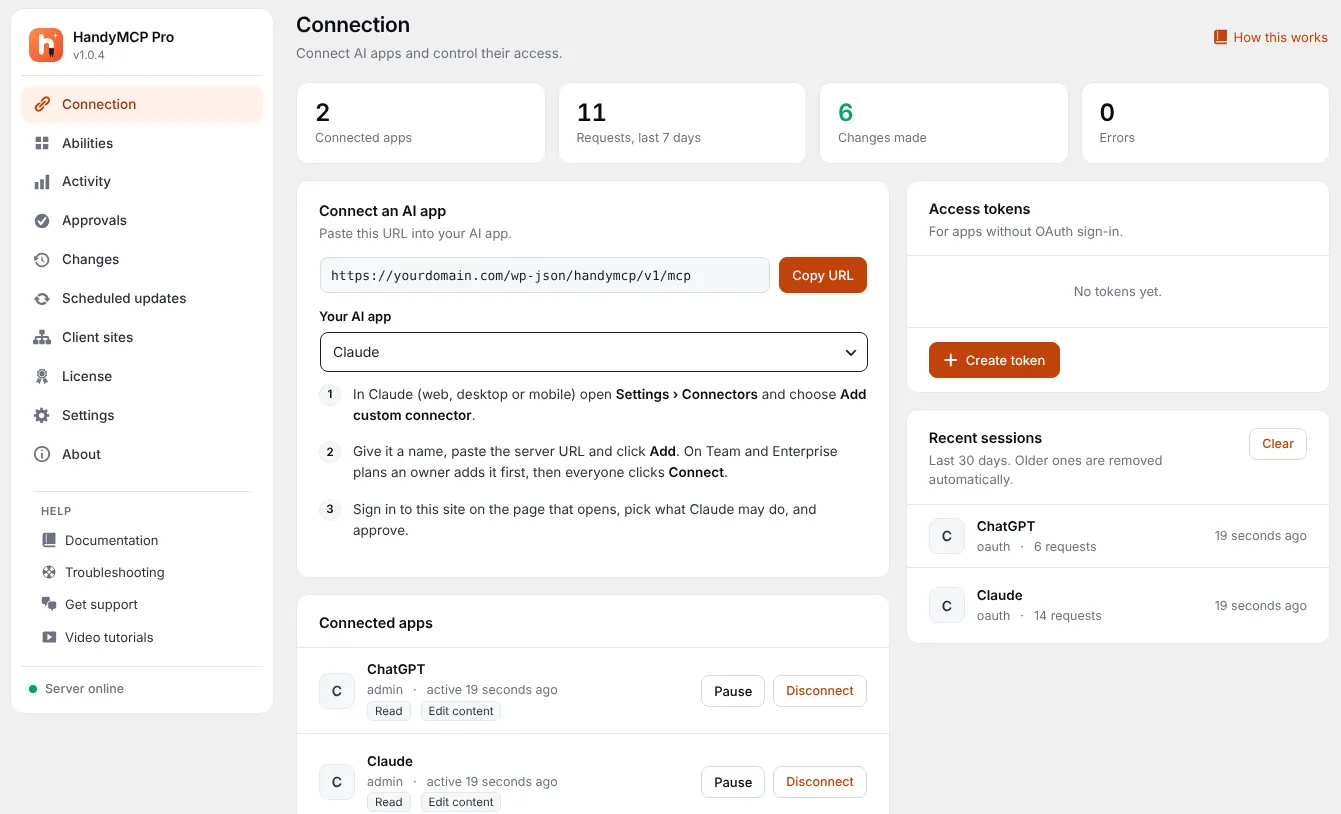
Also confirm the basics: WordPress 6.2 or newer, PHP 7.4 or newer, HTTPS, and you are signed in as an administrator. Your server URL should look like this:
https://your-site.com/wp-json/handymcp/v1/mcpPart 1: the connection fails
1. The site is not on HTTPS
Symptoms: the AI app refuses the URL, or says it cannot reach the server.
Cause: AI apps only connect to MCP servers over HTTPS. A URL starting with http, or an expired or self-signed certificate, will fail.
Fix: make sure the URL starts with https and the certificate is valid. Open the site in a browser and check for a padlock. If your host offers free certificates, turn one on, then update the WordPress Address and Site Address in Settings > General.
2. The REST API is not reachable
Symptoms: the connection times out or returns an error page.
Cause: the MCP endpoint lives under the WordPress REST API. If the REST API is disabled or broken, the MCP server is too.
Fix: open https://your-site.com/wp-json/ in a private window. You should see JSON. If you see an error, a login page or a blank page, something is blocking the REST API. Check for plugins that disable it, and re-save Settings > Permalinks to refresh rewrite rules.
3. A security plugin is blocking requests
Symptoms: the REST API works in your browser, but the AI app gets 401 or 403 errors.
Cause: security plugins such as Wordfence, Solid Security or All In One WP Security can block REST requests from outside apps.
Fix: allow /wp-json/handymcp/ in the plugin’s firewall or REST settings. If you are not sure which plugin is responsible, pause security plugins one at a time on a staging copy and test again.
4. A CDN or host firewall is blocking it
Symptoms: requests fail with a challenge page, a 403 or a “blocked” message, even with security plugins off.
Cause: CDN bot rules and some host firewalls treat requests from AI apps as bots.
Fix: add a rule in your CDN or host panel that skips bot checks and challenges for /wp-json/handymcp/. Ask your host if you cannot find the setting.
5. The Authorization header is removed
Symptoms: token-based clients such as Claude Code or Cursor say the token is missing or invalid, even though it is correct.
Cause: some Apache and nginx setups strip the Authorization header before it reaches WordPress, so the token never arrives.
Fix: run the connection check, then ask your host to pass the Authorization header through to PHP. Also check the header format. In Claude Code:
claude mcp add --transport http wordpress https://your-site.com/wp-json/handymcp/v1/mcp --header "Authorization: Bearer TOKEN"In Cursor, ~/.cursor/mcp.json needs a "url" and "headers": {"Authorization": "Bearer TOKEN"}. See Claude Code and Cursor guides.
Part 2: sign-in problems
6. The sign-in page loops
Symptoms: you approve the connection, then land back on the login or consent page again and again.
Cause: a caching plugin or host cache is caching the login or OAuth pages, so you keep getting an old copy.
Fix: exclude /wp-login.php and the OAuth consent routes from your page cache, then clear the cache. Try again in a private window.
7. Your user role is not allowed
Symptoms: sign-in works for the site owner but fails for a colleague, or says you do not have permission.
Cause: by default only Administrators can connect.
Fix: allow other roles in HandyMCP > Settings. Remember each user can only do what their WordPress role allows, so an Author still cannot edit other people’s posts.
8. The token is revoked, paused or mistyped
Symptoms: it worked yesterday, today it says unauthorised.
Cause: the personal access token was paused or revoked, or was copied with a missing character. Tokens are shown once and stored hashed, so you cannot view an old one again.
Fix: check the Access tokens list on the Connection screen. Resume it, or create a new token and update your app config. Note that cookie login never works for the MCP endpoint: you need OAuth or a token.
Part 3: connected, but it does not work
9. The AI says it cannot change anything
Symptoms: the AI reads pages fine but says it has no permission to edit.
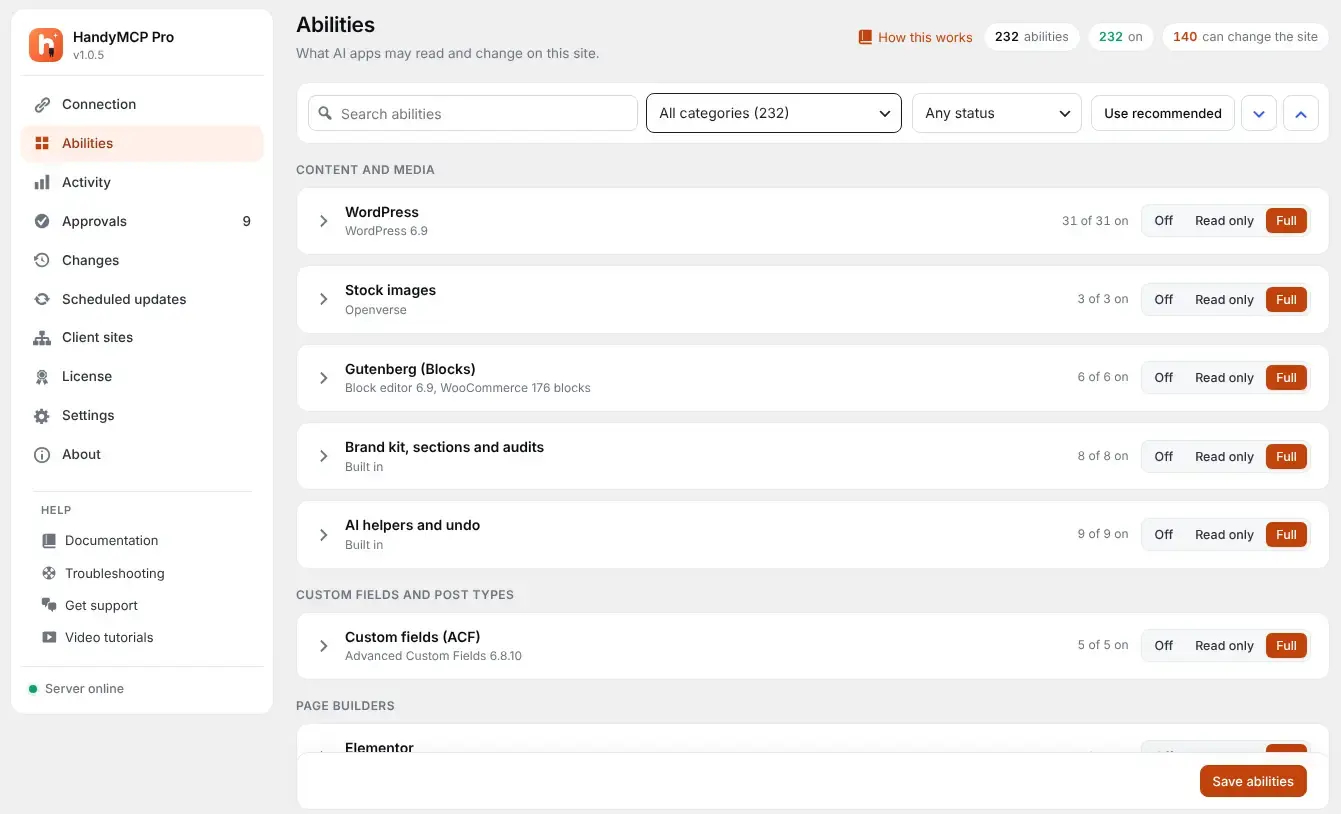
Cause: you approved the read only scope, or read only mode is on under Abilities.
Fix: turn off read only mode, or reconnect and approve the scope you need: edit content, manage the store or manage the site.
10. A tool is missing
Symptoms: the AI says it has no tool for WooCommerce, Elementor or forms.
Cause: the tool group is switched off under Abilities, the plugin it needs is not active, or the feature is part of Pro (for example Theme Builder or other page builders).
Fix: switch the group on, activate the plugin, and check the free vs Pro list on the pricing section. Then start a new chat so the app reloads the tool list.
11. Changes do not show on the site
Symptoms: the AI says it saved the change, but the front end looks the same.
Cause: your page cache, CDN cache or Elementor CSS is serving the old version.
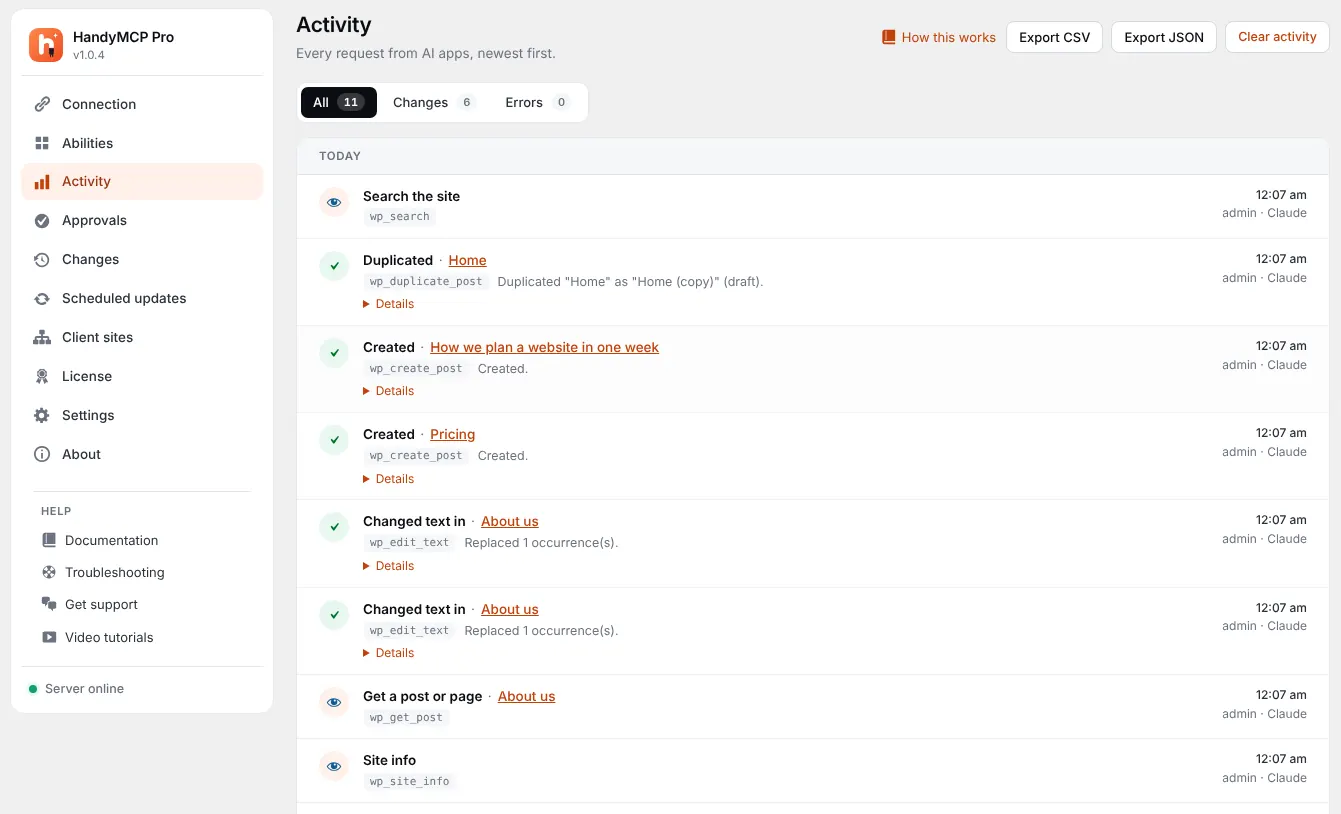
Fix: ask the AI to purge the cache, or clear it in your caching plugin. For Elementor pages, ask it to regenerate the CSS. Check the Activity log to confirm the change really happened.
12. The AI asks permission every time
Symptoms: every single action pops up an approval prompt.
Cause: this is the AI app’s own setting, not your site.
Fix: in Claude, set the connector’s tools to always allow if you are comfortable. In ChatGPT, approve actions as they come. Menu names can change between app versions. Note that HandyMCP will still ask you to confirm destructive actions and WooCommerce changes over 10 products, by design.
App-specific checks
- Claude: Settings > Connectors > Add custom connector. On Team or Enterprise, an owner adds it and members click Connect. Full guide.
- ChatGPT: Settings > Apps, Developer mode on, create an app, paste the URL, sign in with OAuth. Full guide.
- Claude Code: run
/mcpto check status or sign in with OAuth. Use--scope useror--scope projectto choose where it is saved. - Cursor: check the JSON in
~/.cursor/mcp.jsonis valid.
Mistakes that cause MCP not connecting
- Pasting the site homepage instead of the full server URL.
- Testing while logged in, which hides REST API blocks that hit outside apps.
- Running two MCP plugins at once, which confuses the AI with overlapping tools.
- Changing security rules on a live site without noting what you changed.
MCP not connecting? A 10 minute diagnosis routine
When MCP not connecting is the only thing you know, guessing wastes time. This routine narrows it down in about ten minutes, and each step rules out a whole group of causes.
- Open the server URL in a browser. Paste
https://your-site.com/wp-json/handymcp/v1/mcpinto a private window. A short JSON error about a missing token is good news: the server is reachable. A challenge page, a login page or a host error page means something in front of WordPress is in the way. - Run the connection check. It makes the same requests an AI app makes from outside, so it sees blocks that your logged-in browser does not.
- Try an access token. Create a token on the Connection screen and connect Claude Code or Cursor with it. If the token works but OAuth does not, the problem is in sign-in (discovery, cache or consent page). If the token also fails, the problem is the endpoint itself (firewall, REST API or header).
- Check the Activity log. If the AI app’s request appears in the log, WordPress received it, so the block is not in front of the site. If nothing appears, the request never arrived.
- Remove and re-add the connector. AI apps cache failed registrations. After any fix, delete the old connector and add it again.
Most people find the cause by step three. Write down what each step showed, because if you need help from your host or from us, that short list is the fastest way to a fix.
MCP not connecting on specific hosts
Some hosts add their own layers between AI apps and WordPress. If your MCP not connecting problem started after a move to a new host, check this list:
| Host or service | Usual cause | What to do |
|---|---|---|
| SiteGround | Reserved /.well-known path, anti-bot captcha | Update HandyMCP; see the SiteGround MCP guide |
| Cloudflare | Bot Fight Mode, managed challenge | Skip rule for /wp-json/handymcp/; see the Cloudflare guide |
| Hosts with Imunify360 | Bot protection on REST requests | Ask the host to allow the MCP paths |
| Managed WordPress hosts | Server cache on sign-in pages | Ask support to exclude the OAuth paths from cache |
| Sucuri or other cloud firewalls | Firewall blocks non-browser clients | Allowlist the MCP path in the firewall dashboard |
The pattern is the same everywhere: the AI app’s servers are not a browser, so anything that expects a browser (a captcha, a JavaScript challenge, a cookie check) leaves MCP not connecting even though the site looks fine to you.
Common MCP not connecting error messages
Each AI app words its errors differently. This list maps the messages people send us to the fix above:
- “Couldn’t register with your site’s sign-in service” in Claude: MCP not connecting because discovery failed. See fixes 2, 4 and 6.
- “Error creating connector” in ChatGPT: often HTTPS or a firewall. MCP not connecting here usually means fix 1 or 4.
- “401 Unauthorized” in Claude Code or Cursor: MCP not connecting because the token is wrong or stripped. See fixes 5 and 8.
- “403 Forbidden”: a security plugin, host firewall or CDN. MCP not connecting with a 403 points to fixes 3 and 4.
- Timeouts with no message: MCP not connecting because the REST API is slow or blocked. See fix 2.
- A loop back to the login page: MCP not connecting because of a cached sign-in page. See fix 6.
If your MCP not connecting message is not on this list, the connection check result is still the best starting point. Send it to support and we will tell you what MCP not connecting means in your case.
Why your browser works but the AI app does not
This is the most confusing part of MCP not connecting. Many people decide MCP not connecting must be a plugin bug. You open your site and everything loads. The REST API shows JSON. Yet Claude says it cannot reach the server. The reason is that your browser and the AI app reach the site in different ways:
- Different IP addresses. The request comes from the AI company’s servers, not your home. Firewalls often trust your IP and challenge theirs.
- No cookies. You are logged in to WordPress, so your browser sends cookies. The AI app has none and must use OAuth or a token.
- No JavaScript. Challenge pages run JavaScript to prove you are human. A server cannot pass them.
- Different headers. Some servers strip the Authorization header that apps use and browsers do not.
That is why the connection check matters: it tests from the outside, the way an AI app does. The Model Context Protocol documentation explains how remote MCP servers and clients talk, if you want the technical background.
MCP not connecting after it used to work
If the connection worked last week and now fails, something changed. Look at what changed around the time it broke:
- A plugin update. Security and cache plugins sometimes add new REST or bot rules in an update.
- A new CDN or firewall rule. Someone may have turned on stricter bot protection.
- An expired certificate. HTTPS that lapsed leaves MCP not connecting at once.
- A token that was revoked or a user whose role changed.
- A site move. A new domain needs a new connector with the new server URL.
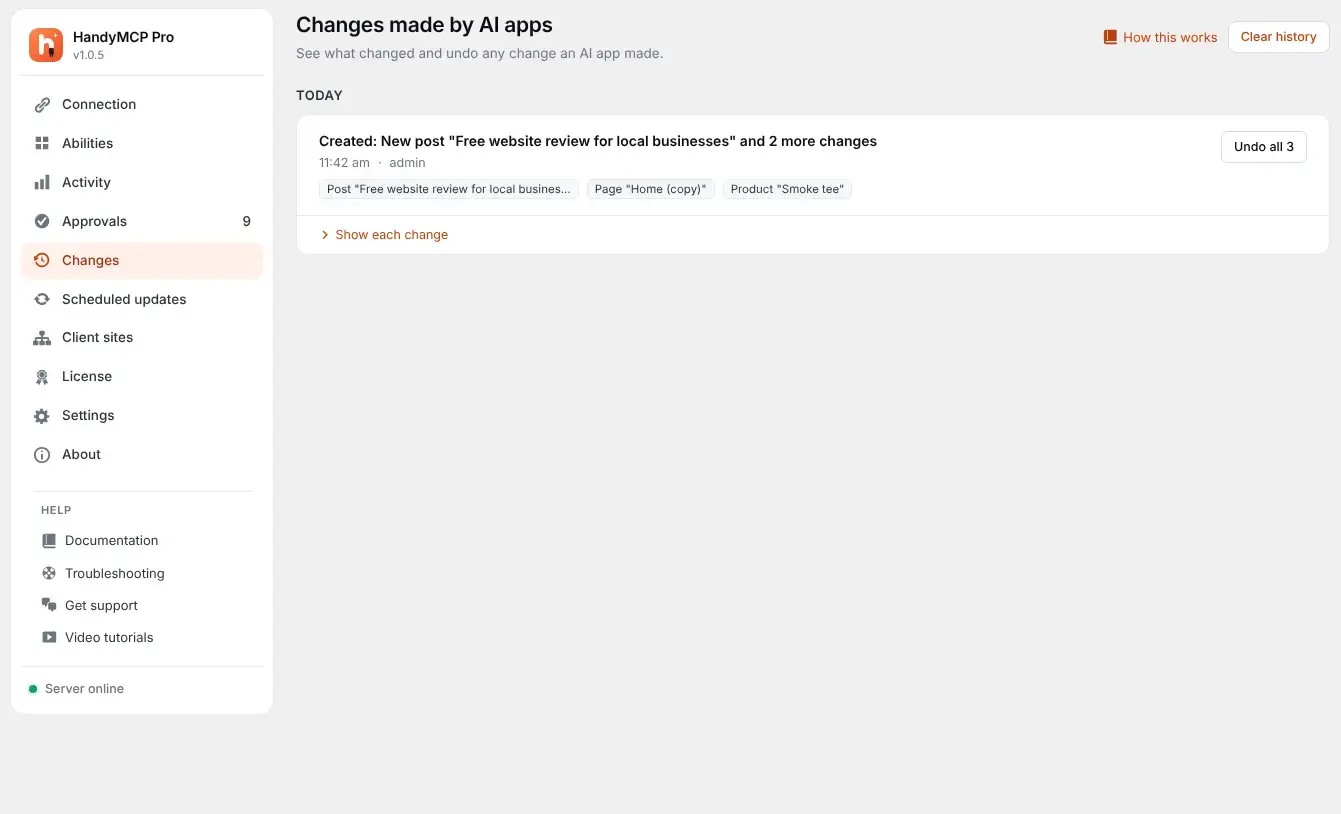
The Activity log and your host’s change history are the quickest places to check. If you use HandyMCP Pro, the Undo history also shows which settings changed and when.
How to stop MCP not connecting from happening again
A few habits keep the connection steady once it works:
- Keep the MCP paths in your firewall, CDN and cache exclusions, and note them in your site documentation so the next person does not remove them.
- Run the connection check after big changes: a new security plugin, a host move or a CDN change.
- Keep one MCP plugin active. Two plugins answering the same sign-in paths will cause MCP not connecting errors that come and go.
- Keep a backup access token for one trusted app, so you can still work while a sign-in problem is being fixed.
- Keep HandyMCP updated. New versions add checks for more hosts and fix common blocks automatically.
Frequently asked questions
Why is my WordPress MCP not connecting?
Usually because something in front of WordPress blocks requests from AI apps: missing HTTPS, a firewall, a CDN bot rule, a security plugin or a cached sign-in page. Run the connection check to see which one.
Does a VPN or my location cause MCP not connecting?
No. The AI app connects from its own servers, not your device, so your VPN does not affect it. Firewall rules on your site that block certain countries can, though.
Why is my WordPress MCP not connecting?
The most common causes are no HTTPS, a blocked REST API, a firewall or security plugin, or a cached sign-in page. Run the connection check first.
How do I test the WordPress REST API?
Open https://your-site.com/wp-json/ in a private window. You should see JSON, not an error or login page.
Can I connect over HTTP on a local site?
AI apps expect HTTPS. Set up a local certificate or use a staging site with HTTPS.
Why does Claude Code say my token is invalid?
Check the Bearer header format, check the token is not paused or revoked, and ask your host whether the Authorization header is being stripped.
Can editors connect, or only admins?
Only admins by default. Allow other roles in Settings. Each user is limited to what their role allows.
The AI connected but tools are missing. Why?
The tool group may be off, the needed plugin inactive, or the feature part of Pro. Start a new chat after changing it.
Where can I see what the AI tried to do?
The Activity log lists every request, the app, the tool and the page touched.
Still stuck? Copy the result of the connection check and contact support, or read the troubleshooting docs.