
If you run a WordPress agency, most of your week goes on small jobs spread across many sites. A phone number changes. A plugin needs updating. A client wants a sale banner by Friday. None of it is hard, but it adds up, and it pulls your best people away from the work clients actually pay a premium for.
AI can take a real share of that load, but only if it is set up the right way. This guide walks through how to use AI for WordPress agencies in a way that is fast, safe for live client sites, and easy to explain to the people who pay your invoices.
Quick answer: Connect an AI app like Claude or ChatGPT to each client site through an MCP plugin such as HandyMCP, keep permissions tight, and rely on the Activity log and undo history so every change is visible and reversible. On the Agency plan, the Client sites hub links many sites so one AI connection can work across all of them. White label, included in Pro and Agency, lets you rename or hide the plugin on client sites.
What AI for WordPress agencies actually means
There are two very different things people call “AI for WordPress”. The first is a writing assistant inside the editor that drafts paragraphs. Useful, but it does not do the work of running a site.
The second is an AI app that can act on the site itself: read pages, edit content, update plugins, fix SEO fields, change product prices. That is what MCP (Model Context Protocol) makes possible. MCP is an open standard that lets AI apps talk to tools in a structured way. If you want the full background, read what MCP is in plain English.
HandyMCP is a WordPress plugin that turns a site into an MCP server. It runs on the client’s own site. There is no relay in the middle, no vendor account, and no usage fee or limits. Your AI app connects to the site directly, and the plugin decides what it is allowed to do.
Why this matters for an agency
For a freelancer with three sites, logging in by hand is fine. For an agency with thirty or three hundred, the maths changes. Every login, every page hunt and every “where was that setting again” costs minutes, and those minutes are usually not billable.
- Care plans get cheaper to deliver. Routine updates, checks and small fixes take less hands-on time.
- Junior staff do more. A clear prompt list lets newer team members handle requests that used to need a senior developer.
- Turnaround is faster. “Change the opening hours on all five location pages” becomes one request instead of five edits.
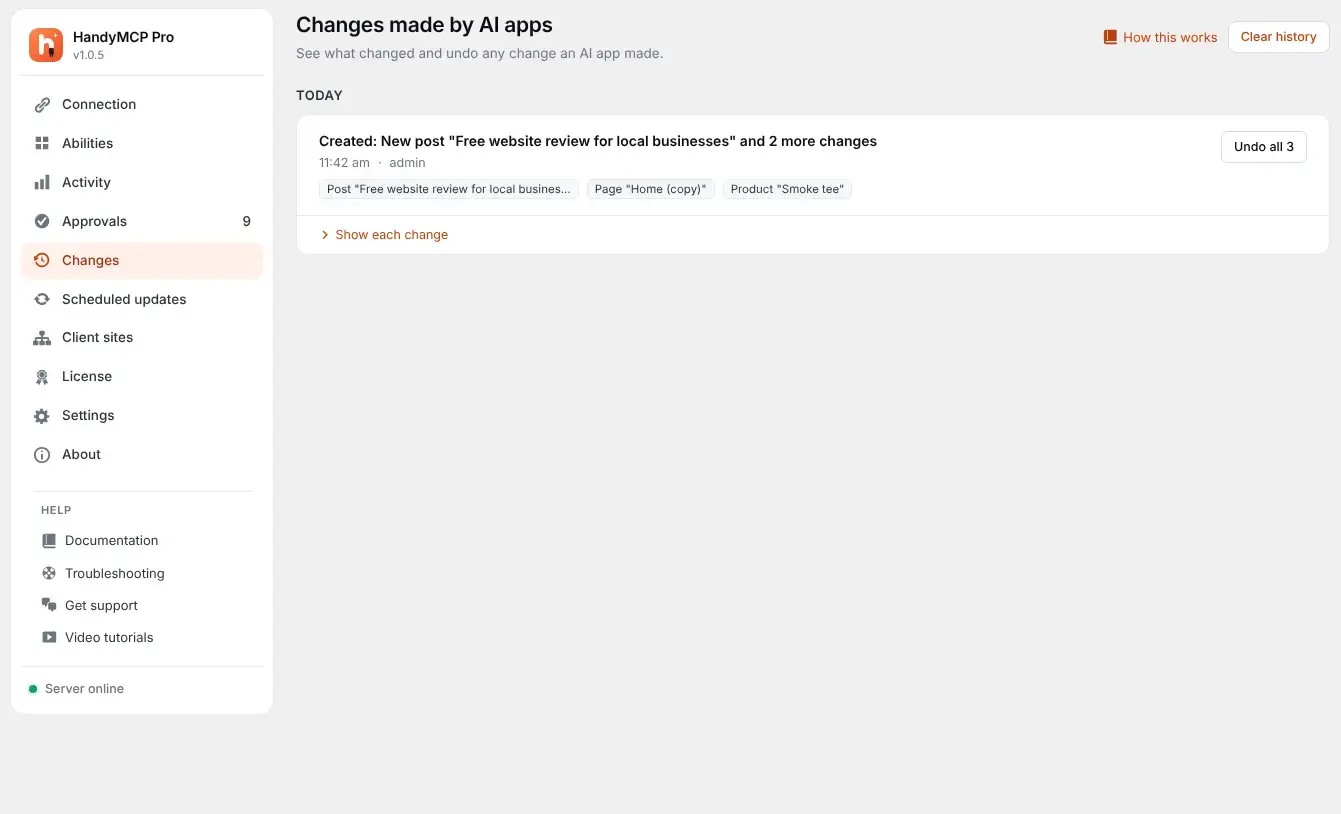
- You keep a record. Every request the AI makes is logged, which helps with client reporting and disputes.
Where AI saves agencies the most time
Monthly care plans
Plugin and theme updates are the classic care plan task. With HandyMCP Pro the AI can check requirements, take a zip backup, update plugins one by one, run a health check on the home and login pages, and restore automatically if something breaks. Scheduled updates with reports are also part of Pro. The full process is covered in how to update WordPress plugins safely with AI.
Content requests
Most client emails are content edits. Add a team member. Swap a photo. Change a price on the services page. These work in the free plugin, which covers posts, pages, menus, media, Gutenberg blocks and Elementor layouts.
SEO clean-ups
Missing meta descriptions are common on older client sites. The free plugin can write SEO titles, descriptions and focus keywords in Yoast or Rank Math, up to 50 at once with a single undo. Pro adds SEO audits, search and replace, and redirects. See AI SEO titles and meta descriptions for prompts.
WooCommerce clients
Store basics like product edits, stock and the low stock report are free. Pro adds variations, coupons, refunds, sales reports and bulk price updates by percent. Bulk changes over 10 products ask for confirmation first.
Security work
Pro includes a malware scan that checks core files against official versions, looks for suspicious code in plugins, themes and uploads, and checks the database for injected scripts. Suspicious files are quarantined instead of deleted.
One connection across many client sites
Connecting your AI app to thirty sites one at a time is messy. You end up with a long list of connectors and no easy way to tell which one is which.
The Agency plan adds the Client sites hub. You link client sites to one hub and see each site’s WordPress version, pending updates and AI activity in one place. One AI connection then works across the linked sites, so you can ask for work on several sites in the same conversation.
Each linked site still keeps its own permissions, Activity log and undo history. Linking a site to the hub does not loosen its rules.
Prerequisites before you start
- WordPress 6.2 or newer and PHP 7.4 or newer on each client site.
- HTTPS on every site. MCP connections need it.
- An administrator account on each site for the first setup.
- An AI app that supports MCP: Claude, ChatGPT, Claude Code, Cursor, VS Code, Windsurf, Gemini CLI or another MCP client.
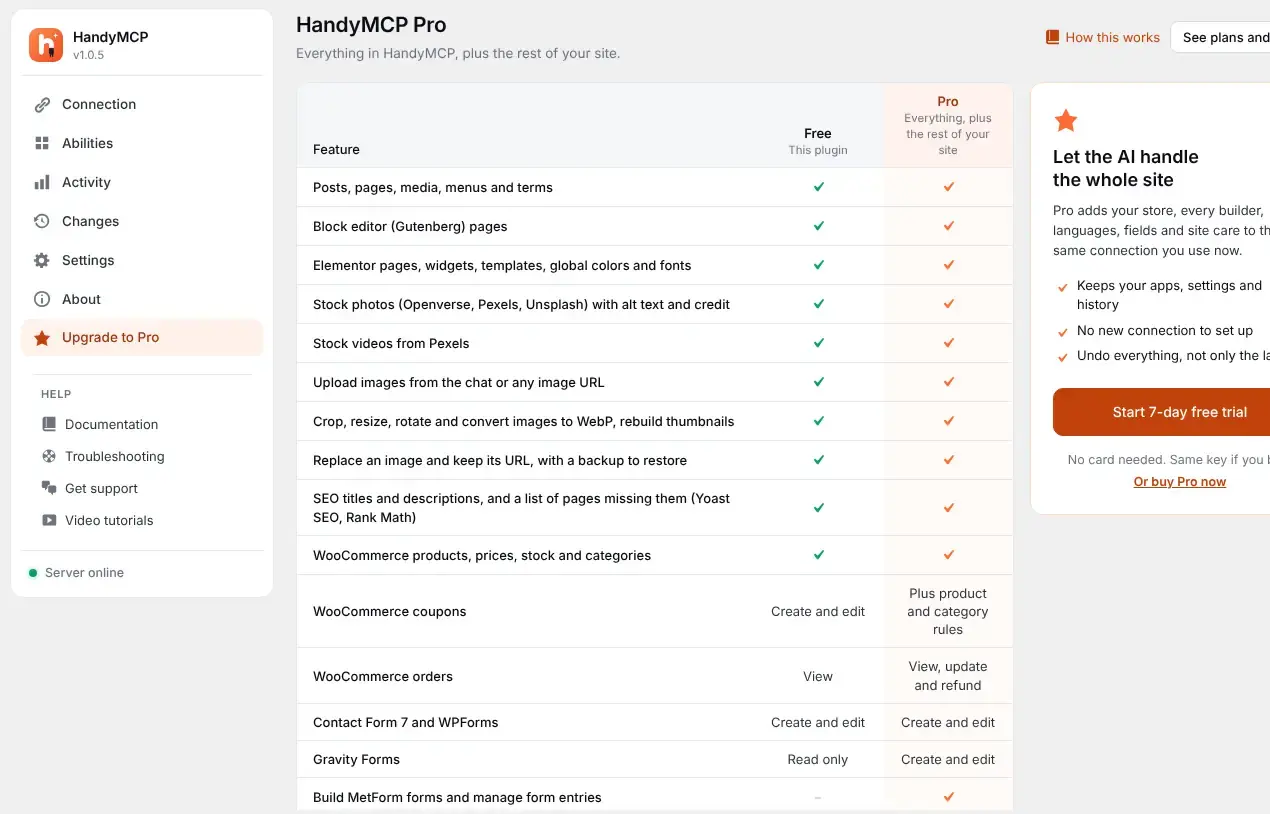
- The right plan: free for single sites and basic work, Pro for updates and white label, Agency for the Client sites hub. Check pricing for current options.
Step by step: setting up AI across client sites
- Start on your own site. Install HandyMCP on your agency site first. Learn how it behaves before you touch a client’s site. The install guide covers the details.
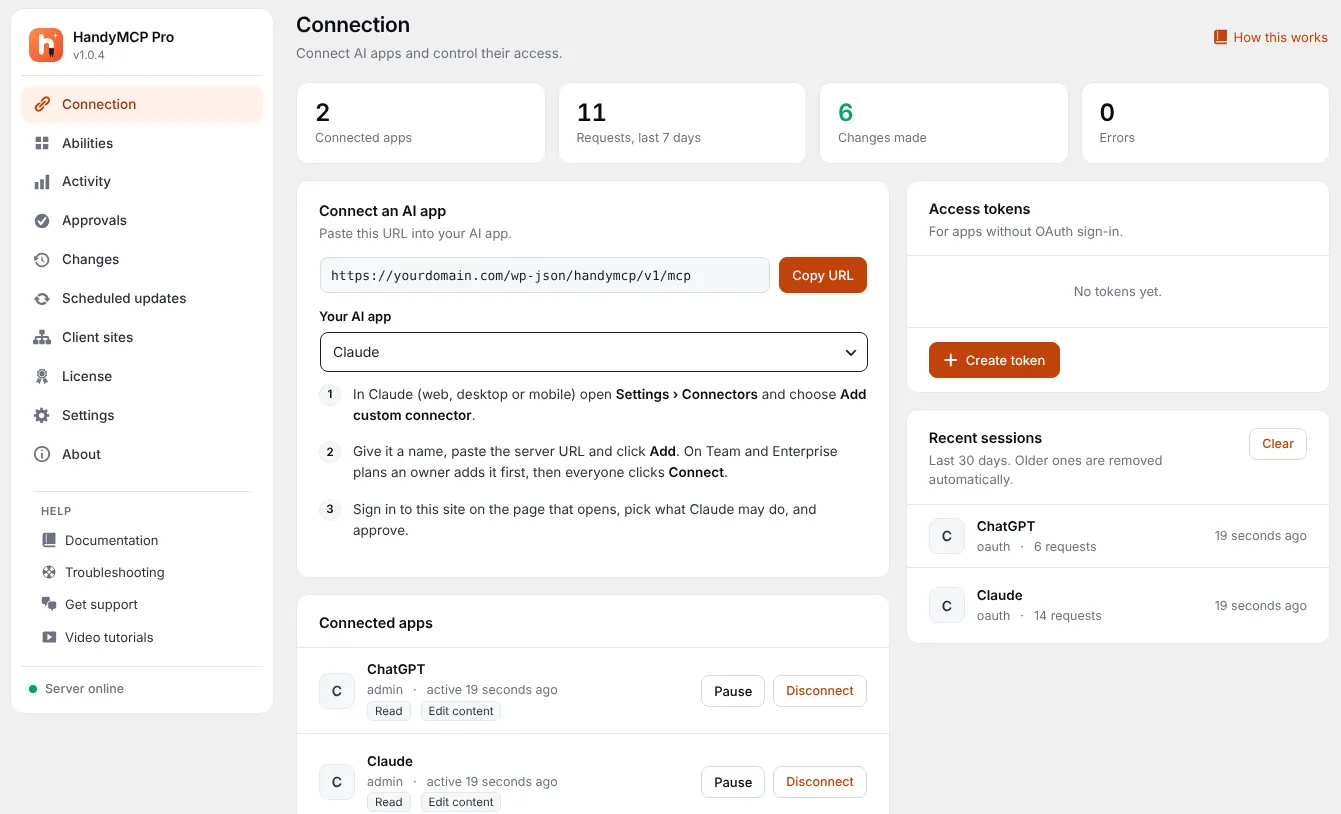
- Connect your AI app. Go to HandyMCP > Connection. You will see the server URL, which looks like
https://your-site.com/wp-json/handymcp/v1/mcp, plus steps for more than 20 apps and a connection check. For Claude, follow connect Claude to WordPress. - Pick one friendly client. Choose a client you trust and a site that is not mission critical. Run your common tasks there for a couple of weeks.
- Set permissions. On the Abilities screen, switch off tool groups you do not need and consider read only mode for sites where you only want reports.
- Turn on white label if you want it. On Pro and Agency you can rename the plugin, add your logo, or hide it from wp-admin.
- Link sites to the hub. On the Agency plan, add client sites to the Client sites hub in small batches.
- Write your prompt list. Save the prompts that worked into a shared document your whole team uses.
Sign-in options for teams
HandyMCP supports two ways to sign in. OAuth 2.1 with PKCE shows a consent page on the client’s own site, where you pick the scopes: read only, edit content, manage the store, or manage the site. Personal access tokens are the other option. They are stored hashed, shown once, and can be paused or revoked at any time.
Cookie login is never accepted by the MCP endpoint, so a logged-in browser session cannot be hijacked to run tools.
By default only Administrators can connect. You can allow other roles in Settings, and each user can only do what their WordPress role already allows. An Author cannot edit someone else’s posts through AI any more than they could by hand.
Example prompts agencies use
Good prompts name the site, the scope and the outcome. Here are a few to start from:
On the bakery site, change the opening hours on the Contact page and the footer to 8am to 4pm, Monday to Saturday. Show me what you changed.List every published page with a missing SEO meta description. Write one for each, under 155 characters, and save them in one batch.Check pending plugin updates on this site. Take a backup, update them one at a time, and stop if the home page or login page fails the health check.Across the linked client sites, tell me which ones have pending core or plugin updates. Do not change anything yet.Summarise every change the AI made on this site in the last 30 days from the Activity log, in plain language I can send to the client.More ideas are on the prompts page and in Claude prompts for WordPress.
Keeping clients comfortable
White label
Some clients are relaxed about AI. Others get nervous when they see an unfamiliar plugin. White label, included in Pro and Agency, lets you rename the plugin, add your logo, or hide it from wp-admin entirely.
Logs you can share
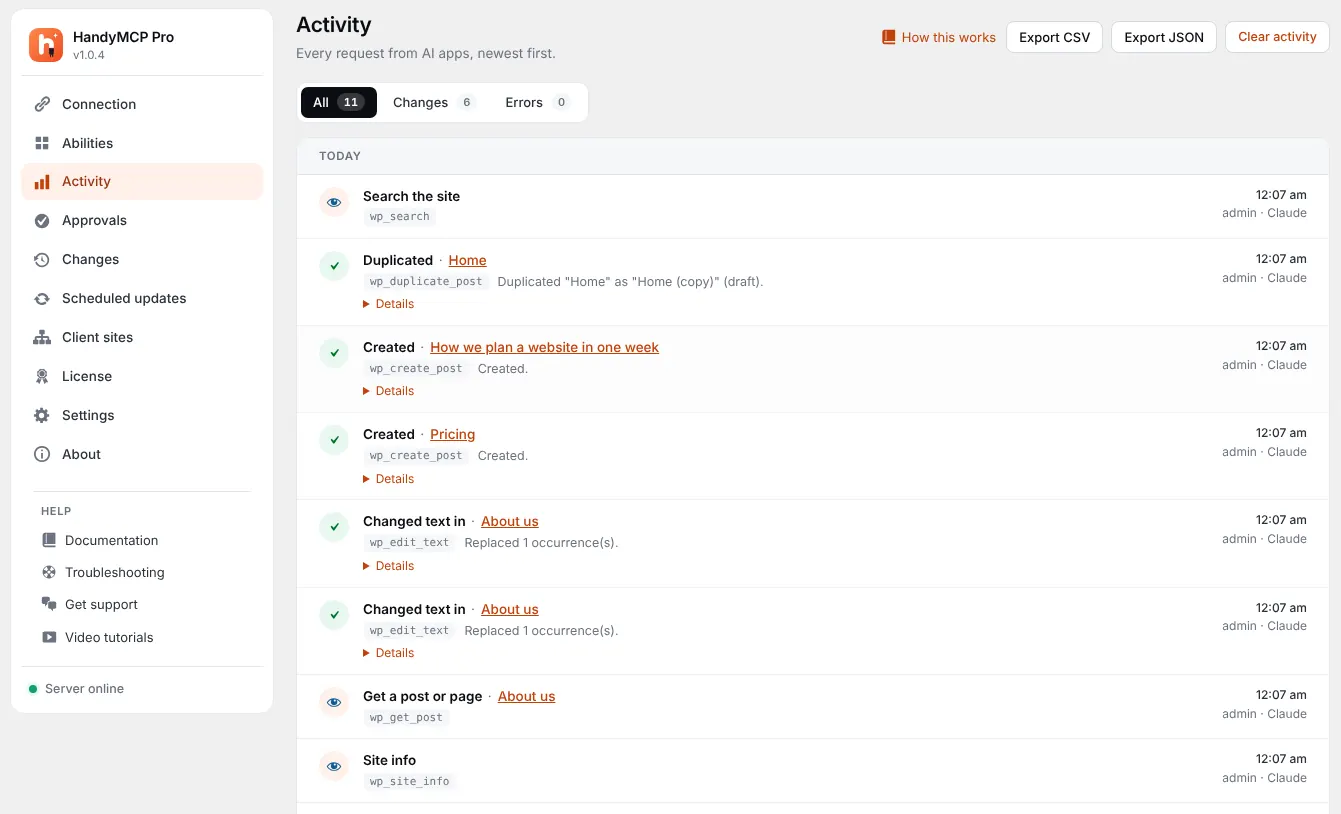
The Activity log records every request, which app made it, which tool ran and which page was touched. That makes monthly reports honest and simple.
Undo that makes mistakes cheap
Every change is saved before it is made and returns a history ID. You can undo one change, a whole task, or every change on a page. The free plan keeps the last 20 changes. Pro keeps the full history. Read more in how to undo AI changes in WordPress.
Safety on live client sites
Client sites are live, and clients notice when things break. These protections matter most for agencies:
- Live page guard. Asking for a “redesign”, “new version” or “draft” creates a draft copy. A published page is only replaced when you clearly ask for that.
- Conflict check. If a client edited a page after the AI read it, the save is refused instead of overwriting their work.
- Confirmation for destructive tools. Deletes and similar actions need explicit agreement first.
- Secrets stay hidden. API keys and payment gateway keys are never returned to the AI.
- Customer data masked. Emails and phone numbers are masked in lists.
- No raw SQL or arbitrary PHP. There is no tool for either.
- Prompt injection protection. Site content is treated as data, not instructions.
For a deeper look, see is it safe to let AI edit a live WordPress site.
Common mistakes agencies make
- Rolling out to every site at once. Start small. Problems are easier to spot on two sites than on forty.
- Giving every token full access. Use read only for reporting tasks and narrow scopes for content work.
- Vague prompts. “Fix the site” gives vague results. Name the page, the field and the outcome.
- Skipping the review. Ask the AI to show what it changed, and glance at the page before you tell the client it is done.
- Forgetting the free undo limit. On free, only the last 20 changes are kept. For big jobs, use Pro or work in smaller batches.
Troubleshooting
- The app will not connect. Check the site has HTTPS, the URL is exact, and a security plugin or firewall is not blocking the REST API. Our connection fixes guide covers the usual causes.
- A tool is missing. It may be switched off on the Abilities screen, or it may be a Pro feature.
- A save was refused. Usually the conflict check. Ask the AI to read the page again and redo the edit.
- Changes do not show on the front end. Ask the AI to purge caches.
More fixes are in the troubleshooting docs.
Free vs Pro vs Agency for agencies
| Need | Free | Pro | Agency |
|---|---|---|---|
| Content, menus, media, Elementor | Yes | Yes | Yes |
| Plugin and theme updates with backup and restore | No | Yes | Yes |
| Scheduled updates with reports | No | Yes | Yes |
| White label | No | Yes | Yes |
| Undo history | Last 20 changes | Full history | Full history |
| Client sites hub | No | No | Yes |
| Sites | Any single site | 1 or 5 sites | Unlimited |
Plans come yearly or lifetime, with a 14-day money-back guarantee. Checkout is handled by Paddle.
Next steps
Install the free plugin on your own site, connect your AI app, and try your three most common client requests. Once you trust the results, roll out to one client, then upgrade to Agency when you want the hub. If you have questions about a larger rollout, get in touch.
Frequently asked questions
Can one AI connection manage many WordPress sites?
Yes, with the Client sites hub on the HandyMCP Agency plan. You link client sites to the hub and one AI connection can work across them. Each site keeps its own permissions and undo history.
Is white label included?
White label is included in Pro and Agency. You can rename the plugin, add your logo, or hide it from wp-admin.
Do clients need their own AI subscription?
No. Your team connects with your own AI app. A client only needs one if they want to use AI on their site themselves.
Can clients connect with limited access?
Yes. You can allow other roles in Settings, and each user can only do what their WordPress role allows. You can also issue tokens with narrow scopes such as read only.
Does traffic go through a third-party server?
No. HandyMCP runs on each client’s own site. The AI app connects directly, with no relay and no vendor account.
What happens if the AI makes a mistake on a client site?
Every change is saved first and can be undone, either one change, a whole task, or every change on a page. Deleted content goes to the trash first.
Which AI apps work with it?
Claude, ChatGPT, Claude Code, Cursor, VS Code, Windsurf, Gemini CLI and other MCP clients.
Ready to try it? Start with the install guide, then compare plans on the pricing page.