
Plugin updates are one of those jobs everyone knows they should do and nobody enjoys. Skip them and you leave security holes open. Click “update all” and hope, and one day you get a white screen on a Friday night with no idea which plugin caused it.
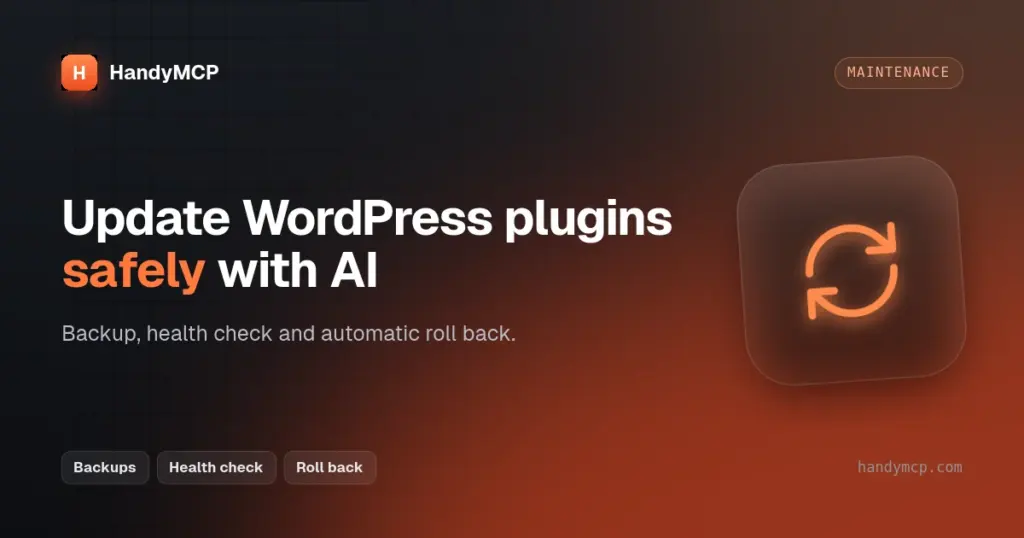
There is a calmer way. This guide shows how to update WordPress plugins safely with AI, using a process that checks first, backs up, updates one at a time, tests the site and rolls back on its own if something goes wrong.
Quick answer: Connect an AI app such as Claude or ChatGPT to your site with HandyMCP Pro and ask it to update your plugins safely. Each update is checked against your WordPress and PHP versions, backed up as a zip, applied one by one, and followed by a health check of the home and login pages. If the site errors, the old version is restored automatically, and you can schedule updates with reports.
Why plugin updates break WordPress sites
Most broken updates come from a small set of causes:
- Requirement mismatch. The new version needs a newer PHP or WordPress than your server runs.
- Plugin conflicts. Two plugins hook into the same thing and the new version changes how one of them behaves.
- Fatal errors. A code error in the new version stops PHP and takes the page down.
- Theme dependencies. A theme relies on a function the plugin renamed or removed.
- Batch updates. When ten plugins update at once and the site breaks, you do not know which one did it.
None of this means you should stop updating. Outdated plugins are a common way sites get hacked. It means updates need a process.
What a safe update process looks like
A careful developer updating a client site by hand follows roughly these steps:
- Check requirements for each update before installing it.
- Back up the current version so you can go back.
- Update one plugin at a time, so a failure points to a single cause.
- Test the front end and the login page after each one.
- Roll back straight away if anything fails.
- Write down what changed, for your records or the client.
The trouble is that doing this by hand takes a long time. HandyMCP Pro does all six steps for you when you ask the AI to run updates.
How HandyMCP handles plugin updates
HandyMCP is a WordPress plugin that turns your site into an MCP server, so AI apps can work on it directly. It runs on your own site, with no relay and no vendor account. Plugin and theme installs and updates are part of HandyMCP Pro.
When you ask for updates, the Pro update tools:
- run a requirement check for each update,
- take a zip backup of the current version,
- update plugins one by one,
- run a health check on the home page and the login page,
- restore the old version automatically if there is an error.
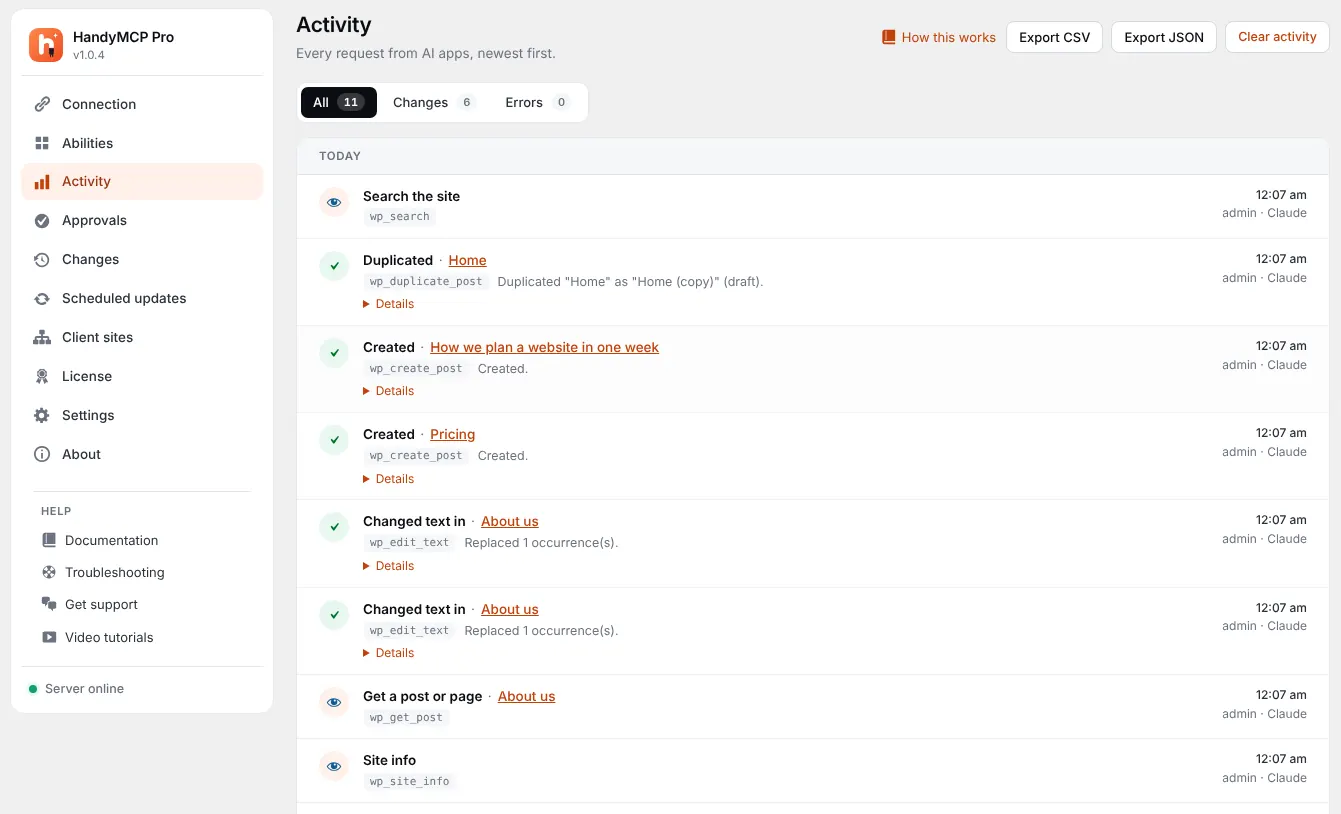
Every request is written to the Activity log, so you can see exactly what ran and when.
Prerequisites
- WordPress 6.2 or newer and PHP 7.4 or newer.
- HTTPS on the site.
- An administrator account. Updating plugins needs admin rights in WordPress, and HandyMCP never lets a user do more than their role allows.
- HandyMCP Pro, since updates are a Pro feature. See pricing.
- An MCP app: Claude, ChatGPT, Claude Code, Cursor, VS Code, Windsurf, Gemini CLI or similar.
- Ideally, a separate host-level backup as well. A second safety net never hurts.
Step by step: update WordPress plugins safely with AI
1. Install and connect HandyMCP
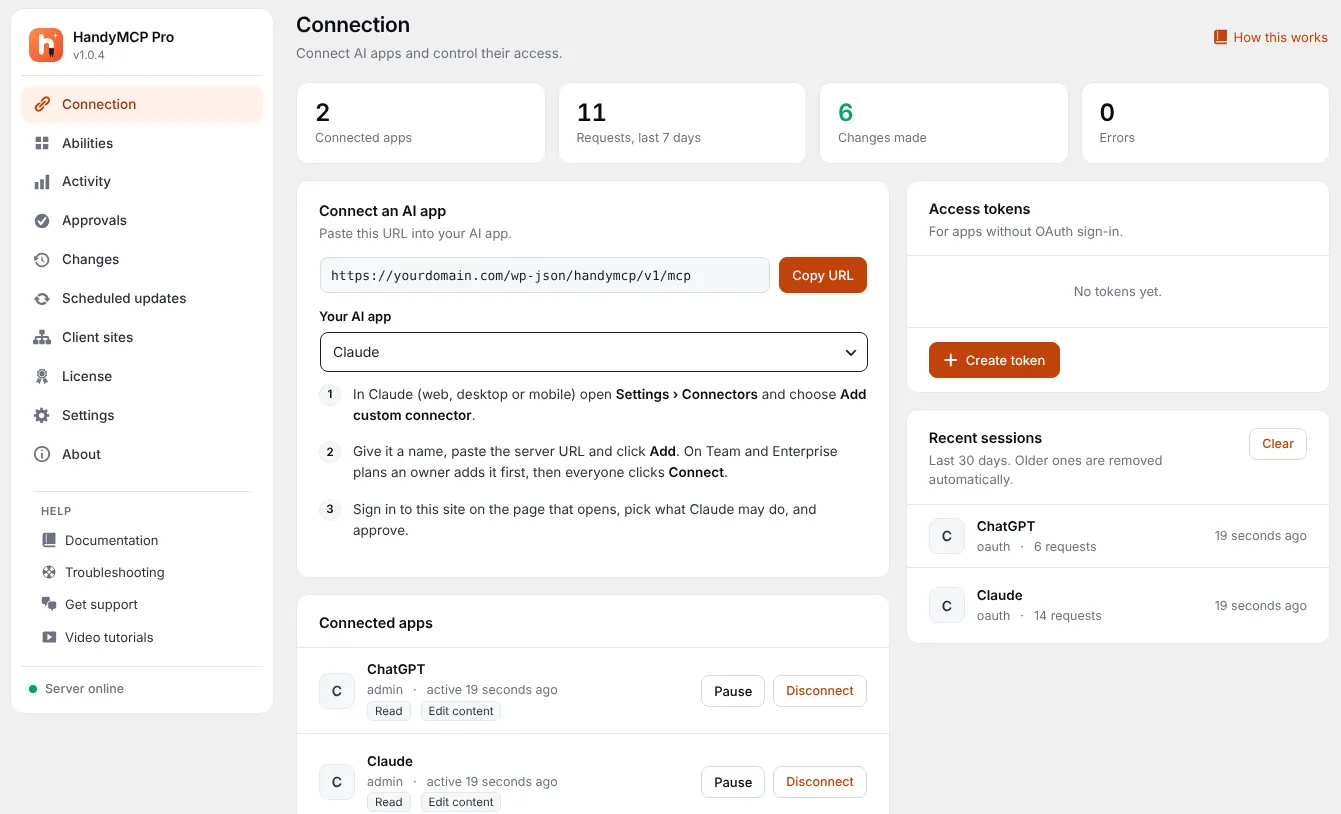
Install the plugin and go to HandyMCP > Connection. Copy the server URL, which looks like https://your-site.com/wp-json/handymcp/v1/mcp, and follow the steps for your app. The screen lists steps for more than 20 apps and has a connection check. If you use Claude, see connect Claude to WordPress. For ChatGPT, see connect ChatGPT to WordPress.
2. Ask what needs updating
Start with a read-only question. This lets you see the list before anything changes.
Which plugins and themes on this site have updates available? List the current and new version for each. Do not update anything yet.3. Decide on the order
Big plugins like WooCommerce or your page builder deserve extra care. Many people update small plugins first, then the big ones separately.
4. Run the updates
Update the plugins on that list one at a time. Back up each one first, run the health check after each update, and stop if anything fails.5. Read the report
Ask the AI to summarise the result: what updated, what was skipped, and anything that was restored.
Summarise what you just did: which plugins updated, from which version to which, and whether any were rolled back.6. Check the site yourself
The automatic health check covers the home page and login page. Click through key pages too, such as checkout on a store or a contact form.
Scheduled updates with reports
HandyMCP Pro also includes scheduled updates with reports. Instead of remembering to run updates, you can set them to run on a schedule, for example at night when traffic is low, and read the report the next morning.
Schedule plugin updates every Tuesday at 2am and keep a report of each run.The same safety steps apply to scheduled runs: requirement check, backup, one by one, health check and automatic restore on error.
Rolling back an update
There are two kinds of rollback to know about.
Automatic restore
If the health check fails after an update, the old version is restored straight away from the zip backup. You do not need to do anything.
Rolling back by choice
Sometimes an update works fine technically but changes something you do not like. Because a backup was taken first, you can ask the AI to go back to the earlier version.
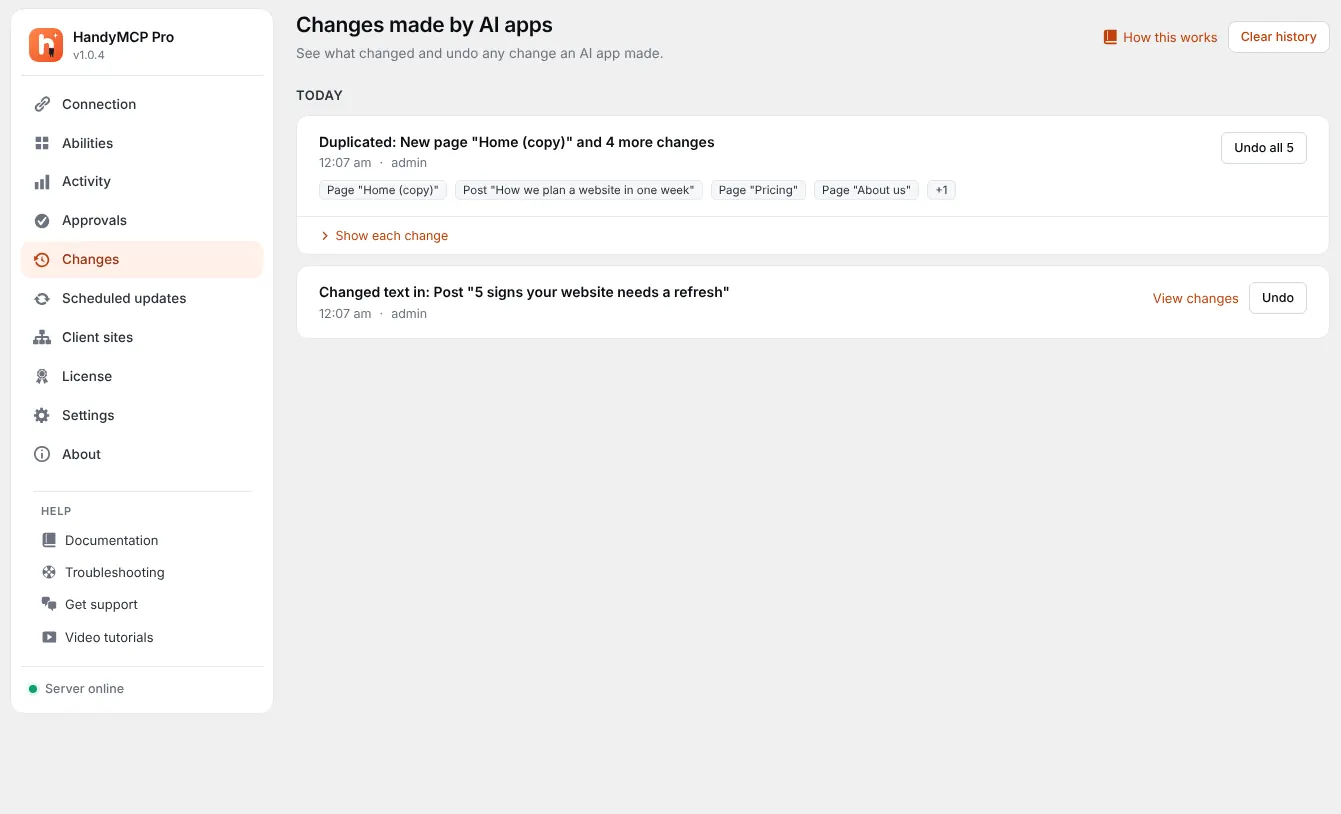
The last update to the slider plugin changed how the homepage slider looks. Restore the previous version.For content changes, rather than plugin files, HandyMCP also has an undo history. Read more in how to undo AI changes in WordPress.
Example prompts for plugin updates
- “Which plugins have updates available, and which ones are the biggest version jumps?”
- “Update every plugin except WooCommerce, one by one.”
- “Update WooCommerce and its extensions only, then check the shop page and cart.”
- “Update the theme, then run the health check and tell me the result.”
- “Schedule plugin updates every Sunday at 3am.”
- “Purge the cache after the updates are finished.”
More prompts live on the prompts page.
Common mistakes
- Updating everything at once. Even with rollback, one at a time is easier to follow.
- Ignoring PHP version. If many updates are blocked by requirements, the real fix is upgrading PHP with your host.
- Only checking the home page. Test the pages that make you money, such as checkout and forms.
- Forgetting caches. After updates, purge caches so visitors see the current site.
- Running updates at peak time. Schedule them for quiet hours.
Troubleshooting
- An update was skipped. Usually the requirement check found a mismatch. Ask the AI why it was skipped.
- The update tools are missing. Updates are Pro. Also check the Abilities screen in case the tool group is switched off or read only mode is on.
- The AI cannot connect. See WordPress MCP not connecting and the troubleshooting docs.
- The site looks wrong but did not error. The health check catches errors, not design changes. Restore the previous version if needed.
Security and safety
Update tools are powerful, so permissions matter. HandyMCP only lets administrators connect by default, and each user can only do what their WordPress role allows. Destructive tools need explicit confirmation. Cookie login is never accepted by the MCP endpoint. Secrets such as API keys are never returned to the AI. On the Abilities screen you can switch off whole tool groups or single tools if you want updates to stay manual. For the bigger picture, read is it safe to let AI edit a live WordPress site.
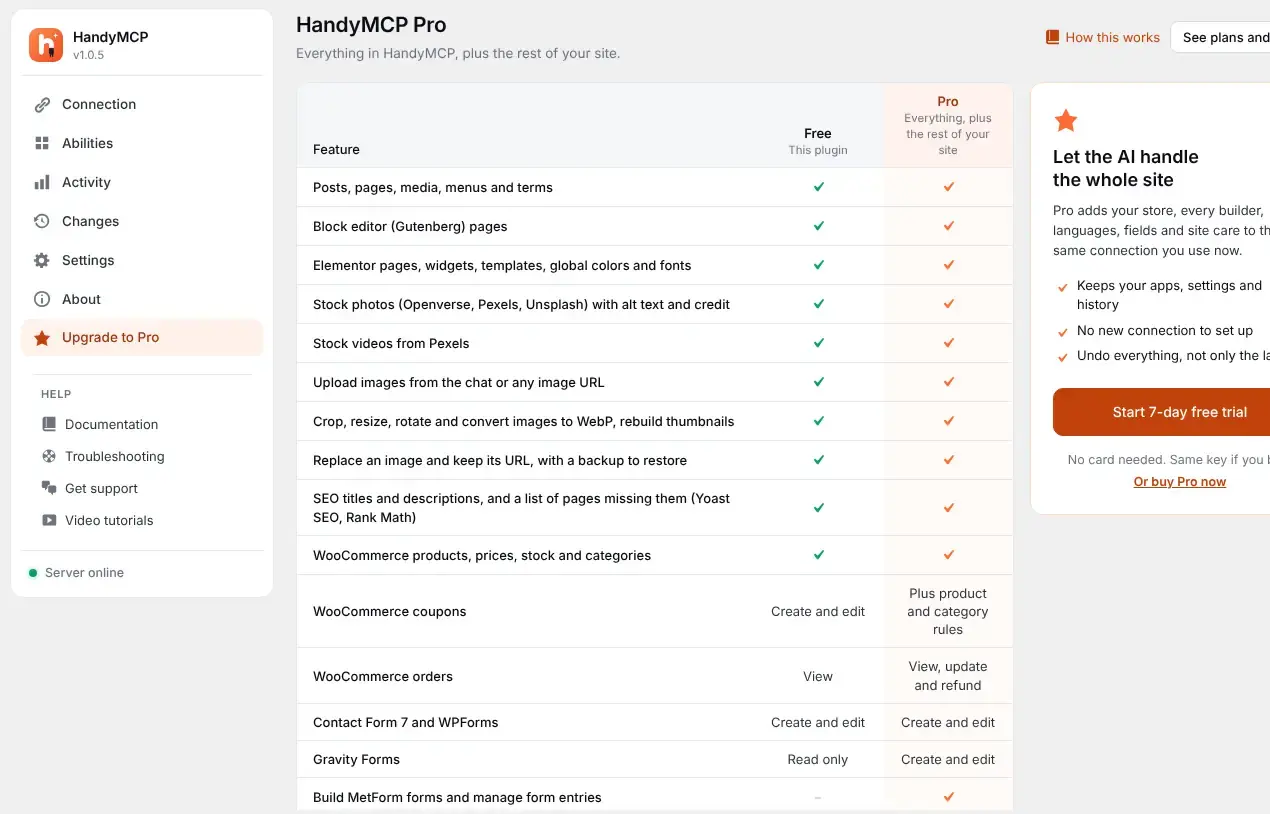
Free vs Pro
| Feature | Free | Pro |
|---|---|---|
| Content, pages, menus, Elementor | Yes | Yes |
| Plugin and theme installs and updates | No | Yes |
| Backup, health check, automatic restore | No | Yes |
| Scheduled updates with reports | No | Yes |
| Undo history | Last 20 changes | Full history |
If you manage many sites, the Agency plan adds a Client sites hub that shows pending updates across linked sites. See AI for WordPress agencies.
Next steps
Install HandyMCP, connect your app, and start with the read-only “what needs updating” prompt. When you are happy with the list, upgrade to Pro and run your first safe update on a quiet day.
Frequently asked questions
Can AI update WordPress plugins?
Yes, through an MCP server with update tools. HandyMCP Pro adds a requirement check, zip backup, one by one updates, a health check and automatic restore.
Is it safer than WordPress auto-updates?
Built-in auto-updates do not run this kind of health check on your home and login pages with a zip backup ready to restore. The safe update process does both.
Does the free plugin update plugins?
No. Plugin and theme installs and updates are part of HandyMCP Pro.
Can I update themes the same way?
Yes. Theme updates use the same requirement check, backup, health check and restore steps.
Can I schedule updates?
Yes. Pro includes scheduled updates with a report of each run.
What if I want to go back to an older version later?
Because a backup is taken before each update, you can ask the AI to restore the previous version.
Do I still need a separate backup?
It is a good idea. A host-level backup protects you from problems outside plugin updates, such as server failures.
Get started with the install guide, or compare plans on the pricing page.