
You asked Claude or ChatGPT to tidy up a page, and now the hero section is gone. Or a bulk SEO job rewrote titles you liked. It happens, and AI changes like these are easy to reverse when you know where to look. AI apps follow instructions quickly, and sometimes they follow the wrong reading of what you meant.
This is a practical guide to getting your site back the way it was. It covers how to find what changed, the four ways to undo it with HandyMCP, what to do if you have no MCP undo at all, and how to set things up so you need undo less often. If you want an overview of the feature itself, see the HandyMCP undo page.
Quick answer: If the AI worked through HandyMCP, open HandyMCP > Undo history and click Undo next to the single change, Undo all on the task, or undo every change to the page. You can also type “undo your last change” in the chat, because the AI knows the history IDs. Without an MCP plugin that keeps history, your fallbacks are WordPress revisions (post text only) or a full backup restore.
Why AI changes need a proper undo
WordPress has revisions, but they only cover the text of posts and pages. An AI connected through MCP can change much more than that: Elementor layouts, menus, media details, SEO fields, WooCommerce products, settings and categories. A revision will not bring any of those back.
AI jobs also tend to touch many things at once. “Rewrite all service pages” could change eight pages in one request. Reversing that by hand, page by page, is slow and easy to get wrong. A proper undo groups those changes so you can reverse them together.
Before you undo: stop and look
Do not start clicking straight away. Take two minutes to see exactly what happened.
- Tell the AI to stop. Say “Stop. Do not make any more changes.” in the chat.
- Open HandyMCP > Activity. Each line shows the app, the tool it used, the page or product it touched and whether it worked.
- Note the time range and the pages involved.
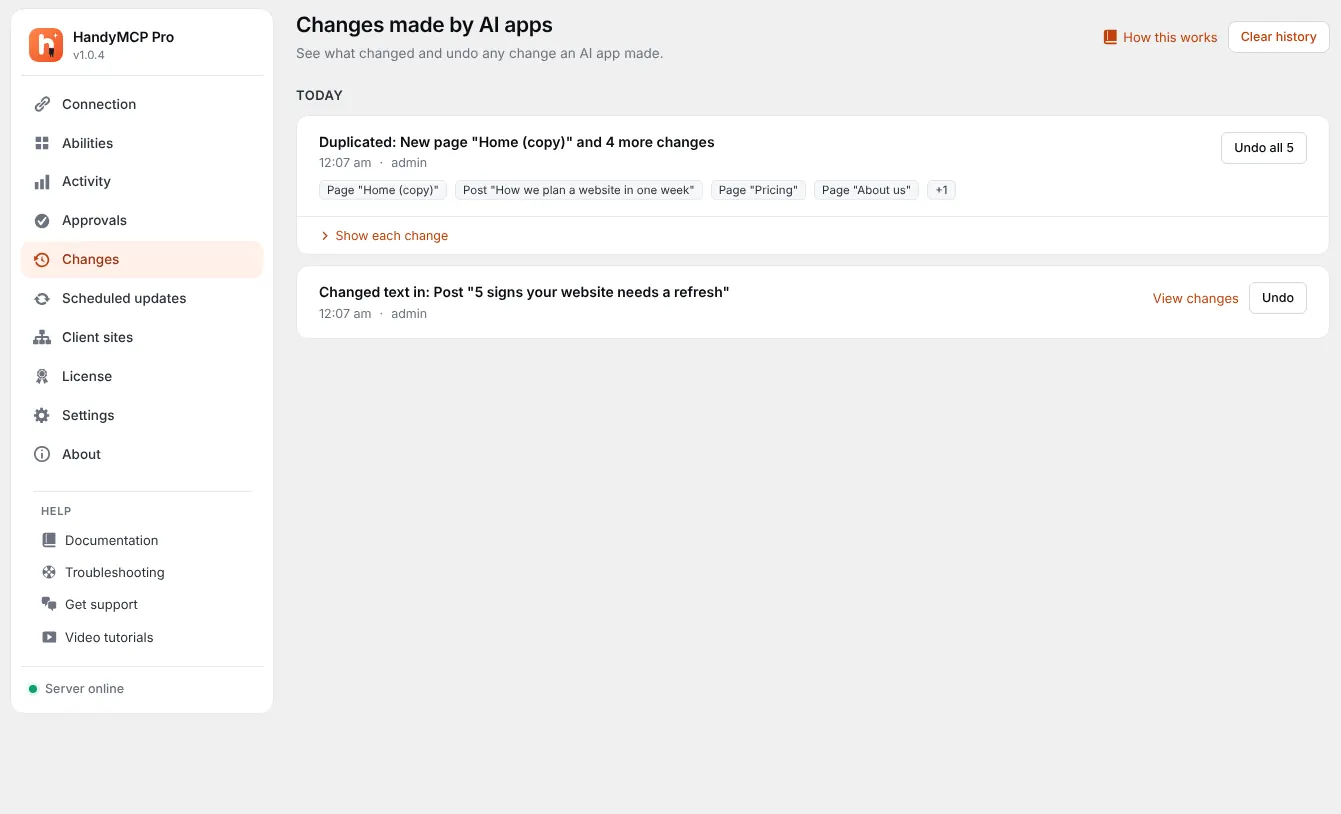
- Open HandyMCP > Undo history. The same changes are grouped by task.
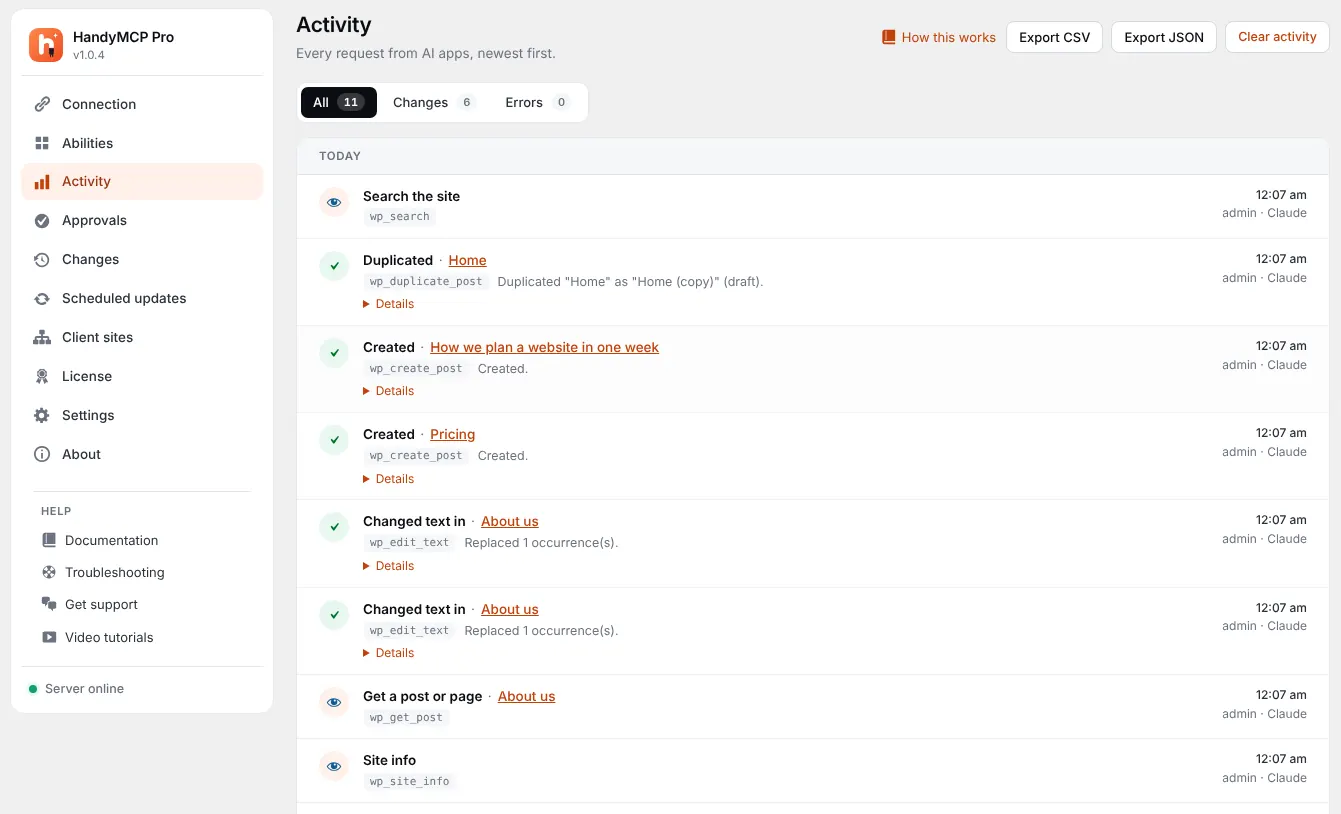
Now you know whether the AI changes you want to reverse are one edit, one task or a whole page. Write that down before you click anything, so you undo exactly what you meant to.
Option 1: Undo a single change
This is the smallest of the four ways to reverse AI changes. Use it when the AI got most things right and one thing wrong. For example it fixed five SEO titles and broke one heading.
- Go to HandyMCP > Undo history.
- Open the task that holds the change.
- Find the line for the page or item you want back.
- Click Undo on that line.
Only that change is reversed. The other changes in the task stay as they are.
Option 2: Undo a whole task
A task is everything that came from one request. If the AI rewrote eight pages for “make all service pages friendlier” and you dislike the result, undo the whole task.
- Open Undo history.
- Find the task. It is labelled with the time and the number of changes.
- Click Undo all.
All the AI changes in that task go back together, in the right order.
Option 3: Undo every change to one page
Sometimes a page has been through several rounds of AI edits across different tasks. You want the original back, not just the last version. In that case undo all the AI changes made to that page. HandyMCP reverses all of them for that page and leaves the rest of the site alone.
This is the right choice when you spent an afternoon iterating on a landing page with the AI and decided to start again.
Option 4: Ask the AI to undo it
Every change HandyMCP makes returns a history ID to the AI app. The app can use those IDs to reverse its own work. You can type prompts like:
- “Undo your last change.”
- “Undo everything you did to the About page in this chat.”
- “Revert the SEO title changes, but keep the meta descriptions.”
- “Undo the whole task where you rewrote the service pages.”
This works best in the same chat where the changes happened, because the app still has the IDs in context. In a new chat, ask it to look up the history first: “Show me the recent changes on the Contact page, then undo the last two.”
What undo covers
| Type of change | Covered by HandyMCP undo | Covered by WordPress revisions |
|---|---|---|
| Post and page content | Yes | Yes |
| Elementor layout data | Yes | No |
| Menus | Yes | No |
| Media details | Yes | No |
| SEO titles and descriptions | Yes | No |
| WooCommerce products | Yes | No |
| Settings and theme options | Yes | No |
| Categories and tags | Yes, including recreating a deleted term with its posts | No |
Deleted content goes to the trash first, so a deleted page can come back too.
How far back can you go?
The free plugin keeps the last 20 changes. HandyMCP Pro keeps the full history. You can set how long history is kept in HandyMCP > Settings. If you do a lot of AI work, 20 changes can go quickly, so act soon after a bad edit or consider Pro. See pricing.
No MCP undo? Your fallback options
If the AI worked through a tool that keeps no history, you still have a few options. None are as tidy.
WordPress revisions
Open the post or page in the editor, click Revisions and pick an earlier version. This covers text in the main content field only. It will not restore Elementor layouts, menus, settings or products.
Elementor’s own history
Elementor has a history panel, but it only works inside an open editor session. Once the AI saves the layout from outside the editor, that panel will not help. Elementor revisions may hold older saved versions, so check there too.
Your host’s backup
Most hosts keep daily backups. Restoring one brings the whole site back to that point. You lose everything else that changed since, including orders, comments and form entries. Use it as a last resort, or restore to a staging copy and move only the content you need.
Copy from a cached or archived version
If the text is gone and nothing else works, a cached copy of the page in your browser or a caching plugin may still hold the old content. It is messy, but it can save a well written page.
Common undo mistakes
- Letting the AI keep working. New AI changes push older ones further down the history. Stop it first.
- Undoing the wrong task. Check the time and pages in Activity before you click Undo all.
- Restoring a full backup for one page. You may wipe orders or comments. Use a targeted undo when you can.
- Forgetting the cache. After undo, the old version may not show until caches clear. Purge your cache, or ask the AI to purge it.
- Waiting too long on the free plan. Only the last 20 AI changes are kept, so act soon after a bad edit.
Troubleshooting
The undo worked but the page still looks wrong
This is usually caching. Purge the site cache and your browser cache. For Elementor pages, regenerate CSS. The AI can do both if you ask.
The change is not in Undo history
It may have been made outside HandyMCP, for example by hand in wp-admin or by another plugin. It may also be older than the history you keep. Check Activity to confirm which app made it.
Undo was refused because of a newer edit
HandyMCP will not overwrite a newer edit someone made after the AI change. Look at the page, decide which version you want, and edit by hand if needed.
More help is in the troubleshooting docs, or contact us.
How to need undo less often
- Ask for drafts. Say “redesign”, “new version” or “draft”. HandyMCP creates a draft copy and leaves the live page untouched. A published page is only replaced when you clearly ask for that page to change.
- Start read only. Turn on read only mode under HandyMCP > Abilities for new connections, then widen it.
- Be specific. Name the page and section. “Change the second paragraph on the About page” beats “improve the About page”.
- Preview bulk jobs. Ask the AI to show you a list before it changes many items. Bulk WooCommerce changes over 10 products need confirmation anyway.
- Switch off what you do not need. Turn off tool groups like menus or store tools if the job does not need them.
- Review Activity after big jobs. A quick check catches problems while they are still at the top of the history.
The guide on whether it is safe to let AI edit a live site goes deeper on these settings.
Frequently asked questions
Can I undo changes ChatGPT made to WordPress?
Yes, if ChatGPT worked through an MCP plugin that keeps undo history, like HandyMCP. Otherwise use WordPress revisions for post text or restore a backup.
Can I undo changes Claude made to my site?
Yes, the same way. Undo history does not depend on which app made the AI changes. Claude, ChatGPT, Cursor and Claude Code changes all show up.
Does undo work for Elementor pages?
Yes. HandyMCP saves the Elementor layout data before each change, so the exact layout comes back.
How many changes can I undo?
The free plugin keeps the last 20 changes. HandyMCP Pro keeps the full history, with a retention period you set in Settings.
Can undo bring back a deleted page?
Yes. Deletes need explicit confirmation, deleted content goes to the trash first, and the change is listed in Undo history.
Can I undo a bulk WooCommerce price change?
Yes. AI changes to products are saved before they happen, so you can undo the whole task and every price goes back.
Will undo affect orders or comments that came in later?
No. Undo only reverses the specific AI changes you pick. It does not roll back the rest of the site like a backup restore does.
A real example: undoing AI changes after a bad SEO run
Here is a common case, step by step, so you can see how the pieces fit together.
You ask Claude to “improve the SEO titles on all blog posts”. It updates 14 posts. A day later you notice that several titles now sound the same, and two lost your brand name.
- Find the task. Open the Changes screen. The AI changes from that request sit together in one task with 14 lines.
- Check a few lines. Open View changes on two or three posts to see the old and new title side by side.
- Decide the scope. If most titles are worse, click Undo all. If only a few are bad, undo just those lines.
- Purge the cache. Ask the AI to purge it, or use your caching plugin.
- Try again with clearer rules. “Keep the brand name at the end. Keep each title under 60 characters. Show me the list before you save.”
The whole fix takes a few minutes, and the rest of your site is not touched.
Which undo option should you pick?
Use this quick guide when you are not sure how much to roll back.
| Situation | Best option |
|---|---|
| One wrong edit in an otherwise good task | Undo a single change |
| A whole request went wrong | Undo all on that task |
| A page went through many rounds of AI changes | Undo every change to that page |
| You are still in the same chat | Ask the AI to undo it |
| The changes were made without HandyMCP | Revisions or a backup |
How to review AI changes before they cause trouble
Undo is your safety net. A short review habit means you rarely need it.
Read the summary in the chat
Good AI apps tell you what they changed. Read that summary before you close the chat. If something sounds off, ask a follow-up question while the context is fresh.
Spot check the front end
Open two or three of the changed pages on desktop and mobile. Layout problems are easier to see on the real page than in a list.
Compare old and new text
For text edits, use View changes in the Changes screen. It is faster than reading the whole page again.
Hold changes for approval on client sites
HandyMCP Pro has approval mode. AI changes wait in a list until you approve or reject them, so nothing reaches the live site without a person saying yes. Read more about approving AI changes.
Undo, revisions and backups compared
All three help, but they solve different problems.
- HandyMCP undo reverses specific AI changes: content, layouts, menus, media details, SEO fields, products, settings and terms. Nothing else on the site moves.
- WordPress revisions store older versions of post content only. The WordPress revisions guide explains how to compare and restore them.
- Backups bring back the whole site at a point in time. The WordPress backup docs cover what a full backup should include.
The best setup uses all three: undo for everyday AI changes, revisions for quick text fixes and a daily backup for real emergencies.
Tips for teams and agencies
- One connection per person. Then Activity shows who asked for which AI changes.
- Name your tasks clearly in the chat. “Homepage refresh, October” is easier to find later than “make it better”.
- Agree a review step. Someone other than the person who sent the prompt checks big AI changes before the client sees them.
- Keep history long enough. On busy sites the free 20 change limit fills fast. Pro keeps full history.
More questions about AI changes
Can I see AI changes made by a different app?
Yes. Every app that connects through HandyMCP shows up in Activity and the Changes screen, with the app name on each line.
Do AI changes made by hand in wp-admin show up?
No. Only changes made through HandyMCP are recorded there. Edits you make yourself in the editor use normal WordPress revisions.
Can I stop AI changes to certain pages?
Yes. You can switch off tool groups on the Abilities screen, use read only mode, and in Pro mark pages as protected so AI apps cannot change them.
Is there a limit on how many AI changes I can make?
No. HandyMCP has no daily limits. The free plugin keeps undo for the last 20 changes, and Pro keeps full history.
In short: stop the AI, look at Activity, then pick the smallest undo that fixes the problem. That keeps AI changes easy to manage, even on a busy site. Get HandyMCP free, or start a 7-day Pro trial.
Not using HandyMCP yet? Install the free plugin so every AI change has an undo button from day one.