
Want to approve AI changes before they reach your live WordPress site? Claude and ChatGPT can now edit pages, products and SEO fields in seconds. That speed is great on a draft, and a little scary on a page customers are reading right now. Approval mode in HandyMCP fixes that: the AI does the work, and nothing goes live until you say yes.
This guide shows how to approve AI changes in WordPress step by step, what you see before you decide, and three more new features that keep you in charge: protected pages, a site brief and Fix with AI.
Quick answer: Install HandyMCP Pro, open HandyMCP > Settings > Approval and protection and turn on Approval mode. From then on, when an AI app changes published content, the live page stays as it was and the change waits in HandyMCP > Approvals. You see a summary, the old and new text side by side and a live preview on desktop and mobile. Click Approve to put it live or Reject to throw it away.
Why approve AI changes instead of fixing them later
Undo is a good safety net, and HandyMCP already saves every change so you can reverse it. But undo works after the fact. For some sites that is too late:
- Client sites. An agency does not want a client to see a half-finished rewrite on their home page.
- Stores. A wrong price for ten minutes can mean real orders at that price.
- Regulated content. Health, legal and finance pages often need a person to check every word.
- Teams. One person asks the AI, another person signs off.
When you approve AI changes first, nobody outside sees a change until a person has looked at it. You still get the speed of AI, with a human check in the middle.
How approval mode works
- You ask your AI app for a change. For example, “tighten the intro on the pricing page”.
- The AI makes the change through HandyMCP. HandyMCP sees that the page is published.
- The live page is kept as it was. The new version is stored privately as a pending approval, together with a hidden preview copy.
- The AI is told the change is waiting. It says so in the chat instead of trying again another way.
- You get an email if you want one, at most every 30 minutes.
- You approve or reject. Approved changes go live and can still be undone later. Rejected changes leave the page untouched.
New drafts and new media are never held, so the AI can still build a draft page for you to review in the editor.
Turn on approval mode
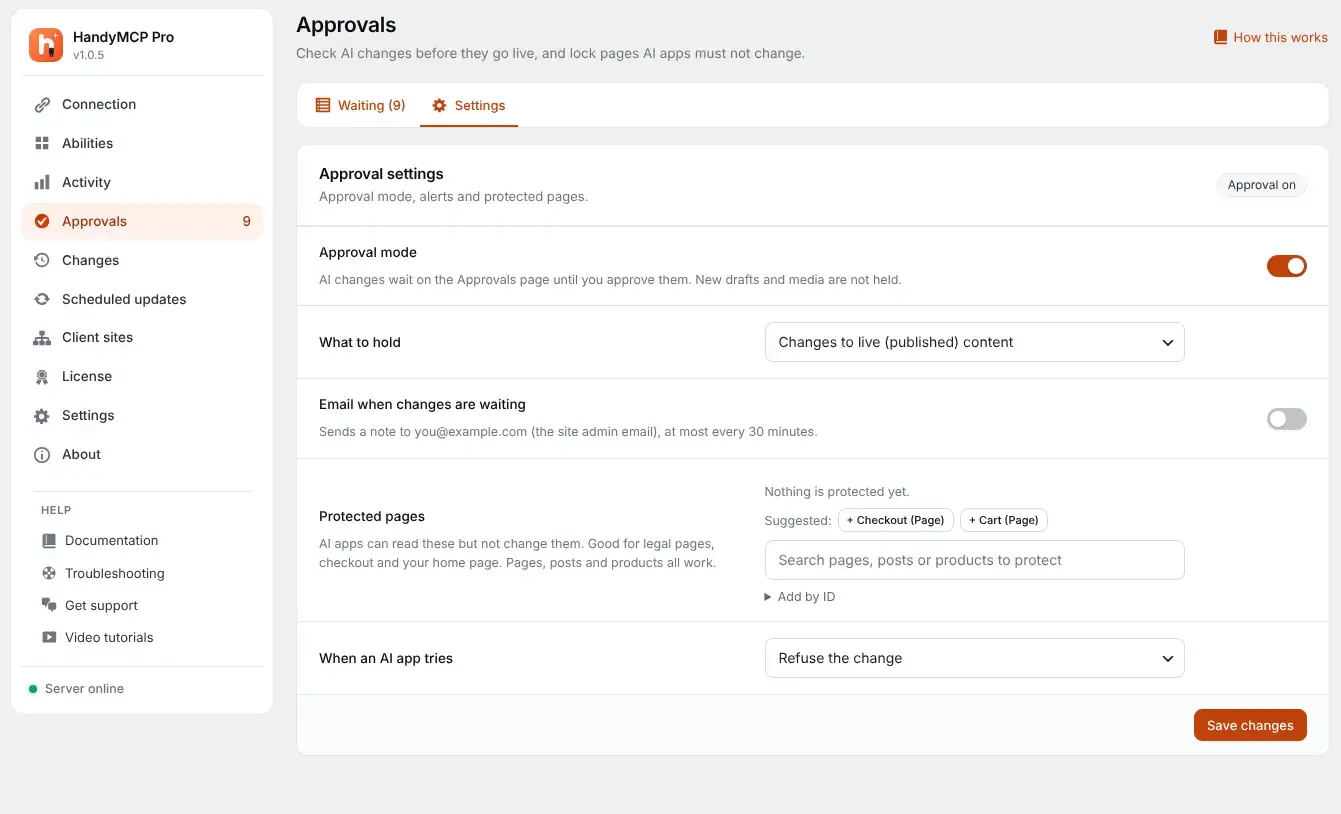
- Open HandyMCP > Settings and choose the Approval and protection tab.
- Switch on Approval mode.
- Under Hold changes to, pick Published content only (most sites) or All existing content, drafts too.
- Leave Email me on to get a note when changes are waiting.
- Click Save changes.
What you see before you approve AI changes
Every waiting change opens as a card in HandyMCP > Approvals. Each card answers three questions.
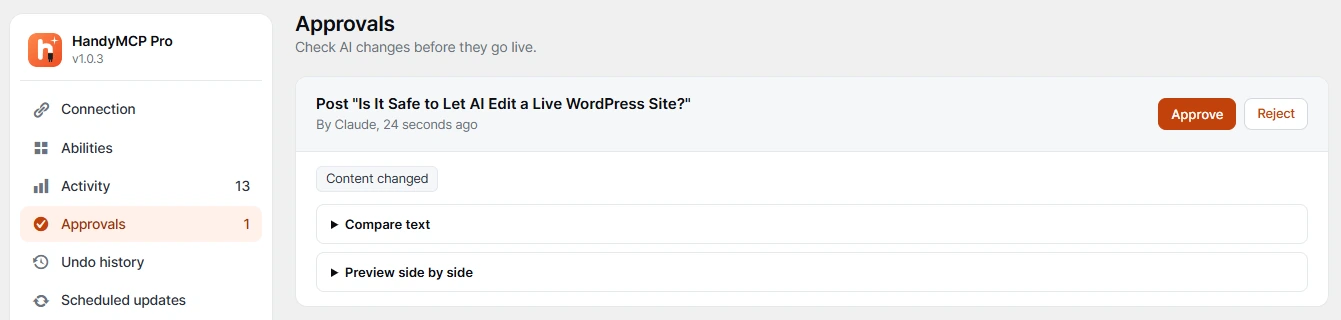
What changed?
A short summary lists the fields that changed, such as the title, the content, the SEO description, a price or the stock level. Prices and SEO fields show the old and new value.
Which words changed?
Compare text shows the live text and the proposed text in two columns. Removed words are red, added words are green, and only the changed lines are shown, so a one-line edit on a long page is easy to spot.
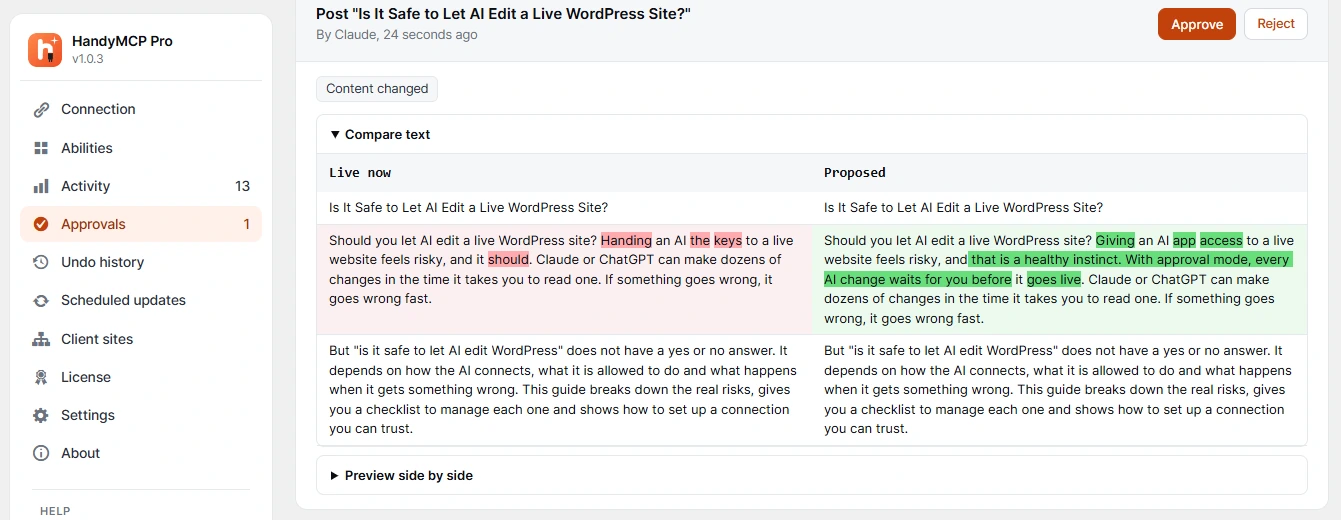
How will it look?
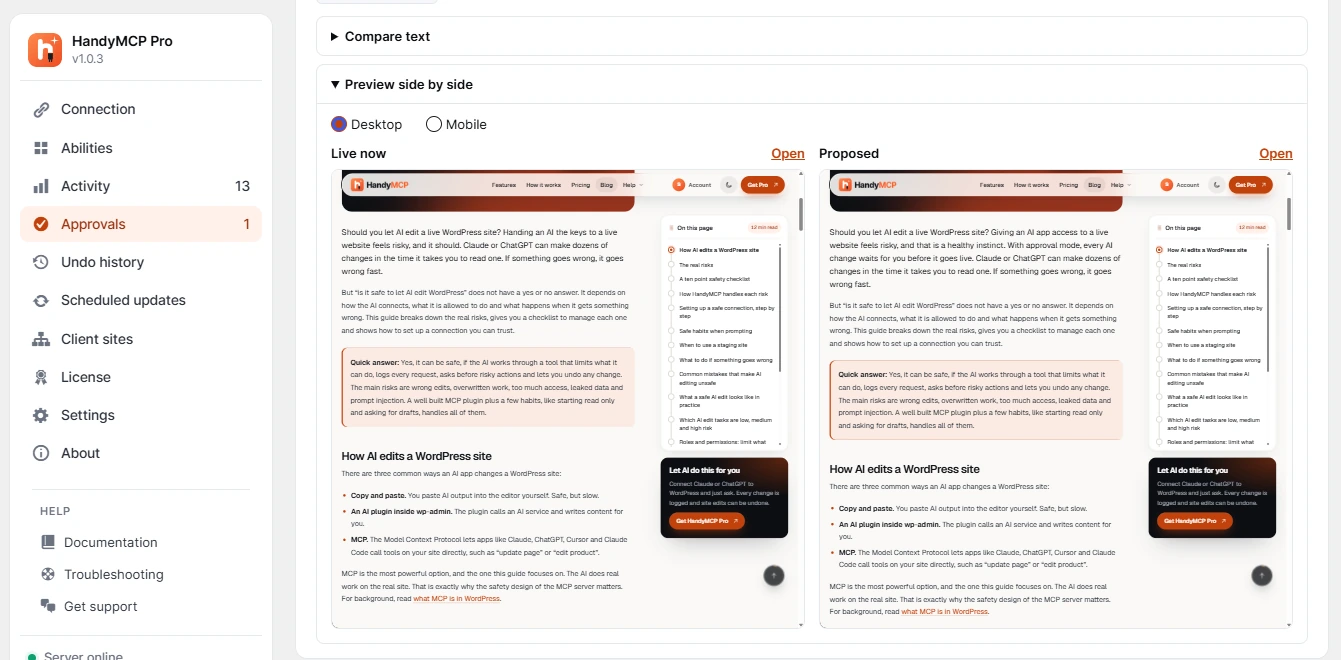
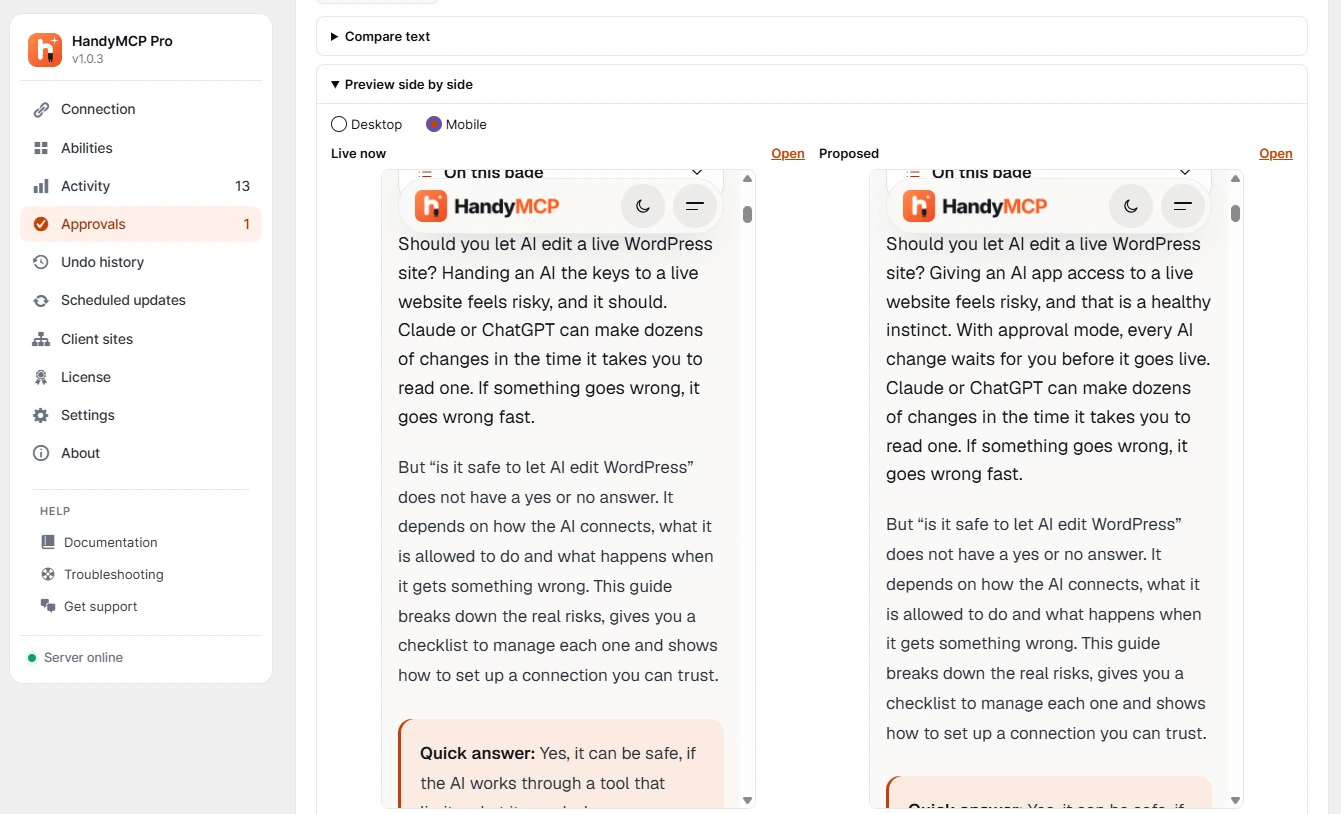
Preview side by side loads the live page and the proposed page next to each other. Switch to Mobile to check the phone layout before anything goes live.
Then click Approve, Reject or Approve all. If someone edited the page by hand after the AI did, HandyMCP warns you first, so you never overwrite newer work by accident.
Get an email when AI changes wait for approval
With Email me on, the site admin gets a short message with a link straight to the Approvals screen. To avoid flooding your inbox, HandyMCP sends at most one email every 30 minutes, however many changes are waiting.
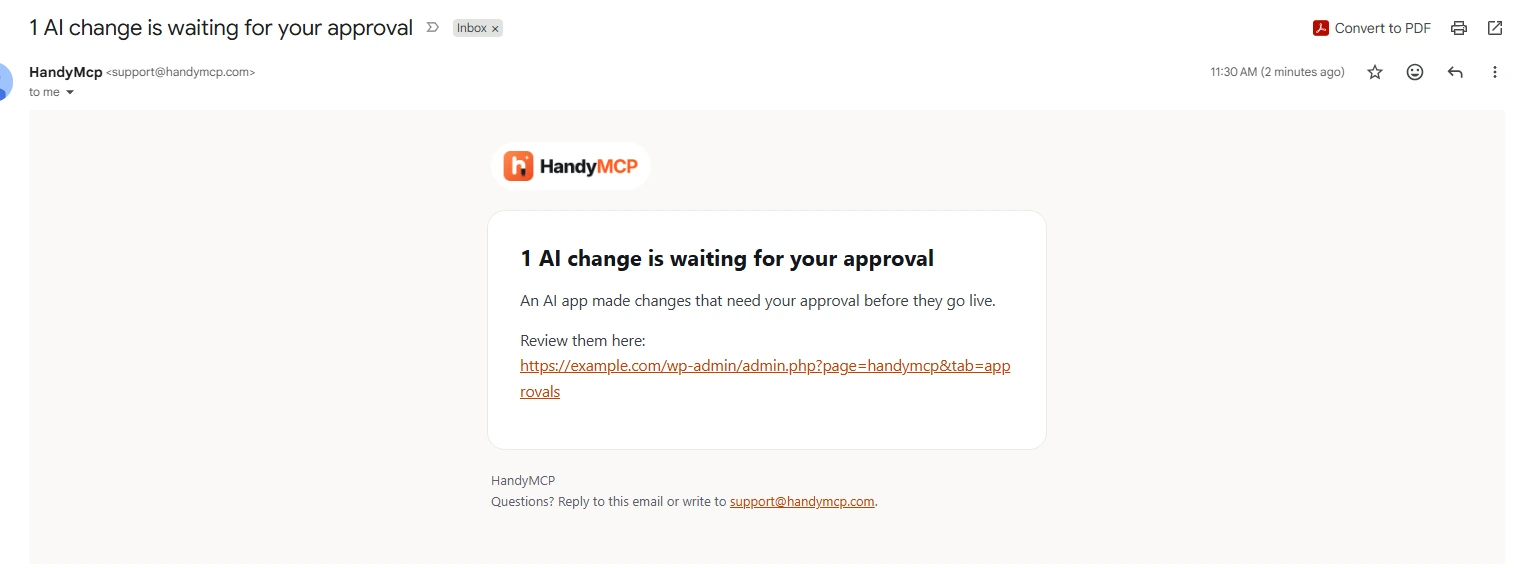
If WordPress emails do not arrive, connect an SMTP plugin to your mailbox. Many hosts send mail in a way Gmail rejects.
Protected pages: lock what AI must never change
Some pages should never change by accident: checkout, terms, privacy policy, your home page. Tick them in Protected pages, or add post and product IDs. Then choose what happens when an AI app tries to change one:
- Refuse the change. The AI can still read the page, but any edit is refused with a clear message.
- Hold it for my approval. The change waits in Approvals like any other.
AI apps are told which pages are protected when they connect, so most of them never try.
Site brief: the same house rules for every AI app
Approval mode checks the result. The site brief improves the result before it reaches you. In Settings > Site brief you write your brand voice, words to use and avoid, your default call to action and a few rules, such as “new pages start as drafts”. Every connected app reads it, so Claude, ChatGPT and Cursor all write the same way. The site brief is in the free plugin too.
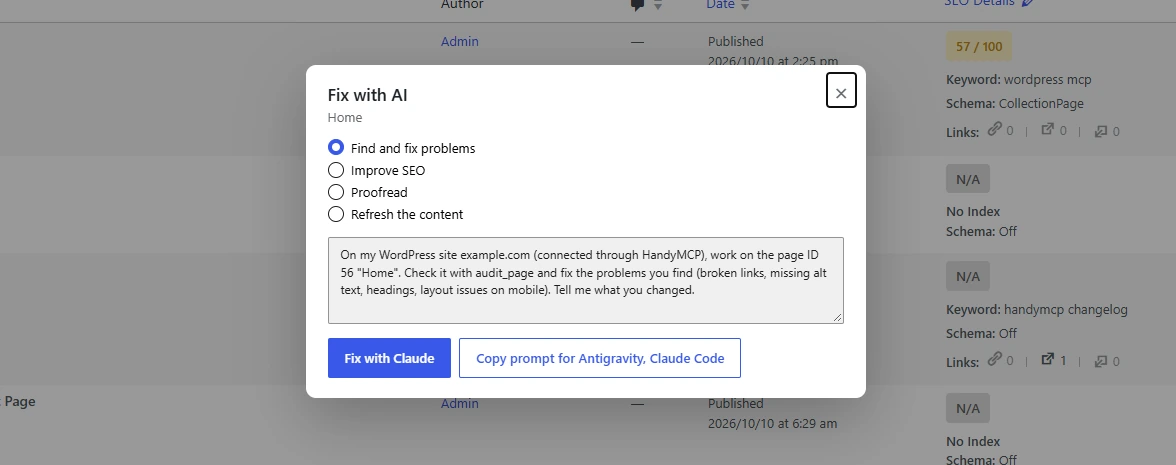
Fix with AI from your page list
Hover over a page, post or product and click Fix with AI, or select several and use the bulk action. A small window offers ready jobs: find and fix problems, improve SEO, proofread or refresh the content. Your connected AI app opens with the request filled in, and nothing is sent until you press send. With approval mode on, the result comes back to you for approval too.
Approve AI changes or use undo?
| Situation | Best choice |
|---|---|
| Your own blog, quick text edits | Undo is enough |
| Client sites and agency work | Approve AI changes first |
| Store prices, stock and checkout | Approval mode plus protected pages |
| Legal, health or finance pages | Protected pages, refuse the change |
| Big redesigns | Ask for a draft, then review in the editor |
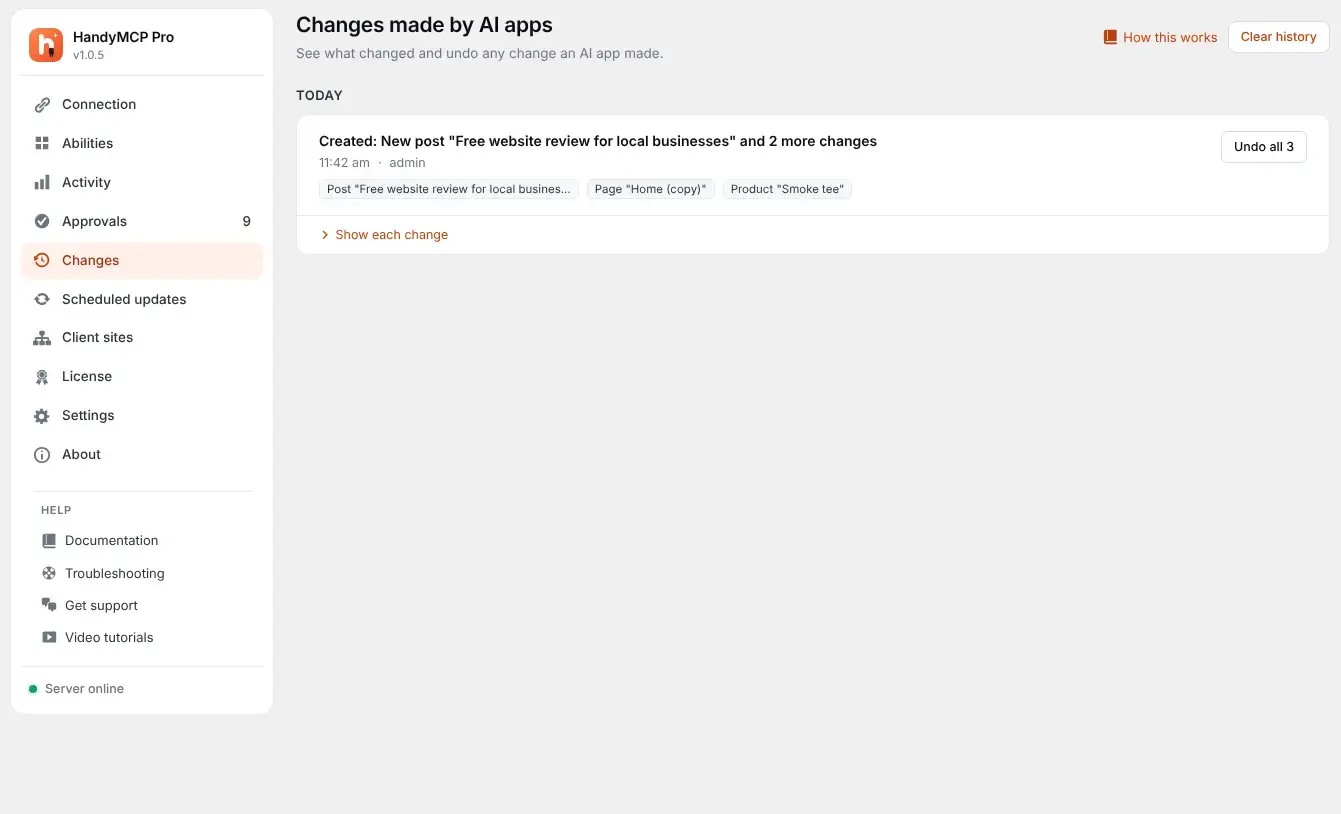
You can use both. Approved changes still go into Undo history, so you can reverse them later. Read more about how to undo AI changes in WordPress and whether it is safe to let AI edit a live site.
Does approval mode slow down my site?
No. Approval checks only run when an AI app makes a change. The Approvals screen and its previews load only inside wp-admin, and the hidden preview copies never appear in search, sitemaps or page lists. Decided records are cleaned up after 60 days.
Real examples: approve AI changes in a normal week
Here is what approval mode looks like on a real site over a few days. Each request starts in the chat and ends on the Approvals screen.
Monday: a pricing update
You ask Claude: “Change the Pro price on the pricing page from $49 to $59 and mention the 7-day free trial.” The AI edits the page. Instead of the new price going live at once, the change waits. The summary shows the old and new title, and Compare text highlights “$49” in red and “$59, with a 7-day free trial” in green. You open the mobile preview, see that the new line wraps nicely, and approve it. The whole check takes under a minute.
Tuesday: an SEO pass on ten blog posts
You ask ChatGPT to write better SEO titles and meta descriptions for ten older posts. Ten changes arrive in Approvals. Each summary shows the old and new SEO title side by side, so you can scan them quickly. Nine look good. One title is too long, so you reject that one and ask the AI to try again. Then you click Approve all for the rest.
Wednesday: a product description rewrite
A shop manager asks the AI to rewrite three product descriptions in a warmer tone. The store owner gets the approval email, reads the three changes on her phone during lunch and approves two. The third mentions a feature the product does not have, so she rejects it. No customer ever sees the wrong text.
Thursday: a client asks for a new section
An agency asks the AI to add a testimonials section to a client’s home page. Because the home page is protected with “Hold it for my approval”, the change waits. The agency checks the side-by-side preview, makes sure the spacing works on mobile, and only then approves AI changes to the client site.
Approve AI changes as an agency or team
Approval mode is a natural fit for teams, because the person who asks the AI is often not the person who should sign off.
- Writers and editors. A writer asks the AI to update posts. The editor reviews the Approvals screen once a day and approves AI changes in one batch.
- Agencies and clients. The agency does the AI work on a client site. Nothing goes live until someone at the agency has checked it, so clients never see an unfinished edit.
- Store owners and staff. Staff can use AI for product copy and stock updates. The owner approves anything that touches prices.
Every decision is recorded in Recently decided with who decided, when and which AI app made the change. Combined with the Activity log, you always know who asked for what and who approved it.
Common mistakes when you approve AI changes
- Approving without opening the preview. The text can look right while the layout breaks on mobile. Open Preview side by side for anything visual.
- Leaving changes waiting for days. If someone edits the same page by hand, the waiting change gets older. HandyMCP warns you before you approve over newer edits, but it is easier to decide quickly.
- Turning email off and forgetting to check. Keep Email me on, or check the Approvals count in the HandyMCP menu.
- Protecting too few pages. Checkout, cart, account and legal pages are good candidates for “Refuse the change”.
- Skipping the site brief. A short brief means fewer changes you need to reject in the first place.
A quick checklist to approve AI changes safely
- Turn on approval mode for published content.
- Protect checkout, legal and other critical pages.
- Write a short site brief with your voice and rules.
- Keep the approval email on.
- For each waiting change, read the summary, check Compare text and open the preview.
- Approve, reject or ask the AI to try again.
- Remember that approved changes are still in Undo history.
What the AI app sees when you approve AI changes
A good approval flow has to work for the AI too. If the AI does not know its change is waiting, it may try again, try a different tool or tell you the job is done when it is not. HandyMCP avoids that in three ways:
- It tells the AI up front. When an app connects, it learns that approval mode is on and which pages are protected. Good AI apps then tell you that changes will need your approval before they even start.
- It answers clearly after each change. Instead of “saved”, the AI gets “saved for approval, not live yet” with the name of the page. It passes that on to you in the chat.
- It shows the live version. When the AI reads the page again, it sees what is live, not the waiting version, so it does not build on a change you have not approved.
The result is a calm conversation: you ask, the AI does the work and says it is waiting, and you approve AI changes when you are ready.
Approval mode settings explained
| Setting | What it does | Good default |
|---|---|---|
| Approval mode | Holds AI changes so you approve AI changes before they go live | On for client sites and stores |
| Hold changes to | Published content only, or all existing content including drafts | Published content only |
| Email me | Emails the site admin when changes are waiting, at most every 30 minutes | On |
| Protected pages | Pages AI apps may read but not change | Checkout, cart, account, legal pages |
| When an AI app tries | Refuse the change, or hold it for approval | Refuse for legal pages |
How long does it take to approve AI changes?
Most people approve AI changes in under a minute each. A typical routine looks like this:
- Small text edits: read the summary and Compare text, then approve AI changes straight away. About 15 seconds.
- Layout or image changes: open the desktop and mobile preview before you approve AI changes. About a minute.
- Prices and stock: check the old and new value in the summary. If anything looks off, reject it and ask again.
- Batches: scan the cards, reject the odd one out, then use Approve all to approve AI changes in one click.
Because the AI already did the slow part, the time you spend to approve AI changes is small compared with writing or editing the content yourself. You keep the speed and add a human eye.
A good habit is to approve AI changes at set times, for example after lunch and before you log off. The email alert tells you when something is waiting, so you never need to keep the Approvals screen open, and you can still approve AI changes from your phone when it is urgent.
When you should not approve AI changes one by one
Approval mode is a safety net, not a rule for every site. On a personal blog where you are the only editor, approving every small typo fix can feel slow. In that case you can:
- Keep approval mode off and rely on Undo history.
- Keep it on but use Approve all once a day.
- Turn it on only while a new team member or a new AI app is learning your site.
Most store owners and agencies keep it on all the time, because the cost of a wrong live change is higher than the minute it takes to approve AI changes.
Frequently asked questions
Can I approve AI changes from my phone?
Yes. The Approvals screen works on phones. Buttons go full width, the text comparison stacks neatly and the email link opens it directly.
Can several people approve AI changes?
Any WordPress administrator can open the Approvals screen and approve AI changes. The Recently decided list shows who decided each one.
How do I approve AI changes in WordPress?
Turn on approval mode in HandyMCP Pro under Settings > Approval and protection. AI changes to published content then wait in HandyMCP > Approvals, where you approve or reject each one.
Which plans include approval mode?
Approval mode, protected pages and Fix with AI are in every paid HandyMCP Pro plan. The site brief is also in the free plugin.
Does it work with Claude, ChatGPT and Cursor?
Yes. Approval mode runs on your site, so it works the same for every connected MCP app.
What happens if I reject a change?
Nothing changes on the live page, the hidden preview copy is deleted and the AI version is not kept.
Can I undo an approved change?
Yes. Approving runs as a normal change, so it appears in Undo history and can be reversed.
Are new drafts held for approval?
No. New drafts, pages and media are created straight away. Only changes to existing published content wait, or all existing content if you choose that option.
Ready to approve AI changes before they go live? Start a 7-day free trial of HandyMCP Pro, no card needed, or read the approval mode guide in the docs. Want to learn more about MCP first? See the Model Context Protocol site.