
Finding malware on a WordPress site is stressful. Visitors get sent to strange pages, Google shows spam titles in your search results, or your host suspends the account. You want it gone fast, but deleting the wrong file can break the site, and missing one backdoor means the infection comes back next week.
This guide shows how to run an AI malware scan on WordPress with Claude or ChatGPT connected through HandyMCP, how to review what it finds, how to clean up without breaking anything, and which manual checks you should do yourself. It also covers when AI is not enough and you need your host or a security professional.
Quick answer: With HandyMCP Pro connected, ask your AI app to “scan core files, plugins, themes, uploads and the database for malware and show me what you find before changing anything”. It compares core files with the official versions, flags suspicious code in plugins, themes and uploads, and looks for scripts injected into the database. You review the findings, then approve cleanup, and suspicious files are quarantined instead of deleted. Follow up with manual checks, password changes and updates so the infection does not return.
What an AI malware scan actually does
The AI app does not scan anything by itself. It calls tools on your site through MCP, and those tools do the scanning. In HandyMCP Pro, the malware tools:
- Check WordPress core files against the official versions and report files that were changed or added.
- Look for suspicious code in plugins, themes and the uploads folder, such as obfuscated PHP or PHP files where only images belong.
- Check the database for injected scripts, for example hidden script tags in posts or options.
- Quarantine suspicious files instead of deleting them, so you can restore anything that turns out to be harmless.
The AI’s job is to run those tools, explain the results in plain words, and help you decide what to do. That explanation step is where it saves real time. Instead of reading a raw list of file paths, you can ask “why is this one suspicious?” and get an answer.
Malware scanning and cleanup are part of HandyMCP Pro. The free version does not include them.
Signs your WordPress site may be infected
- Visitors are redirected to other sites, often only on mobile or only when they arrive from Google.
- Google shows spam titles or descriptions for your pages, often in Japanese or about pharmacy products.
- Search Console reports thousands of pages you never made.
- New administrator users you did not create.
- Your host or Google Search Console sends a security warning.
- PHP files appear in
wp-content/uploads. - The site is suddenly slow, or sends spam email.
Any one of these is worth a scan. Several together almost always mean an infection.
Before you start
- Take a full backup of files and database, even an infected one. If cleanup goes wrong you need a way back.
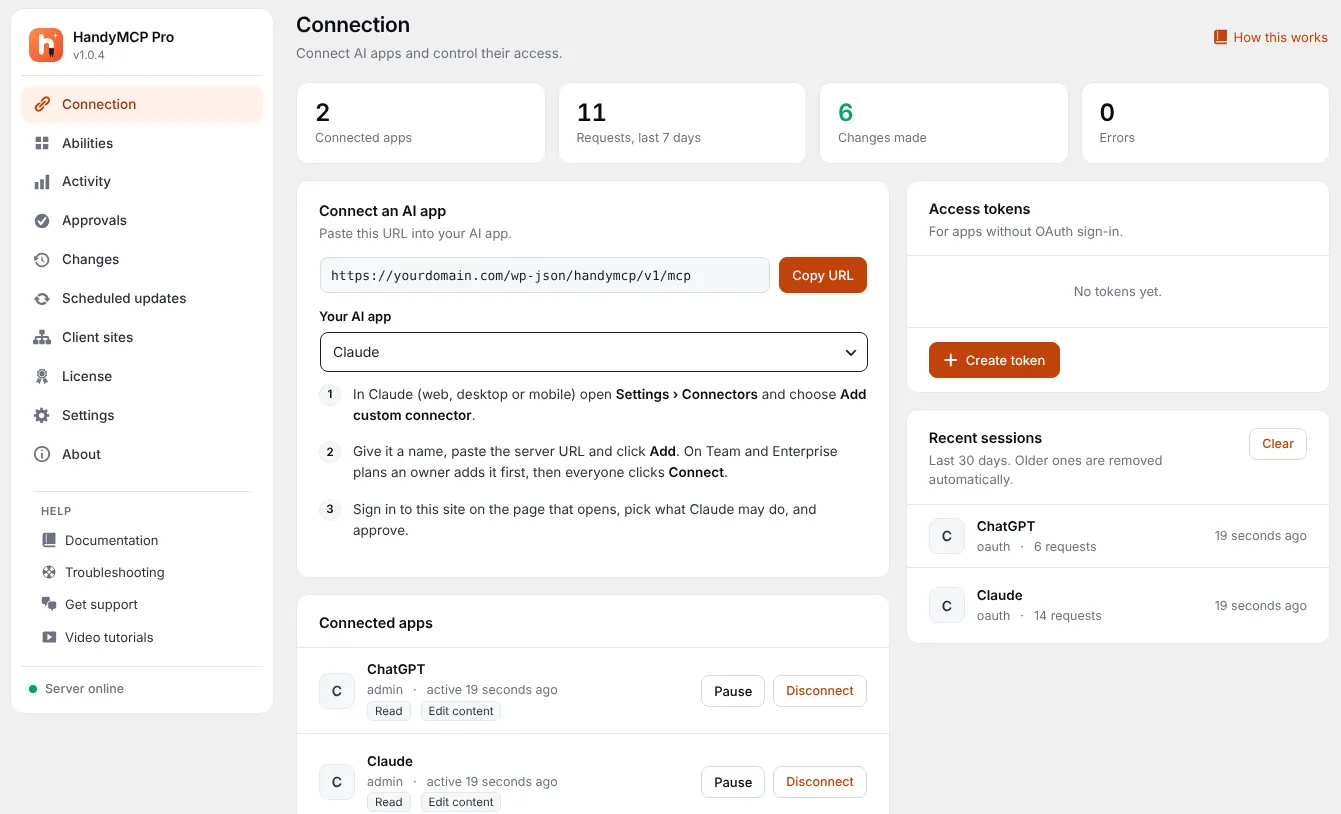
- Install and connect HandyMCP Pro. Requirements: WordPress 6.2+, PHP 7.4+, HTTPS and an administrator account. See install and connect.
- Use a strong sign-in. Connect with OAuth or a personal access token. If you suspect accounts were stolen, change your admin password first.
- Tell people. If you manage the site for someone else, let them know before you start.
Step 1: Scan without changing anything
Start with a read only request. Copy this prompt:
Scan this site for malware: core files, plugins, themes, uploads and the database.
List each suspicious file or database entry with the reason it was flagged.
Do not change, quarantine or delete anything yet.
The scan may take a while on a large site. When it finishes, you get a list grouped by location.
Step 2: Review the findings
Not everything flagged is malware. Minified scripts from a real plugin, or a caching file, can look odd. Go through the list with prompts like:
- “Explain why [file] was flagged, in plain words.”
- “Is [file] part of the official version of [plugin]?”
- “Which of these findings are most likely real malware? Rank them.”
- “Show me the suspicious lines in [file].”
Usually real malware
- PHP files in the uploads folder.
- Core files that differ from the official version.
- Code using
evalwith long encoded strings. - Script tags pointing to unknown domains inside post content or options.
Often harmless
- Minified JavaScript in a plugin’s assets folder.
- Cache files written by a caching plugin.
- Licence check code in a premium plugin.
Step 3: Clean up
When you are happy with the list, approve cleanup. Destructive actions in HandyMCP need explicit confirmation, so the AI will ask before acting.
Quarantine the files you marked as likely malware.
Restore modified core files from the official version.
Remove the injected scripts from the database entries you listed.
Show me a summary of each change.
Then deal with the rest:
- Reinstall infected plugins and themes from their official source rather than trying to clean them line by line.
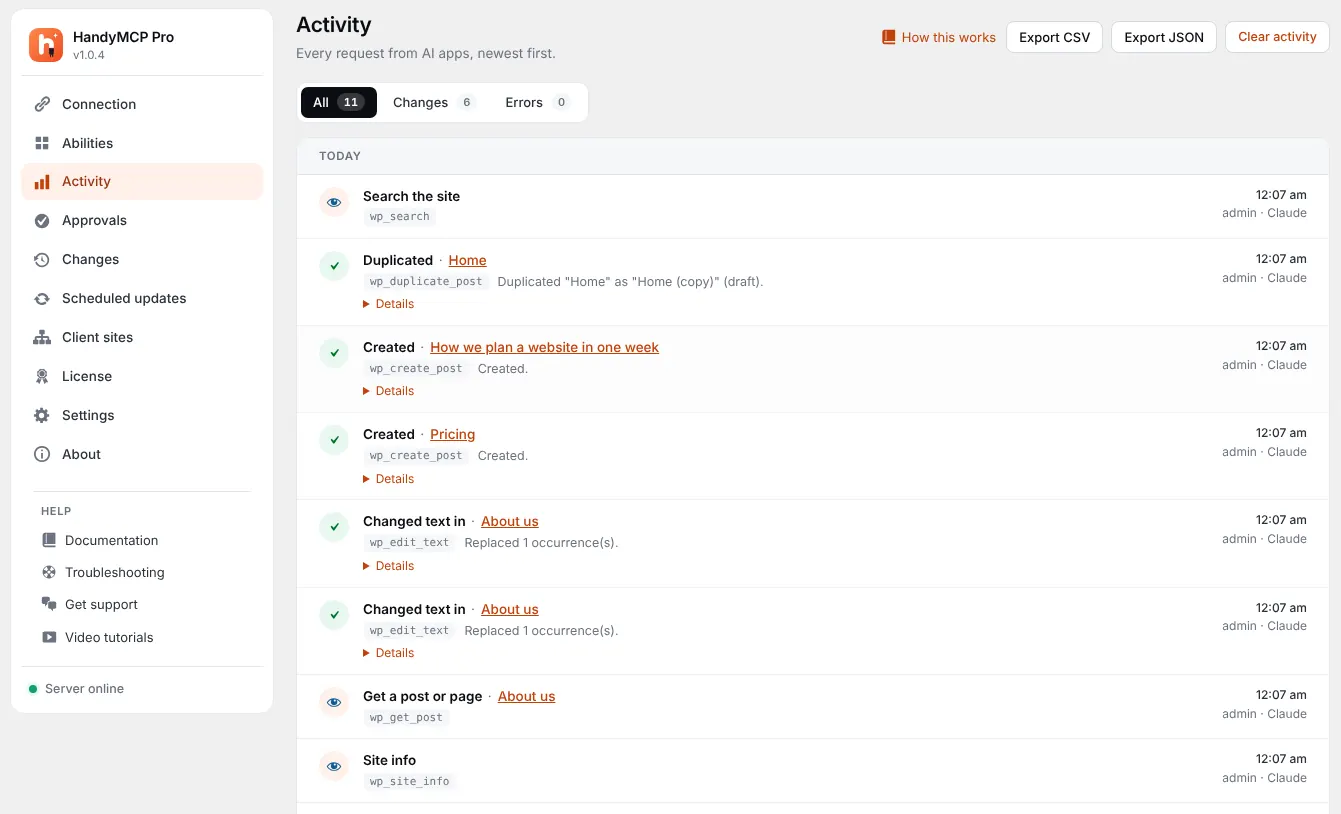
- Remove admin users you did not create. Ask “List all administrator users with their creation dates” and review it. User management is a Pro tool.
- Remove spam pages if the infection created posts. They go to the trash first.
- Purge caches so visitors stop seeing old infected pages.
Step 4: Manual checks you should do yourself
An AI malware scan covers a lot, but some things live outside WordPress or need your own eyes.
- Hosting file manager: look for unknown folders next to your WordPress install, and files at the site root such as odd
.phpnames. - .htaccess: check for redirect rules you did not add.
- wp-config.php: look for code above the opening comment or included files you do not recognise.
- Cron jobs: check the hosting panel for scheduled tasks you did not create.
- Other sites on the same account: an old install in a subfolder can reinfect the main site.
- FTP, SSH and database users: remove accounts you do not use.
- Search Console: check the Security issues report and test a few URLs.
- Search results: search
site:your-site.comto spot spam pages.
Step 5: Close the hole
- Update WordPress, every plugin and every theme. HandyMCP Pro can update one by one with a backup and a health check after each. See update plugins safely with AI.
- Delete plugins and themes you do not use.
- Change all passwords: WordPress admins, hosting, FTP, database.
- Change the security keys and salts in
wp-config.phpso every login session ends. - Revoke old access tokens on HandyMCP > Connection, and review connected sessions.
- If Google flagged the site, request a review in Google Search Console.
Safety: why the AI cannot make things worse
- Suspicious files are quarantined, not deleted.
- Destructive actions need your confirmation.
- File edits are syntax checked, backed up, tested on the live site and reverted automatically if something breaks.
- Site content is treated as data, not instructions, so text planted by an attacker cannot tell the AI what to do.
- There is no tool for raw SQL or arbitrary PHP.
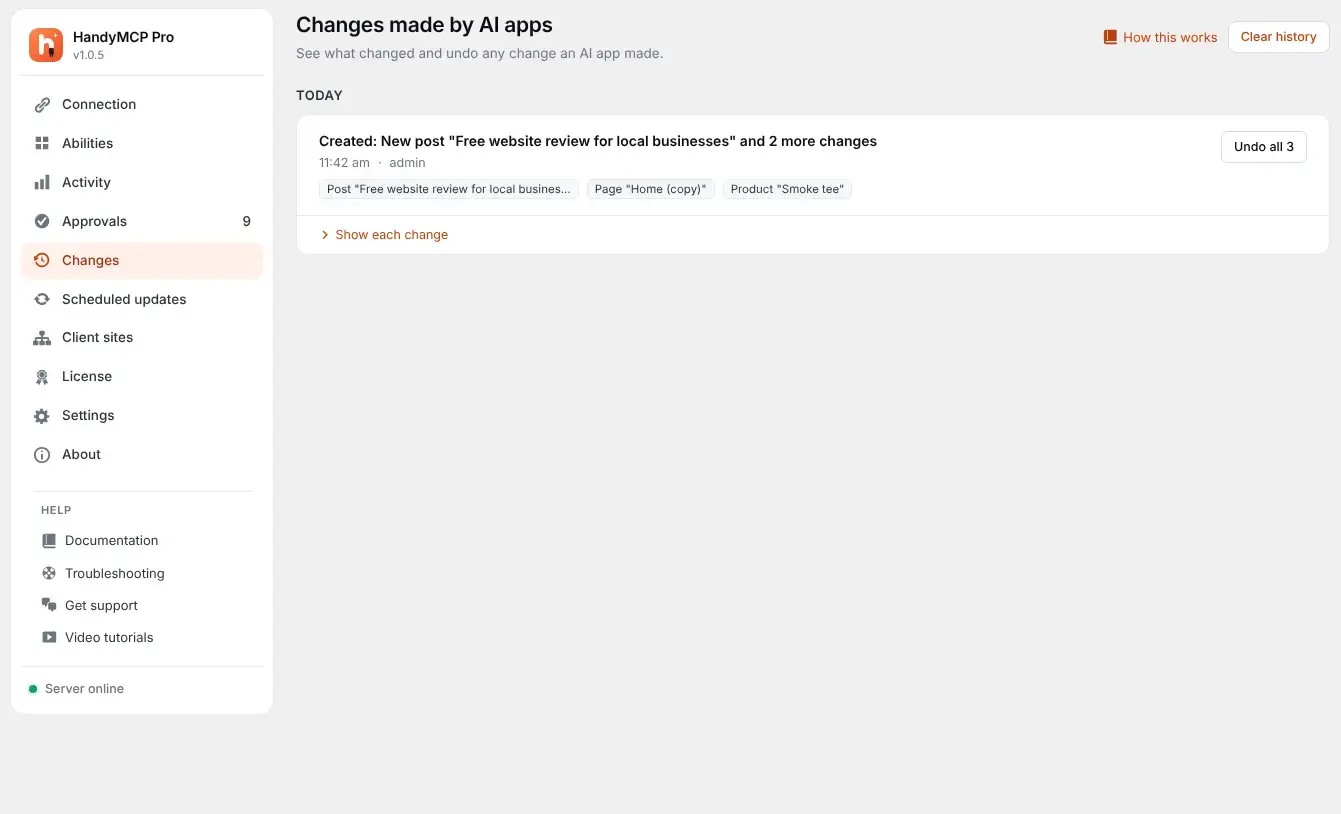
- Every change can be undone from Undo history. Read more in is it safe to let AI edit a live site.
Common mistakes
- Deleting files before reviewing. You can break the site and lose evidence of how the attacker got in.
- Cleaning but not updating. The same hole lets them back in.
- Forgetting the database. Many infections live in posts and options, not files.
- Restoring an infected backup. Check the date of the backup against when symptoms started.
When to call an expert
If the infection returns after a full cleanup, the server or hosting account itself may be compromised. If the site handles payments or sensitive customer data, you may also have reporting duties. In both cases talk to your host or a security professional. You can also contact us with questions about the scan tools.
Frequently asked questions
Can AI really remove WordPress malware?
It can find and clean many common infections, such as injected scripts, modified core files and backdoors in uploads. You should still review the findings before anything is removed and do the manual checks above.
Is the malware scan in the free plugin?
No. Malware scanning and cleanup are part of HandyMCP Pro. See the pricing section.
Will cleanup break my site?
Suspicious files are quarantined rather than deleted, file changes are backed up and checked, and you can undo changes. Take your own full backup first as well.
Does it replace a security plugin or firewall?
No. It is a scan and cleanup tool you run through AI. A firewall and login protection still help prevent new attacks.
How often should I scan?
Scan whenever you see warning signs, and on a regular schedule that suits your site, for example monthly.
Can the AI see my passwords or API keys during the scan?
No. HandyMCP never returns secrets such as API keys or payment gateway keys.
Which AI apps can run the scan?
Any MCP client connected to your site, including Claude, ChatGPT, Claude Code and Cursor.
Ready to check your site? Set up HandyMCP with the install guide, then run the read only scan prompt from Step 1.