
ChatGPT is good at writing, summarising and planning. On its own, though, it cannot touch your WordPress site. You copy text out of the chat, paste it into the editor, fix the formatting and repeat. Connecting ChatGPT to WordPress with MCP removes that copy and paste loop, so ChatGPT can read your posts, draft new ones, edit pages and update products directly.
This guide walks you through the full setup, from installing the plugin to your first real prompt. It also covers permissions, safety, common errors and what to do when something goes wrong.
Quick answer: Install a WordPress MCP server plugin such as HandyMCP, copy your server URL from HandyMCP > Connection, turn on Developer mode in ChatGPT under Settings > Apps, create an app with that URL and choose OAuth. Sign in on your own site, pick what ChatGPT may do, and approve. The whole thing takes about five minutes.
What ChatGPT WordPress MCP actually means
MCP stands for Model Context Protocol. It is an open standard that lets AI apps talk to outside tools in a structured way. Instead of guessing at your site, the AI calls named tools like “list posts”, “update page” or “edit product” and gets real data back.
A WordPress MCP server is the piece that sits on your site and offers those tools. HandyMCP is a WordPress plugin that turns your site into an MCP server. It runs on your own site, so there is no relay service in the middle, no vendor account to create and no usage fee or limits. ChatGPT connects to your site directly.
If you want the longer background, read what MCP is and how it works with WordPress.
Why connect ChatGPT to WordPress
The main reason is time. Tasks that take a dozen clicks become one sentence. A few examples:
- Find every post with no featured image and list them.
- Write SEO titles and meta descriptions for pages that are missing them, in Yoast or Rank Math.
- Draft a new blog post as a draft, with headings and a category.
- Change a price, sale price or stock level on WooCommerce products.
- Edit text, buttons and sections on an Elementor page.
The second reason is accuracy. ChatGPT works with the real content on your site, not a pasted snippet from last week. It can check what is there before it changes anything.
What you need before you start
- A WordPress site running WordPress 6.2 or newer and PHP 7.4 or newer.
- HTTPS on the site. ChatGPT will not connect to a plain HTTP address.
- An administrator account on that site.
- A ChatGPT plan that offers Developer mode for apps. OpenAI changes plan details often, so check your own Settings.
- The free HandyMCP plugin. See the install guide if you have not added it yet.
On Business and Enterprise workspaces, an admin may need to allow custom apps before you can create one.
Step by step: connect ChatGPT to WordPress
ChatGPT’s menu names can change over time. If a label below looks different on your screen, look for the closest match under Settings.
Step 1: Install and activate HandyMCP
In your WordPress dashboard go to Plugins > Add New. Upload the HandyMCP zip or search for it, then click Activate. A new HandyMCP menu appears with Connection, Abilities, Activity, Undo history and Settings.
Step 2: Copy your MCP server URL
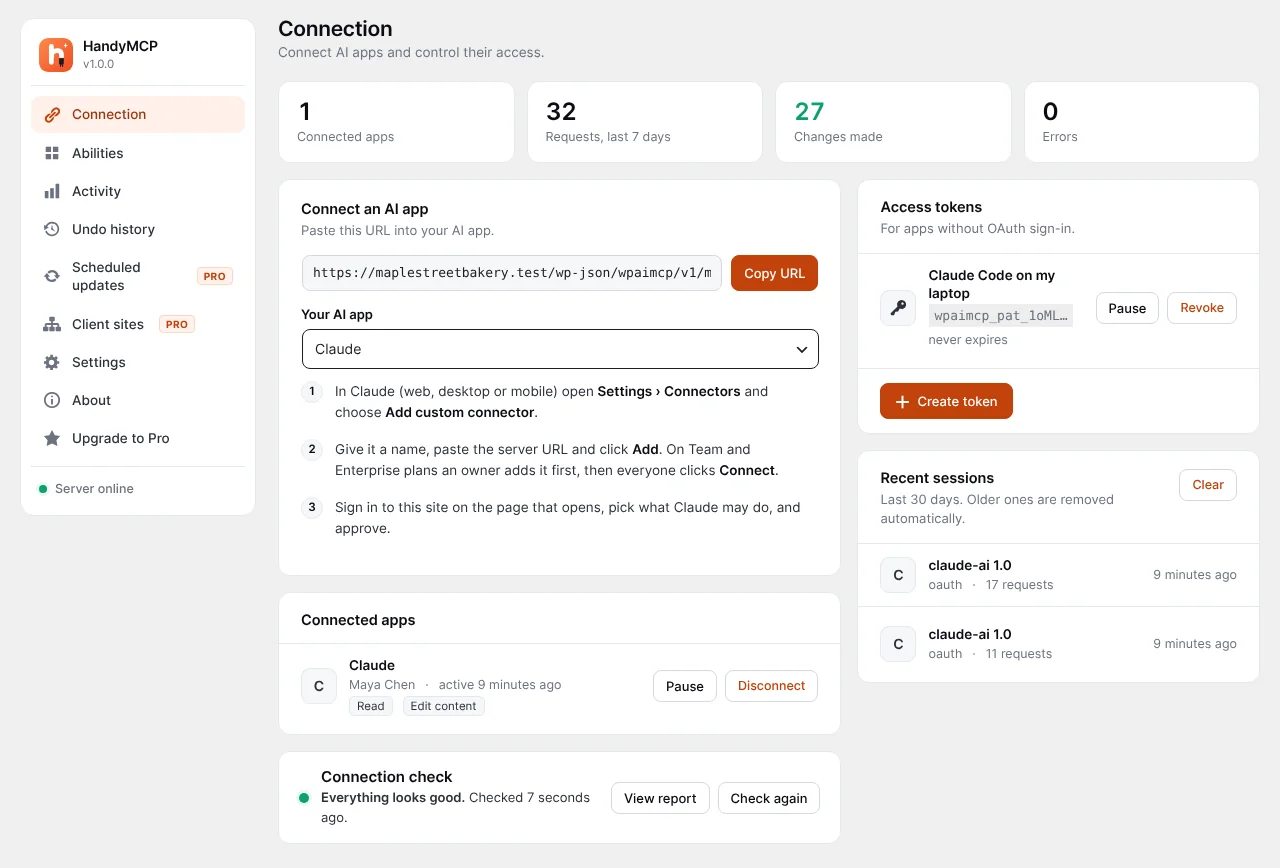
Open HandyMCP > Connection. Your server URL sits at the top. It looks like this:
https://your-site.com/wp-json/handymcp/v1/mcpCopy it. The same screen has steps for more than 20 AI apps and a connection check you can run at any time.
Step 3: Turn on Developer mode in ChatGPT
- Open ChatGPT and go to Settings > Apps.
- Open the advanced settings and switch on Developer mode.
- ChatGPT shows a warning about custom apps. Read it, then accept.
Step 4: Create the app
- Click Create app.
- Give it a clear name, such as “Bakery site” or “My WordPress site”. If you connect several sites, use names you can tell apart.
- Paste the server URL from Step 2.
- Choose OAuth as the sign-in method.
- Save. A consent page from your own WordPress site opens.
Step 5: Approve access on your site
Sign in to WordPress if asked. The consent page lets you choose what ChatGPT may do:
| Scope | What it allows |
|---|---|
| Read only | Look at posts, pages, products and settings. No changes. |
| Edit content | Create and edit posts, pages, menus, media and SEO fields. |
| Manage the store | Work with WooCommerce products and orders. |
| Manage the site | Wider site tasks, such as settings and cache. |
Pick only what you need and approve. The sign-in uses OAuth 2.1 with PKCE, so ChatGPT never sees your WordPress password. HandyMCP never accepts a browser cookie login at the MCP endpoint.
Step 6: Switch the app on in a chat
Start a new chat, open the tools menu and switch on your WordPress app. Now ChatGPT can call your site’s tools in that conversation.
Your first prompts
Start small and read only. That way you see how ChatGPT uses the tools before you let it change anything.
- “List my last ten posts and tell me which ones have no featured image.”
- “Which pages are missing a meta description?”
- “Show me the five WooCommerce products with the lowest stock.”
Then try a safe write task:
- “Write a draft post about our autumn opening hours. Keep it under 300 words and put it in the News category. Do not publish it.”
- “Write SEO titles and meta descriptions for the pages that are missing them. Show me the list first.”
- “On the About page, change the button text from Learn more to Meet the team.”
You will find more tested prompts on the prompts page.
How ChatGPT and HandyMCP keep changes safe
There are two layers of protection. ChatGPT asks before it runs a tool that changes data. That is ChatGPT’s own step, and it is worth keeping on. HandyMCP adds its own rules on the site side:
- Live page guard. If you ask for a “redesign”, “new version” or “draft”, HandyMCP creates a draft copy. A published page is only replaced when you clearly ask for that page to change.
- Confirmation for risky actions. Destructive tools, such as deleting content, need an explicit confirmation after you agree.
- Conflict check. If someone edited the page after ChatGPT read it, HandyMCP refuses to overwrite the newer edit.
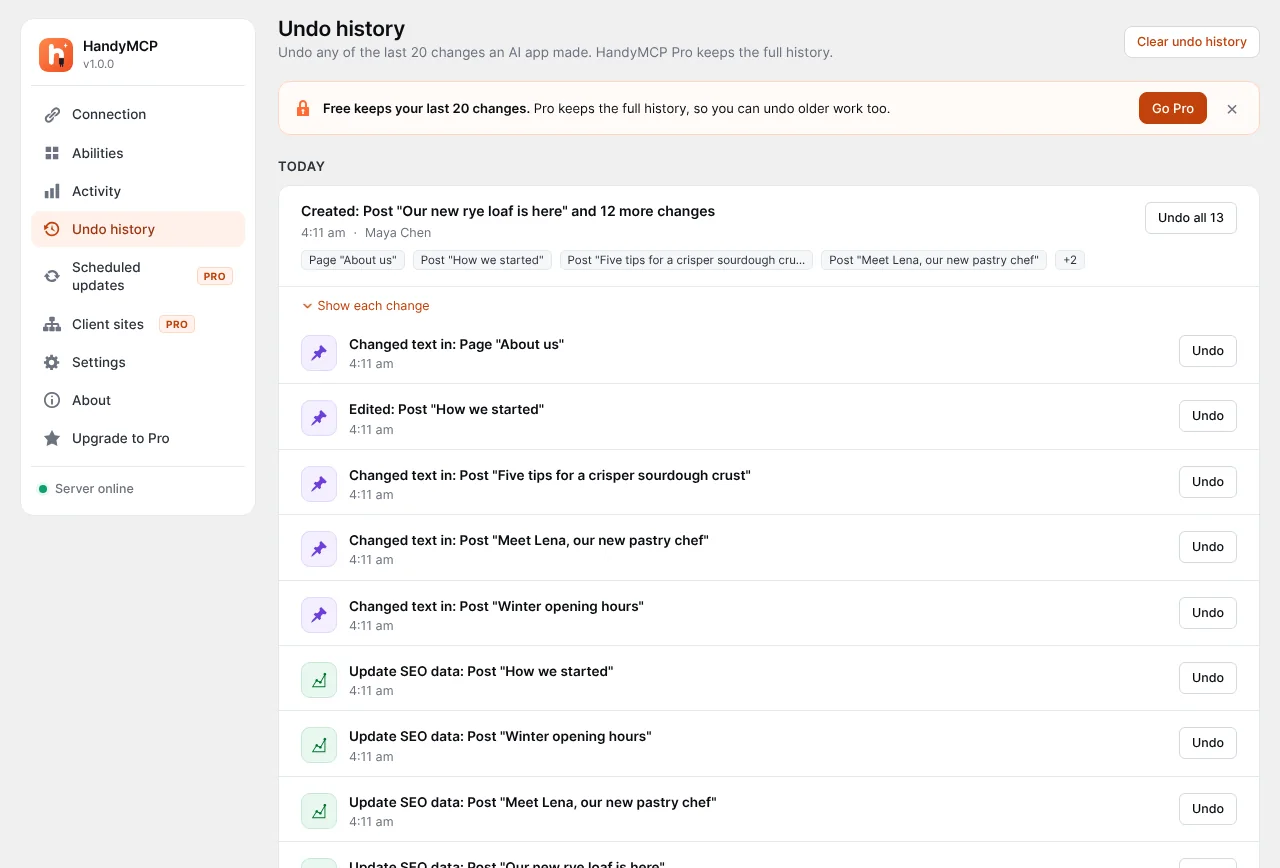
- Undo for every change. Every change is saved first and gets a history ID. You can undo one change, a whole task or every change to a page.
- No raw SQL or PHP tools. There is no tool that runs arbitrary database queries or code.
- Secrets stay hidden. API keys and payment gateway keys are never returned to the AI.
- Content is data. Text inside your posts or comments is treated as data, not instructions, which protects against prompt injection.
For a full look at the risks and how to manage them, read is it safe to let AI edit a live WordPress site.
Tightening permissions
Use the Abilities screen
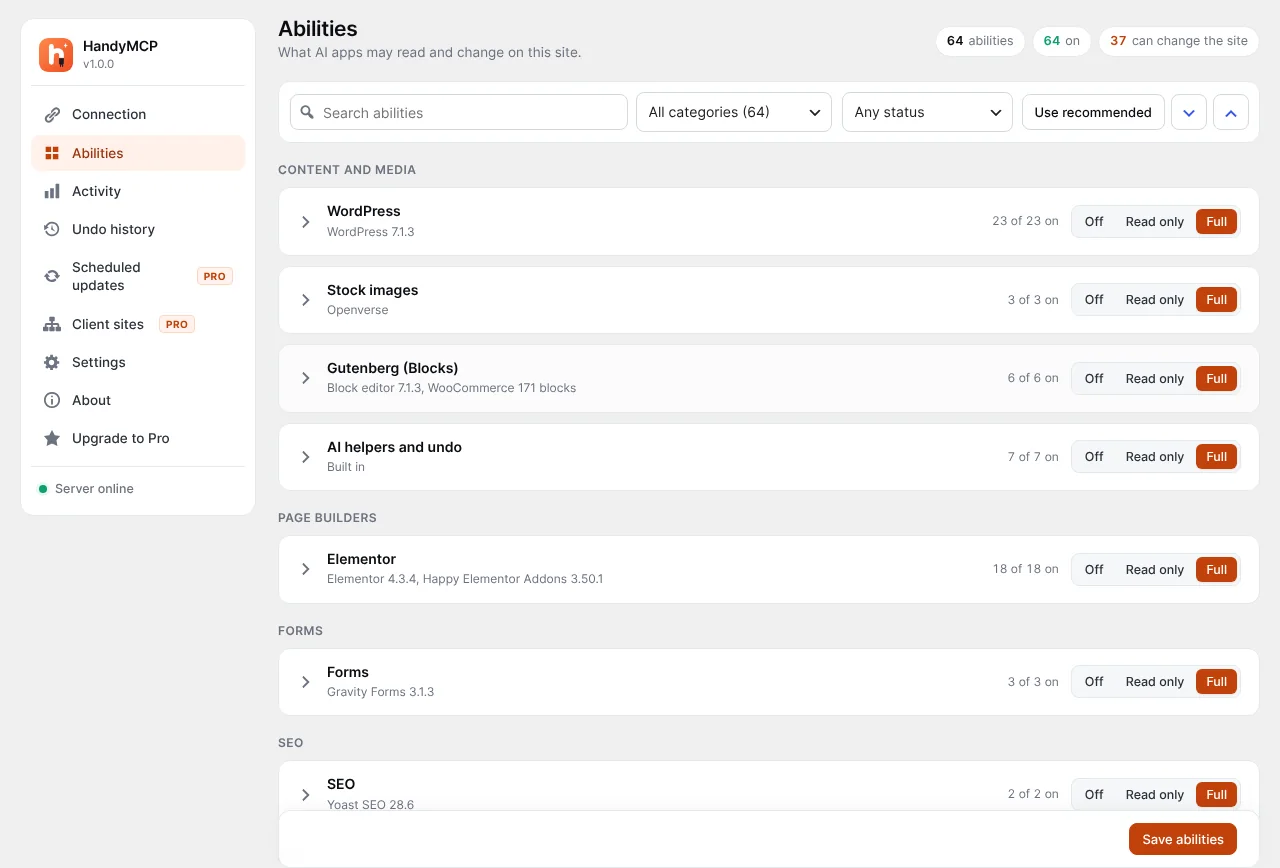
Under HandyMCP > Abilities you can switch off whole tool groups, like WooCommerce or menus, or single tools. You can also turn on read only mode for everything. This is useful when you want ChatGPT to audit a site without any chance of changes.
Choose who can connect
By default only Administrators can connect an AI app. You can allow other roles in Settings. Each user can still only do what their WordPress role allows. An Author connected through ChatGPT cannot edit other people’s posts.
Revoke access
The Connection screen lists active sessions and access tokens. You can pause or revoke any of them. If you stop using ChatGPT with a site, revoke its session there.
Checking what ChatGPT did
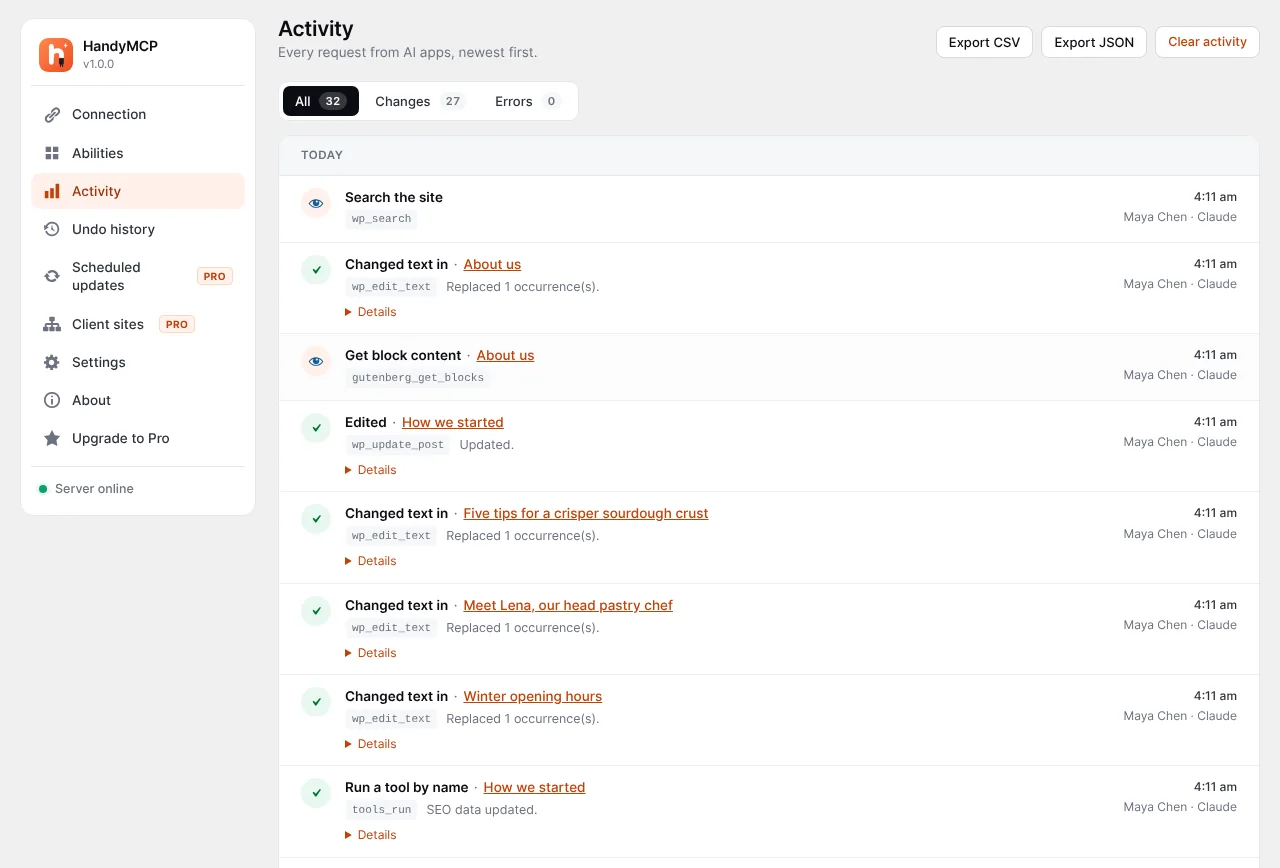
Every request lands in HandyMCP > Activity. You see which app called which tool and which page or product it touched. If a result looks wrong, open Undo history, find the change and undo it. The undo guide shows the full process.
Common mistakes
- Giving full access on day one. Start with read only or edit content. Add store or site access later.
- Vague prompts on live pages. “Make the homepage better” invites big changes. Say what to change and whether you want a draft.
- Forgetting to switch the app on. The app has to be enabled in each chat’s tools menu.
- Skipping the review. Ask ChatGPT to show a list before it runs a bulk change.
- Connecting the wrong site. Name each app clearly if you manage more than one site.
Troubleshooting
ChatGPT says it cannot reach the server
Check the site is on HTTPS and the URL ends in /wp-json/handymcp/v1/mcp. Then run the check on the Connection screen. A security plugin, firewall or host rule that blocks the REST API is the most common cause. Allow /wp-json/handymcp/ and try again.
The consent page does not open or shows an error
Caching or security plugins sometimes interfere with the sign-in page. Exclude the consent and REST URLs from page caching, then create the app again.
The tools do not show in the chat
Open the tools menu in the chat and make sure your app is switched on. Also confirm Developer mode is still on under Settings.
A tool returns “not allowed”
You may have approved a narrower scope, or switched that tool off under Abilities. It could also be your WordPress role. Reconnect with the right scope or adjust Abilities.
The troubleshooting docs and the post on WordPress MCP connection fixes cover more cases.
Free vs Pro for ChatGPT users
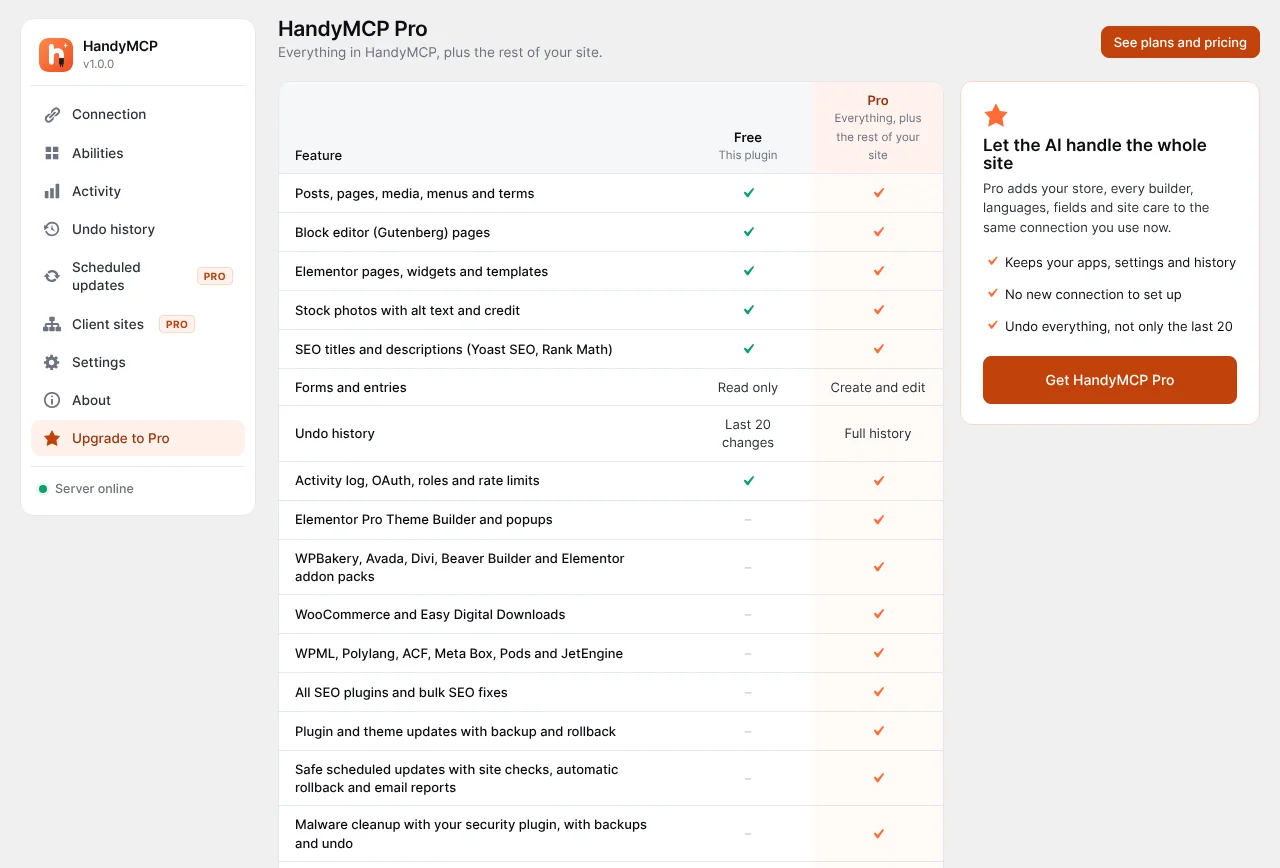
The free plugin covers the jobs most people start with: posts, pages, menus, media, Gutenberg, Elementor editing, SEO fields in Yoast or Rank Math, categories and tags, WooCommerce basics, form editing, the Activity log and undo for the last 20 changes.
Pro adds other page builders, Elementor Pro Theme Builder, full WooCommerce (variations, coupons, refunds, reports, bulk price changes), plugin and theme updates with backups and automatic restore, malware scanning, search and replace, redirects and full undo history. See pricing for the plans.
Next steps
Once ChatGPT is connected, try a real task you do every week and time it. If you also use Claude, the setup is similar: see how to connect Claude to WordPress. For page builder work, read how to edit Elementor pages with AI.
Frequently asked questions
Is it free to connect ChatGPT to WordPress?
The HandyMCP plugin has a free version with no usage limits or fees. You only need a ChatGPT plan that supports Developer mode apps.
Does ChatGPT get my WordPress password?
No. The connection uses OAuth 2.1 with PKCE. You sign in on your own site and ChatGPT receives a limited token for the scopes you approved.
Can ChatGPT publish posts on its own?
It can if you give it edit access and ask it to. ChatGPT asks before running tools that change data, and you can tell it to save drafts only.
Does this work with WooCommerce?
Yes. The free version can list, create and edit products, including price, sale price, stock, SKU and images, and look up orders. Pro adds variations, coupons, refunds and reports.
Can I connect more than one site to ChatGPT?
Yes. Install HandyMCP on each site and create a separate app in ChatGPT for each server URL. Give each app a clear name.
What happens if ChatGPT makes a mistake?
Every change is saved before it happens. Open Undo history and undo one change, a whole task or every change to a page.
Does HandyMCP send my content to a third party server?
No. HandyMCP runs on your own site with no relay. ChatGPT connects to your site directly, and only the data a tool returns goes to ChatGPT.
Ready to try it? Follow the install steps, then connect ChatGPT using the connection guide.