
Once Claude is connected to your WordPress site through an MCP server, the hard part is no longer the setup. It is knowing what to ask. A vague prompt gets a vague result, or worse, a change on the wrong page. A good prompt names the page, says what to change, and says whether to work on a draft.
Below are 28 Claude prompts for WordPress, grouped by task, with a short note on why each one works. They also work in ChatGPT, Cursor and other MCP apps. Copy them, swap the bracketed parts for your own details, and adjust the tone to suit your site.
Quick answer: The best Claude prompts for WordPress name the exact page or product, describe the change in plain words, ask for a draft for anything big, and ask for a preview before bulk edits. Start with read only prompts such as “list” and “find”, then move to edits once you trust the results. Prompts marked (Pro) need HandyMCP Pro; the rest work with the free version.
Before you start
You need three things:
- A WordPress site with HandyMCP installed (WordPress 6.2+, PHP 7.4+, HTTPS, an administrator account). See the install steps.
- Claude connected to your site. Follow how to connect Claude to WordPress, or Claude Code if you work in a terminal.
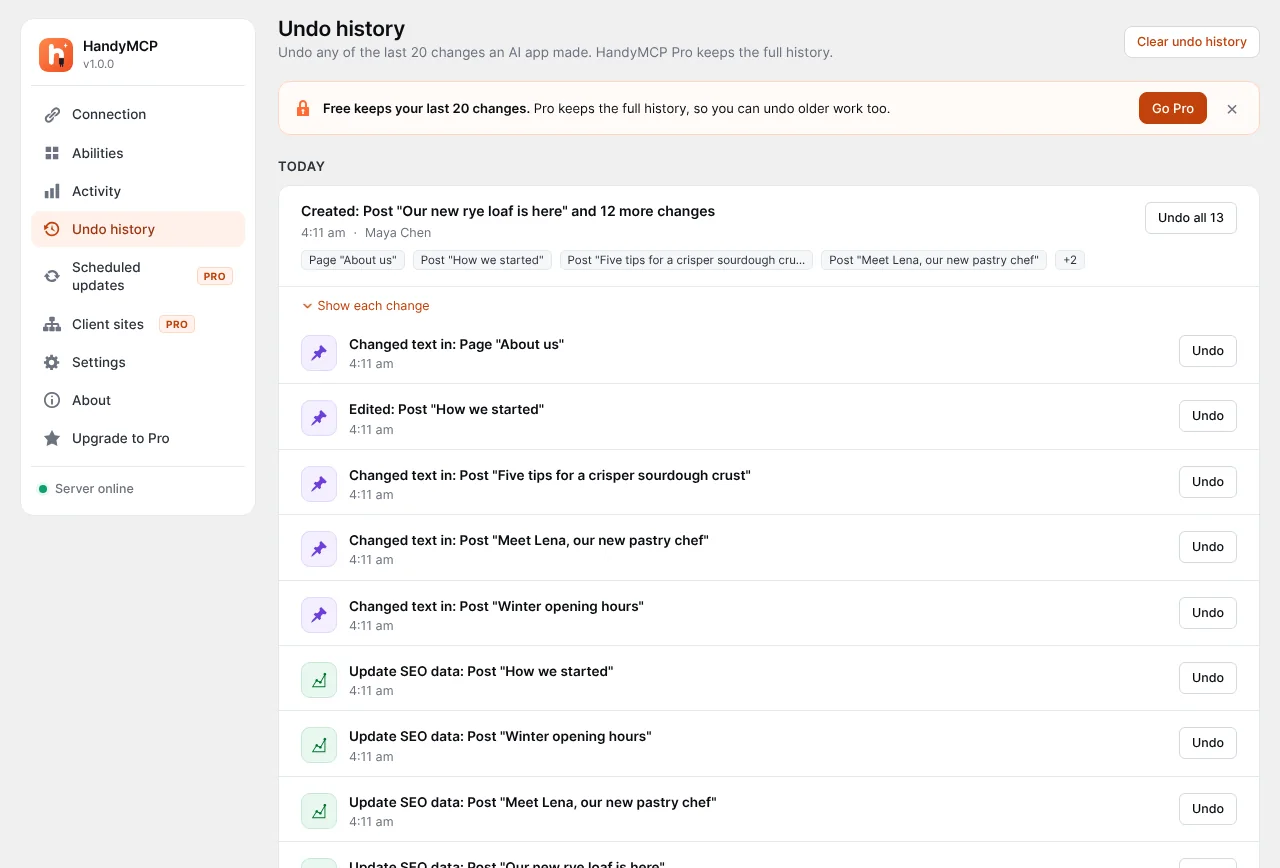
- A safety net. Every HandyMCP change is saved first and can be undone. Free keeps the last 20 changes; Pro keeps full history.
If you are nervous, turn on read only mode on the Abilities screen while you test the “list” and “find” prompts below.
How to write a prompt that works
Every prompt in this list follows the same pattern:
- Target: the exact page, post, product or category.
- Action: what to change, in plain words.
- Limits: length, tone, what to keep, what not to touch.
- Safety: “as a draft”, “show me first” or “do not publish”.
HandyMCP has a live page guard. If you say “redesign”, “new version” or “draft”, it creates a draft copy and leaves the published page alone. A published page is only replaced when you clearly ask for it.
Content prompts
1. Draft a new post
“Write a draft blog post about [topic] for [audience], about 1,200 words, with five H2 sections and an FAQ at the end. Do not publish it.”
Why it works: audience, length and structure are set, and “do not publish” keeps it safe.
2. Audit old posts
“List posts published more than two years ago with their titles and dates. Suggest which to update, merge or leave alone, and why.”
Why it works: it is read only, so nothing changes, and you get a plan you can act on.
3. Rewrite a page as a draft copy
“Make a draft copy of the About page and rewrite it in a warmer, more personal tone. Keep every fact, name and date.”
Why it works: “draft copy” triggers the live page guard, and “keep every fact” stops invented details.
4. Fill missing featured images
“Find posts with no featured image. For each, search stock photos that fit the topic and show me two options before setting any.”
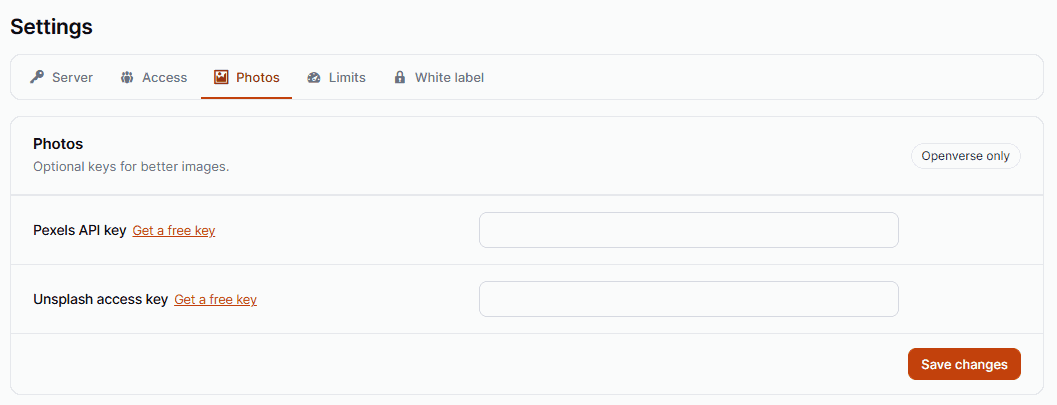
Why it works: you approve each image. This works in the free plugin too. Without keys, photos come from Openverse. Add a free Pexels or Unsplash key under HandyMCP › Settings › Photos for a much bigger choice. A Pexels key also lets the AI find free stock videos, for example a short background clip for a hero. See stock photos and videos in the docs.
4b. Add photos to an FAQ or section
“On [page], add a small matching photo beside each FAQ answer. Search Unsplash first and keep the layout as it is.”
Why it works: it names the page, the library and what must not change.
5. Turn an outline into a page
“Turn this outline into a draft page called [title], using headings, short paragraphs and a call to action at the end: [paste outline].”
Why it works: you supply the substance, Claude supplies the structure.
6. Tidy categories
“List all categories with their post counts. Suggest which ones to merge or delete, but do not change anything yet.”
Why it works: category deletes can be undone, but planning first saves effort.
SEO prompts
7. Write missing meta descriptions
“List pages and posts with no meta description. Write one for each, under 155 characters, including the main topic once. Show me the list before saving.”
Why it works: a clear length limit and a preview. HandyMCP can save up to 50 at once with one undo. See our guide to AI SEO titles and meta descriptions.
8. Fix long SEO titles
“Find SEO titles longer than 60 characters and shorten them. Keep the focus keyword near the start.”
Why it works: a measurable rule Claude can check itself.
9. Add missing alt text
“Find images in the media library with no alt text. Write short, descriptive alt text for each based on the file name and the post it is used in.”
Why it works: it gives Claude context to describe the image rather than guess.
10. Suggest internal links
“Read the post [title] and suggest five internal links to other posts on this site, with the anchor text and the sentence to place each in.”
Why it works: you get exact placements, not a vague list.
11. Replace an old URL everywhere (Pro)
“Search all content for links to [old URL]. Show me how many matches you find, then replace them with [new URL].”
Why it works: search and replace previews the count first. Pairs well with a redirect.
12. Run an SEO audit (Pro)
“Run an SEO audit on [page] and list the top five issues in order of impact.”
Why it works: “top five” and “order of impact” keep the answer short and useful.
Elementor prompts
13. Build a landing page draft
“Build a draft Elementor landing page for [offer] with a hero, three benefits, a testimonial area with placeholder text, an FAQ and a contact form. Use our global colours and fonts.”
Why it works: the sections are listed and the brand is fixed. More in build an Elementor landing page with one prompt.
14. Change one button
“On [page], change the hero button text to [text] and link it to [URL]. Do not change anything else.”
Why it works: a small, targeted edit instead of resaving the whole layout.
15. Fix mobile headings
“On [page], make every heading 20 percent smaller on mobile only.”
Why it works: it names the device, so desktop stays the same.
16. Duplicate for a new service
“Duplicate [page] and rewrite the copy for [new service]. Keep the layout and images.”
Why it works: the duplicate keeps all builder data and the original stays live.
17. Add an FAQ section
“Add an FAQ section with five questions customers ask about [topic] to the bottom of [page], styled like the rest of the page.”
Why it works: “styled like the rest” makes Claude copy existing styles.
18. Edit the site header (Pro)
“Open the Elementor Pro header template and add a [label] link to the menu area.”
Why it works: Theme Builder templates are Pro. See editing Elementor with AI.
WooCommerce prompts
19. Low stock check
“Show the ten products with the lowest stock, with SKU and current stock level.”
Why it works: read only and a fixed number of results.
20. Rewrite short descriptions
“Rewrite the short descriptions for products in [category], two sentences each, focused on the main benefit. Show me three before doing the rest.”
Why it works: a sample first lets you fix the tone before it spreads.
21. Find incomplete products
“Which products have no category, no image or no price?”
Why it works: a quick quality check you can run every month.
22. Weekly order summary
“Summarise last week’s orders: number of orders, total and the top three products.”
Why it works: customer emails and phones are masked in lists, so the summary stays clean.
23. Bulk price change (Pro)
“Increase prices in [category] by 5 percent. Show me the before and after for each product first.”
Why it works: changes over 10 products need your confirmation anyway. More in bulk edit WooCommerce products with Claude.
Maintenance and security prompts
24. Check pending updates (Pro)
“List plugins and themes with updates available and the version change for each.”
Why it works: you see what is waiting before anything changes.
25. Update plugins safely (Pro)
“Update all plugins one by one, check the home and login pages after each, and tell me what changed.”
Why it works: HandyMCP Pro checks requirements, makes a zip backup and restores automatically on error. See update plugins safely with AI.
26. Malware scan (Pro)
“Scan core files, plugins, themes, uploads and the database for malware. Show me what you find before quarantining anything.”
Why it works: you review findings first, and files are quarantined, not deleted.
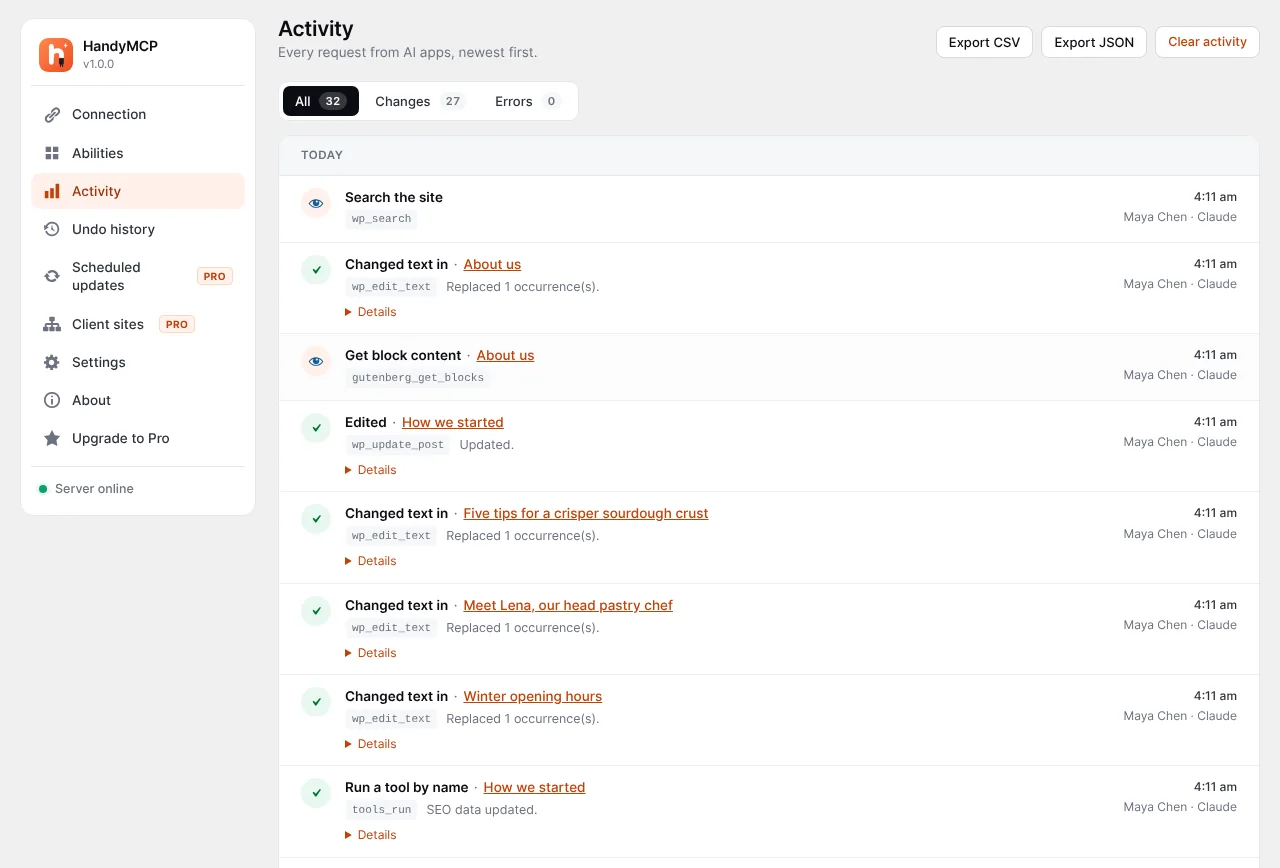
27. Review AI activity
“What did you change on this site today? List each change with the page and time.”
Why it works: Claude can read the history, and you can check it on the Activity screen too.
28. Undo a task
“Undo everything you changed on [page] today.”
Why it works: undo works per change, per task or per page.
Common mistakes
- “Fix my homepage.” Too vague. Say what is wrong and what good looks like.
- No page name. If two pages are called “Services”, name the URL.
- Bulk edits with no preview. Always ask for a sample or a list first.
- Pasting instructions from other sites. HandyMCP treats site content as data, not instructions, but keep your prompts your own.
Troubleshooting
- Claude says it has no tool for that. The tool group may be off on the Abilities screen, or it may be a Pro tool.
- It edited the wrong page. Undo it from Undo history, then repeat with the exact URL.
- The change does not show. Ask Claude to purge the cache.
- Claude cannot connect. See WordPress MCP not connecting fixes.
Free vs Pro at a glance
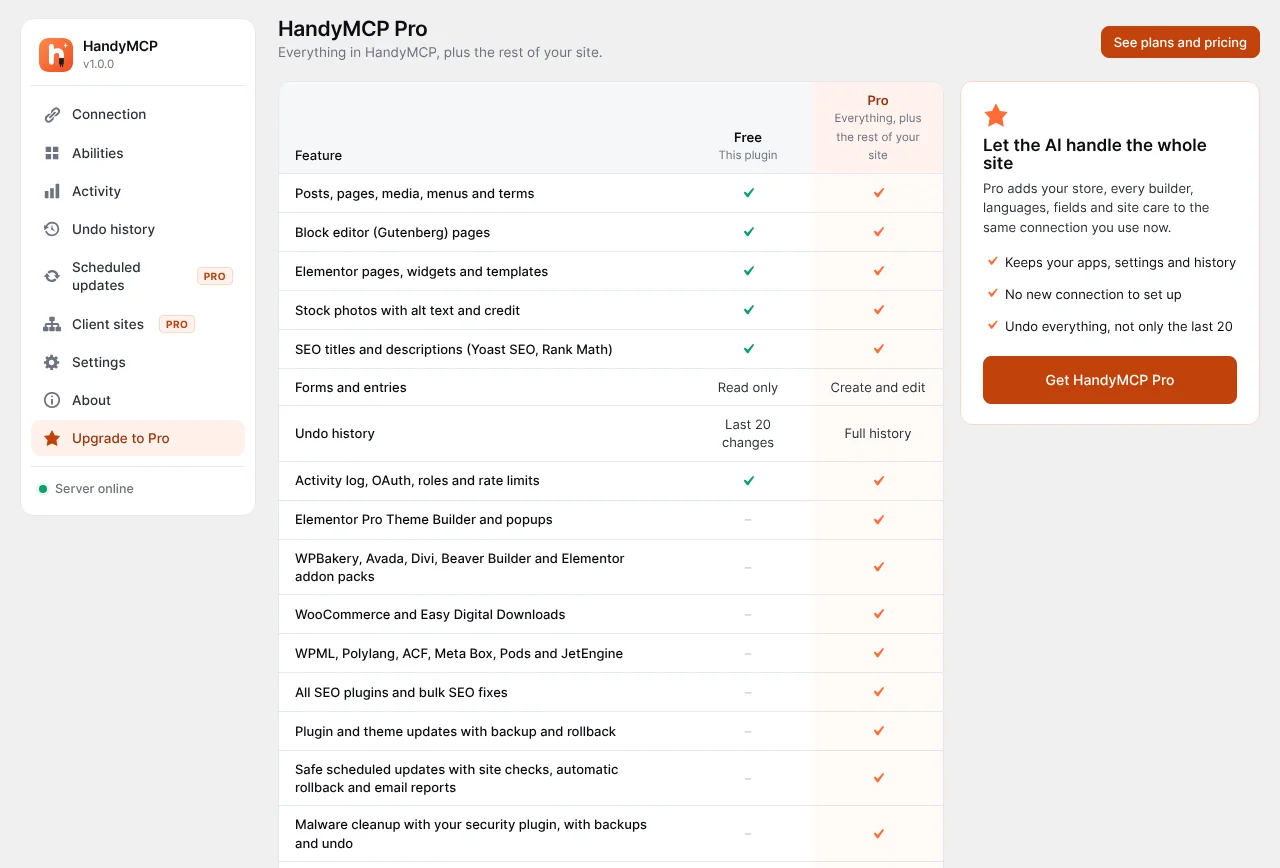
Content, SEO fields, Elementor pages, WooCommerce basics, forms and the last 20 undo steps are free. Pro adds search and replace, SEO audits, Theme Builder, full WooCommerce, plugin updates, malware scans and full history. Compare on the pricing section.
Frequently asked questions
Do these prompts work with ChatGPT?
Yes. They work with any AI app connected to WordPress through an MCP server, including ChatGPT, Cursor and Claude Code.
Do I need to use the exact wording?
No. Keep the pattern: target, action, limits, safety. The words can be your own.
Can Claude publish posts by itself?
Only if you ask. Say “as a draft” or “do not publish” to keep things private until you review them.
What if a prompt makes a mistake?
Ask Claude to undo it, or use Undo history in wp-admin. You can undo one change, a whole task or every change on a page.
Which prompts are safe to try first?
Anything that starts with “list”, “find” or “show”. They only read. You can also turn on read only mode.
Can other users on my site use these prompts?
By default only Administrators can connect. Other roles can be allowed in Settings, and each user can only do what their WordPress role allows.
Where can I find more prompts?
The HandyMCP prompt library has more, sorted by task, with search.
New to all this? Start with connecting Claude to WordPress, then come back and try prompt 2.