
Claude Code is great at working through a codebase from the terminal. When that codebase is a WordPress theme or plugin, though, half the picture lives on the site itself: the pages, the blocks in use, the settings and the products. Without a connection, Claude Code is guessing about all of that.
This guide shows you how to connect Claude Code to WordPress with MCP in about five minutes. It covers token and OAuth setups, user and project scope, useful prompts, safety habits and fixes for the errors people hit most.
Quick answer: Install HandyMCP on your site, create an access token under HandyMCP > Connection, then run claude mcp add --transport http wordpress YOUR_URL --header "Authorization: Bearer YOUR_TOKEN". Start Claude Code and type /mcp to confirm it is connected. If you prefer OAuth, leave out the header and authenticate from /mcp instead.
What you get when you connect Claude Code to WordPress
MCP (Model Context Protocol) is an open standard that lets AI apps call outside tools. HandyMCP is a WordPress plugin that turns your site into an MCP server. Once Claude Code is connected, it can call tools like list posts, update page, read an Elementor layout, edit a product or purge the cache.
HandyMCP runs on your own site. There is no relay, no vendor account and no usage fee or limits. Claude Code connects to your site directly. For background, read what MCP is in WordPress.
Why use Claude Code with WordPress
- Code and content together. Build a block pattern in your theme, then ask Claude Code to add it to a draft page.
- Real data while you debug. It can read the actual page, post meta or product data instead of assuming.
- Docs and release notes. Turn a markdown file in your repo into a draft post.
- Site checks. Ask which plugins are active, which theme is running or what a page is built with.
What you need
- WordPress 6.2 or newer, PHP 7.4 or newer, and HTTPS.
- An administrator account on the site.
- Claude Code installed and signed in.
- The free HandyMCP plugin. See install steps.
Step 1: Install HandyMCP and copy the URL
Activate the plugin in Plugins > Add New. Then open HandyMCP > Connection and copy the server URL:
https://your-site.com/wp-json/handymcp/v1/mcp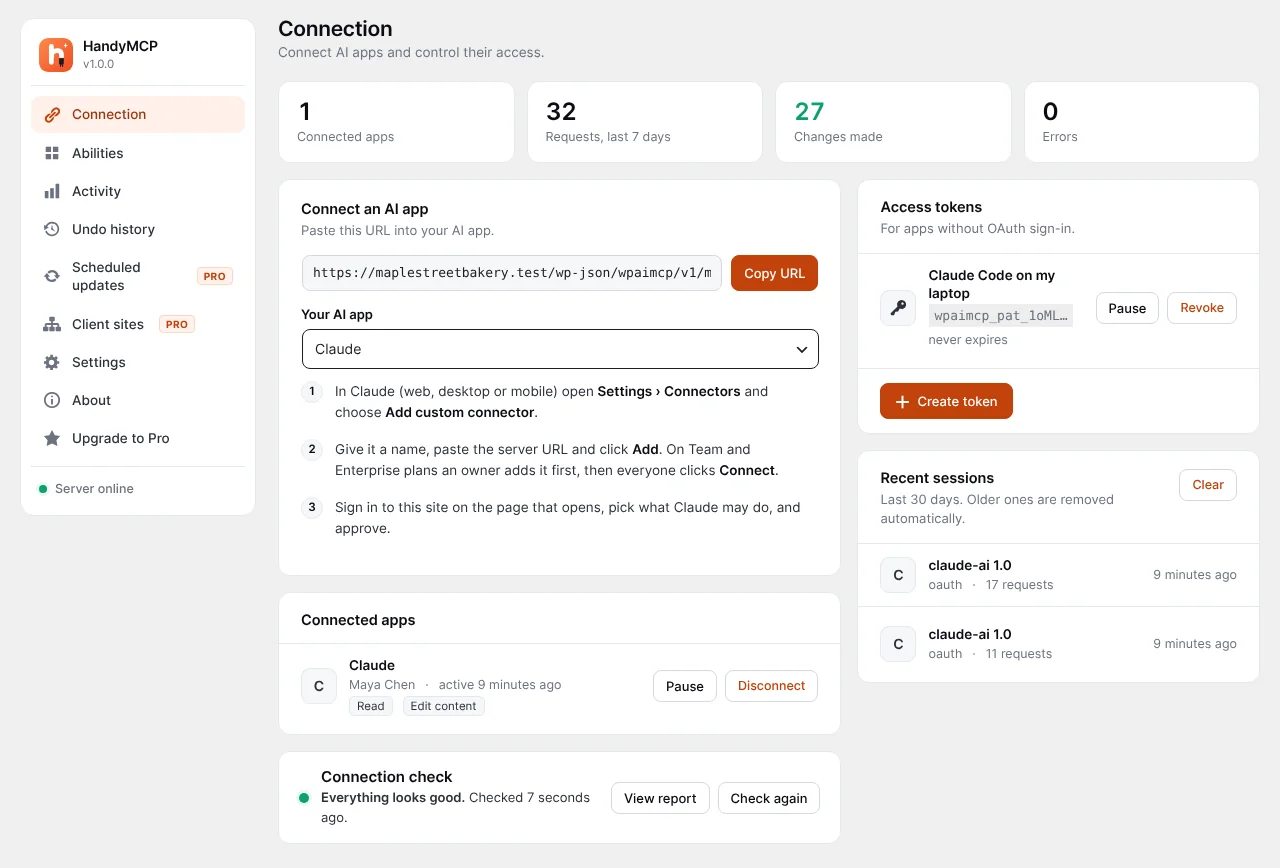
Step 2: Choose token or OAuth
| Method | How it works | Best for |
|---|---|---|
| Personal access token | Created on the Connection screen, sent as a Bearer header. Stored hashed, shown once, can be paused or revoked. | One developer, scripts, quick setup |
| OAuth 2.1 with PKCE | You sign in on your own site in the browser and pick scopes. | Teams where each person signs in as themselves |
Create a token
- On the Connection screen open Access tokens.
- Create a token named something like “Claude Code on my laptop”.
- Choose its permissions. Start narrow.
- Copy it now. You will not see it again.
Step 3: Add the server to Claude Code
With a token
claude mcp add --transport http wordpress https://your-site.com/wp-json/handymcp/v1/mcp \
  --header "Authorization: Bearer YOUR_TOKEN"
With OAuth
claude mcp add --transport http wordpress https://your-site.com/wp-json/handymcp/v1/mcpThen start Claude Code, type /mcp, pick the wordpress server and choose to authenticate. Your site’s consent page opens in the browser. Sign in, pick scopes (read only, edit content, manage the store, manage the site) and approve.
Pick a scope
- Default (local): available in the current project on your machine.
--scope user: available in every project on your machine.--scope project: written to a.mcp.jsonfile in the repo, so your team gets it too.
Never commit a .mcp.json that contains a real token. For shared project config, use OAuth so each teammate signs in.
Connect several sites
Give each server its own name:
claude mcp add --transport http shop-staging https://staging.your-shop.com/wp-json/handymcp/v1/mcp \
  --header "Authorization: Bearer STAGING_TOKEN"

claude mcp add --transport http shop-live https://your-shop.com/wp-json/handymcp/v1/mcp \
  --header "Authorization: Bearer LIVE_TOKEN"
Step 4: Check the connection
Start Claude Code and type /mcp. The wordpress server should show as connected with a list of tools. You can also run the connection check on HandyMCP’s Connection screen. Claude Code’s commands and flags can change between versions, so check claude mcp --help if something looks different.
Prompts to try
Start read only:
- “Which theme and plugins are active on my WordPress site?”
- “List the ten most recent posts with their categories and status.”
- “Read the Elementor layout of the home page and tell me which widgets it uses.”
Then combine code and content:
- “Create a draft post from docs/release-notes.md. Do not publish it.”
- “Compare the block styles in this theme with what is used on the live home page.”
- “Find pages with no meta description and write one for each. Show me the list first.”
- “After that change, purge the site cache.”
More examples on the prompts page and in Claude prompts for WordPress.
Free vs Pro for Claude Code users
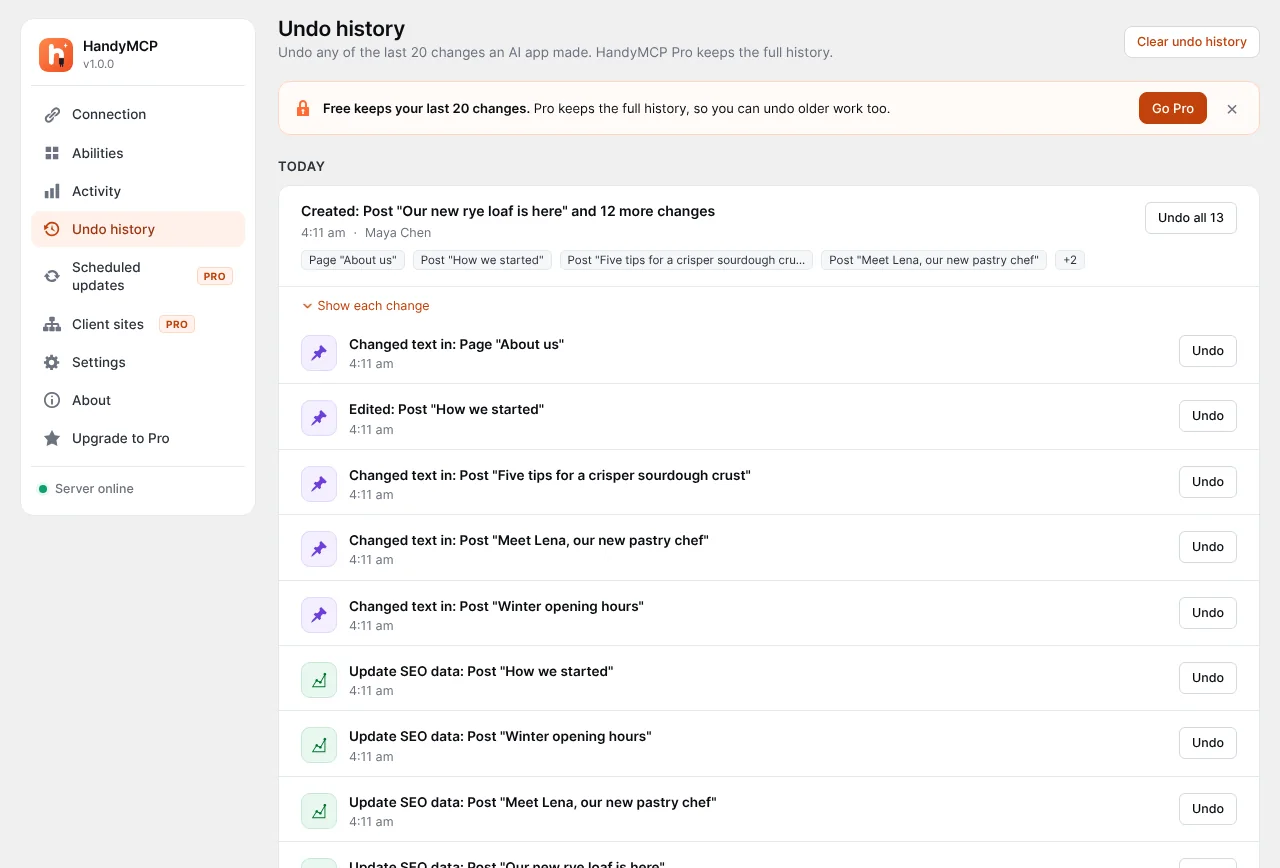
Free covers posts, pages, menus, media, Gutenberg, Elementor editing, SEO fields, categories and tags, WooCommerce basics, form editing, Activity log, undo for the last 20 changes, site info and cache purge.
Pro adds the tools developers reach for in a terminal session:
- File editing with a PHP syntax check, backup, live test and automatic revert.
- Plugin and theme installs and updates with zip backup, health checks and automatic restore on error.
- Search and replace, redirects, SEO audits, custom fields and other page builders.
- Full undo history.
See pricing.
Safety habits for terminal sessions
Claude Code can work for a long time and make many changes. A few habits keep that safe:
- Use staging when Claude Code edits code and site content in the same session.
- Give the token the smallest permissions that do the job. Use read only mode under HandyMCP > Abilities for audits.
- Ask for drafts. HandyMCP turns “redesign” or “new version” into a draft copy. Published pages are only replaced when clearly asked.
- Read confirmations. Destructive tools need explicit confirmation, and bulk WooCommerce changes over 10 products ask first.
- Check Activity after long sessions.
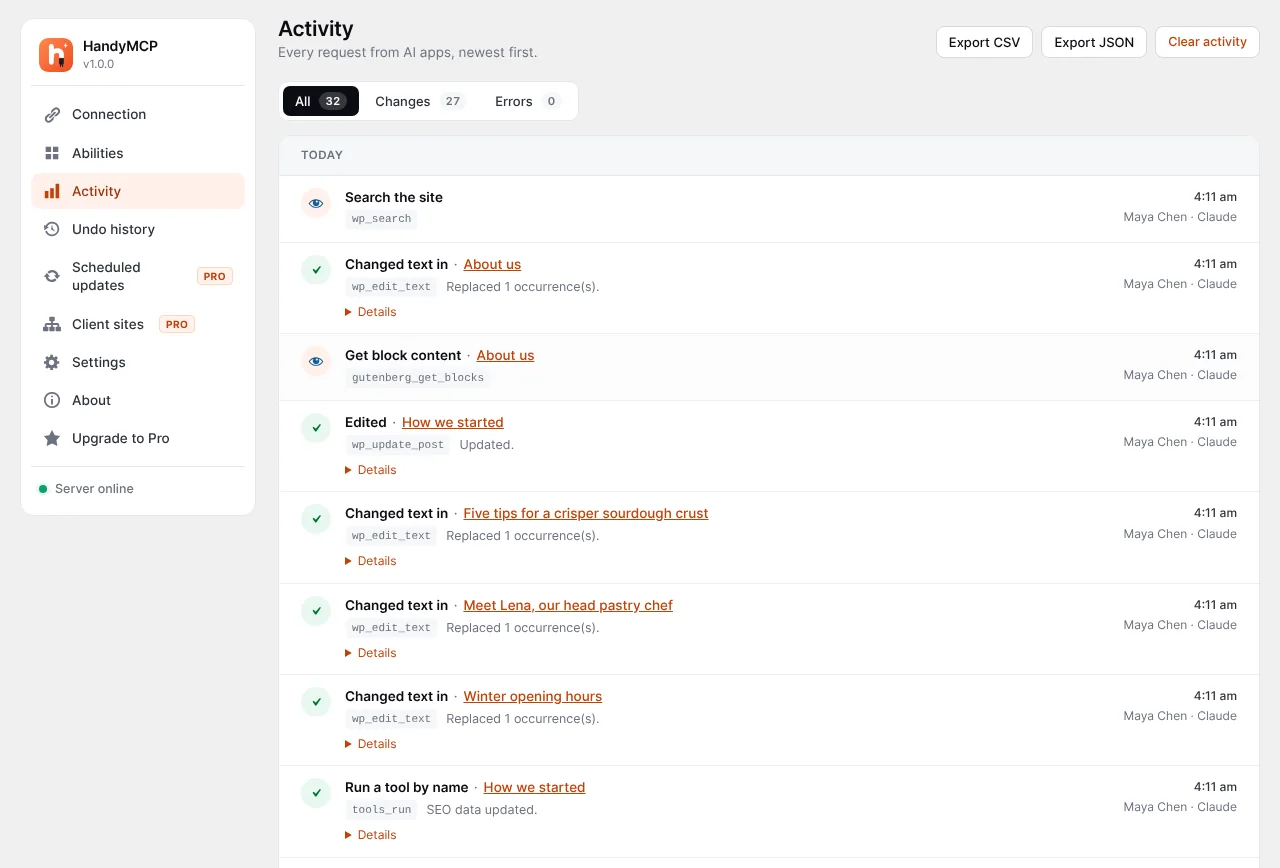
HandyMCP also refuses to overwrite newer edits, never returns API keys or payment gateway keys, has no raw SQL or arbitrary PHP tool, and treats site content as data, not instructions. If something goes wrong, see how to undo AI changes.
Common mistakes
- Using the site homepage URL instead of the full
/wp-json/handymcp/v1/mcpURL. - Forgetting the word
Bearerand the space before the token. - Committing a project
.mcp.jsonwith a token in it. - Connecting live when you meant staging. Name servers clearly.
- Leaving old tokens active. Revoke them on the Connection screen.
Troubleshooting
/mcp shows the server as failed
Check the URL, the token and that the site is reachable over HTTPS. A firewall or security plugin blocking the REST API is the most common cause. Allow /wp-json/handymcp/.
Unauthorised errors
The token is wrong, paused or revoked, or the header is malformed. Remove the server with claude mcp remove wordpress, create a new token and add it again.
OAuth window does not open or fails
Caching or security plugins can interfere with the consent page. Exclude it from caching and try again from /mcp.
Connected but some tools are missing
Those tool groups may be switched off under Abilities, outside the approved scope or not allowed by your WordPress role.
See the troubleshooting docs and WordPress MCP connection fixes.
Frequently asked questions
Does Claude Code support remote MCP servers?
Yes. Claude Code connects to MCP servers over HTTP, with a header token or OAuth.
Where does Claude Code store the server settings?
Local and user scope settings live in your Claude Code config. Project scope uses a .mcp.json file in the repository.
Can I use the same site with Claude Code and the Claude app?
Yes. Each connection shows up separately on the Connection screen, so you can pause or revoke one without touching the other.
Can Claude Code edit my theme files on the server?
With HandyMCP Pro, yes. Edits are syntax checked, backed up, tested on the live site and reverted automatically if anything breaks.
Is a token or OAuth more secure?
Both are safe when scoped well. OAuth is better for teams because each person signs in as themselves. Tokens are simple for one developer and easy to revoke.
Does it cost anything?
The free version of HandyMCP has no usage fees or limits. Pro is a paid plan for extra tools.
More setups: Claude app, ChatGPT and Cursor. Or install HandyMCP free and start now.