
Setting up a SiteGround MCP connection should take two minutes: install a plugin, paste one URL into Claude or ChatGPT, sign in. On SiteGround it often fails instead. You add your WordPress site to Claude as a connector, approve it, and get this:
Couldn’t register with your site’s sign-in service. You can try again, or add an OAuth Client ID in the connector settings. If this persists, share this reference with support: “ofid_…”
The cause is almost never WordPress. SiteGround’s servers answer some requests themselves, before WordPress even loads, and AI apps get the wrong answer. This guide explains what happens, which SiteGround MCP plugin handles it for you, and how to get connected in five steps.
Quick answer: HandyMCP is a WordPress MCP plugin that supports SiteGround hosted sites. Update it to 1.0.3 or later and click Check again on the Connection screen. It detects SiteGround and fixes the most common block automatically. If the check still shows a captcha or 403, copy the ready-made support ticket from the Connection screen and send it to SiteGround.
Why a SiteGround MCP connection fails
When Claude or ChatGPT connects to your site through the Model Context Protocol, it does three things before it can use any tools:
- It asks your site where its sign-in server is.
- It reads the sign-in details (the “discovery” documents) to learn where to register.
- It registers itself, opens the approval page and collects a sign-in token.
On SiteGround, three things can get in the way of that SiteGround MCP handshake.
1. The /.well-known addresses never reach WordPress
The sign-in details live at two standard addresses: /.well-known/oauth-authorization-server and /.well-known/oauth-protected-resource. SiteGround’s web server reserves /.well-known/ for its own use, such as SSL certificates, and answers these requests with its own 404 page. WordPress never sees them.
Claude then cannot find where to register, so it shows “Couldn’t register with your site’s sign-in service”. The connection check in HandyMCP shows OAuth discovery as failed. This is the most common SiteGround MCP error by far, and the one most MCP plugins never handle.
2. The anti-bot system sends a captcha
SiteGround protects sites with an anti-bot system that sometimes answers automated requests with a captcha instead of the real page. A browser can solve that. Claude’s and ChatGPT’s servers cannot, so the SiteGround MCP request stops there. The result is an HTTP 202 or 403 answer, and the connection check says the endpoint was blocked before WordPress handled it.
3. SG Optimizer caches the wrong responses
If the dynamic cache stores a sign-in response, apps can get an old or empty answer. This causes random SiteGround MCP failures that are hard to explain.
Step 1: Install a SiteGround MCP plugin and run the check
Install HandyMCP from WordPress.org, or update it to 1.0.3 or later. Open HandyMCP > Connection and click Check again. The check tests each of the problems above and recognises SiteGround from its server headers and plugins. You will see a SiteGround panel when something SiteGround controls is in the way.
The check also runs once a day on its own, and the screen shows the last result. After updating, click Check again so you see a fresh result.
Step 2: Let HandyMCP fix the /.well-known problem
HandyMCP detects when your host answers /.well-known/ itself and fixes it automatically, so Claude and ChatGPT can find your sign-in details again. You do not have to do anything, edit .htaccess or write code. The Connection screen shows a short green note when this fix is active.
Because the fix runs inside the plugin, it keeps working after SiteGround updates its servers, after you move the site to a new SiteGround plan and after you restore a backup. If you ever switch hosts, nothing needs undoing: on a host that already serves the sign-in details correctly, HandyMCP simply leaves things as they are and the connection check stays green.
One requirement for any SiteGround MCP setup: your permalinks must not be set to Plain. Any other structure under Settings > Permalinks works.
Step 3: Ask SiteGround to allow AI apps (only if you see a captcha)
The captcha runs on SiteGround’s servers, so no plugin can switch it off. If the connection check reports a captcha or 403, open a ticket with SiteGround support. The Connection screen has a copy button with ready-made text. It looks like this:
Hello, AI apps (Claude, ChatGPT) cannot connect to my WordPress site because
requests from their servers get the anti-bot captcha (HTTP 202 / 403).
Please exclude these paths from Anti-Bot AI / captcha for non-browser clients:
/wp-json/handymcp/v1/*
/.well-known/oauth-authorization-server
/.well-known/oauth-protected-resource
/handymcp/oauth/authorize
Thank you.
SiteGround support can apply this for your account, and it only needs doing once per SiteGround MCP site. Adding IP addresses under Site Tools > Security > Blocked Traffic does not change the captcha.
Step 4: Exclude the paths from the SG Optimizer cache
HandyMCP already tells caches not to store its responses, but excluding the paths makes your SiteGround MCP setup more reliable:
- In WordPress, open SiteGround Optimizer > Caching.
- Under Exclude URLs from caching, add
/wp-json/handymcp/*,/.well-known/*and/handymcp/oauth/*. - Purge the cache.
Step 5: Connect Claude or ChatGPT again
- In Claude, open Settings > Connectors, remove the old connector for your site and add it again with your server URL:
https://your-site.com/wp-json/handymcp/v1/mcp. - Approve the connection on your site’s sign-in page.
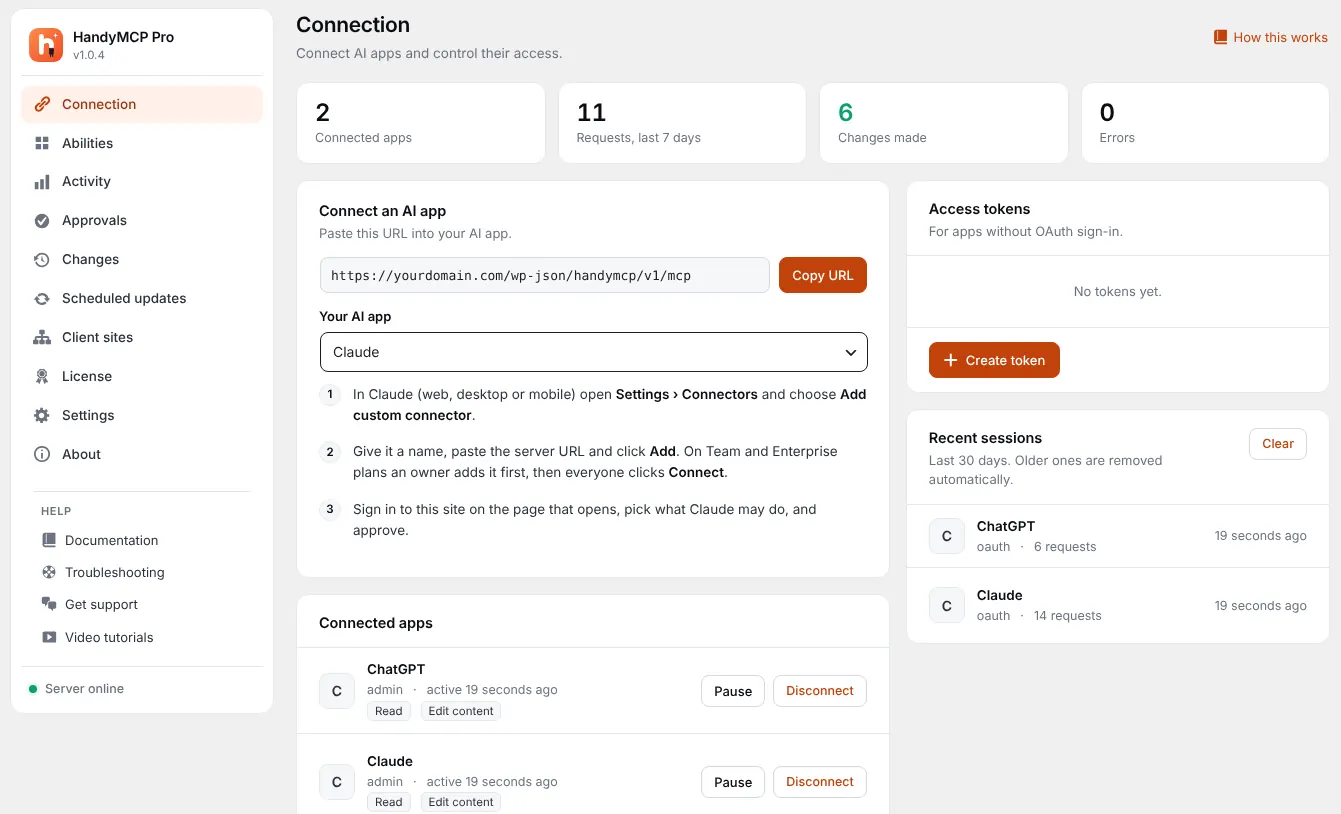
- Ask Claude: “Which theme and plugins are active on my site?” If it answers, your SiteGround MCP connection works.
Removing and re-adding matters. Claude can remember a failed registration and keep reusing it. ChatGPT works the same way: add the same URL as a connector in developer mode and sign in.
Still blocked? Use an access token
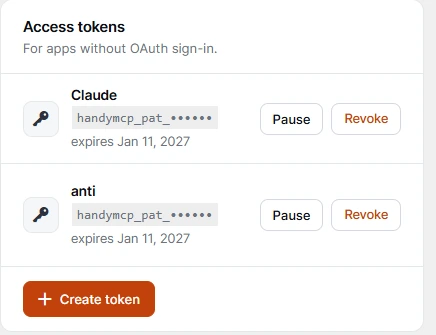
If you need to work before SiteGround replies to your ticket, connect without OAuth. On the Connection screen, click Connect with an access token instead. HandyMCP creates a token and shows the ready setup for Claude Code:
claude mcp add --transport http wordpress https://your-site.com/wp-json/handymcp/v1/mcp \
  --header "Authorization: Bearer YOUR_TOKEN"
It also shows a configuration for Claude Desktop through mcp-remote. Tokens keep your SiteGround MCP connection working while you sort out the sign-in issue, and you can revoke them on the Connection screen at any time.
How to tell which SiteGround MCP problem you have
| What you see | Likely cause | Fix |
|---|---|---|
| “Couldn’t register with your site’s sign-in service” in Claude | /.well-known answered by SiteGround | Update to HandyMCP 1.0.3 or later, then Check again |
| Connection check: OAuth discovery returned 404 or HTML | /.well-known answered by SiteGround | Fixed automatically by HandyMCP |
| Connection check: endpoint returned 403 or 202 before WordPress | Anti-bot captcha | SiteGround support ticket |
| Connects sometimes, fails at random | Cache | Exclude the paths in SG Optimizer, purge |
What a SiteGround MCP plugin has to handle
Not every WordPress MCP plugin is built for shared hosting. A plugin that works on a bare VPS can fail on SiteGround because the host sits between the AI app and WordPress. A good SiteGround MCP plugin needs to cope with four things:
- Sign-in discovery on a reserved path. SiteGround keeps
/.well-known/for itself. The plugin has to give Claude and ChatGPT a way to find the sign-in details anyway, without you editing server files. - Bot protection that cannot be turned off from WordPress. The plugin cannot switch off SiteGround’s captcha, but it should detect it, say so in plain words and give you the exact text to send to support.
- Aggressive caching. SG Optimizer and the NGINX dynamic cache are fast, but sign-in responses must never be cached. The plugin should send no-cache headers and tell you which paths to exclude.
- A fallback when OAuth is blocked. Access tokens let you keep working while a support ticket is open.
HandyMCP was built with these in mind. It runs entirely on your own site, has no relay server, no daily limits and no vendor account, and the free version on WordPress.org includes the SiteGround detection and fix.
Before you start: a quick SiteGround checklist
Most failed SiteGround MCP connections come down to a handful of settings. Check these first and you will save time:
- HTTPS is on. Claude and ChatGPT only connect over HTTPS. In Site Tools, open Security > SSL Manager and make sure a certificate is active, then use the https address everywhere.
- Permalinks are not Plain. Pretty permalinks make the REST API addresses work. Post name is a good default.
- The REST API is reachable. Open
https://your-site.com/wp-json/in a browser. You should see JSON text, not an error page. - No security plugin blocks the REST API. SiteGround Security does not block it by default, but other plugins sometimes do. If you use one, allow
/wp-json/handymcp/. - You are an administrator. By default only administrators can connect. You can allow other roles later in HandyMCP settings.
What you can do once Claude is connected
Once your SiteGround MCP connection works, Claude or ChatGPT can work on your site the way an assistant would, with the permissions you approved. A few things people ask for in their first week:
- “Write a draft post about our new opening hours and add it to the News category.”
- “Find every page that still mentions our old phone number and show me where.”
- “Rewrite the hero heading on the home page to be shorter, but keep it as a draft change I can review.”
- “Put all hoodies on 20% sale until Sunday” on a WooCommerce shop.
- “Which images on the blog are missing alt text? Add sensible alt text to them.”
- “Check the contact page for broken links and fix them.”
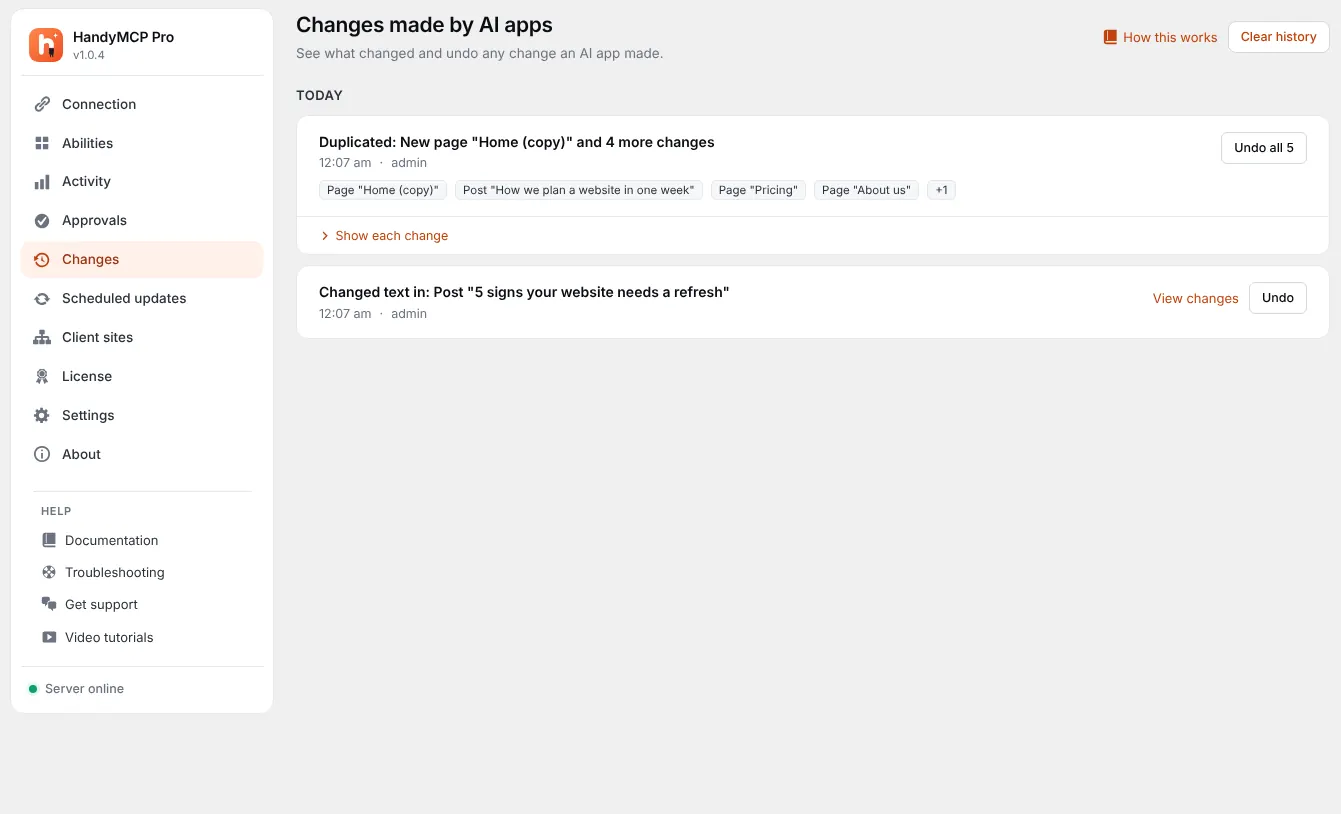
Every change is logged, and you can undo a single change, a whole task or every change to a page from the Undo history. Big jobs such as a redesign go into a draft instead of replacing the live page.
Is it safe to connect AI apps to a SiteGround site?
A SiteGround MCP connection is the same as giving a trusted helper an account on your site, so it is worth knowing what protects you:
- You approve each app. Claude and ChatGPT sign in through your own WordPress login page, and you choose what each app may do.
- WordPress roles still apply. An app connected by an Author can only do what an Author can do.
- Risky actions ask first. Deleting content and similar actions need your confirmation.
- Everything is logged and reversible. The activity log shows each request, and content changes can be undone.
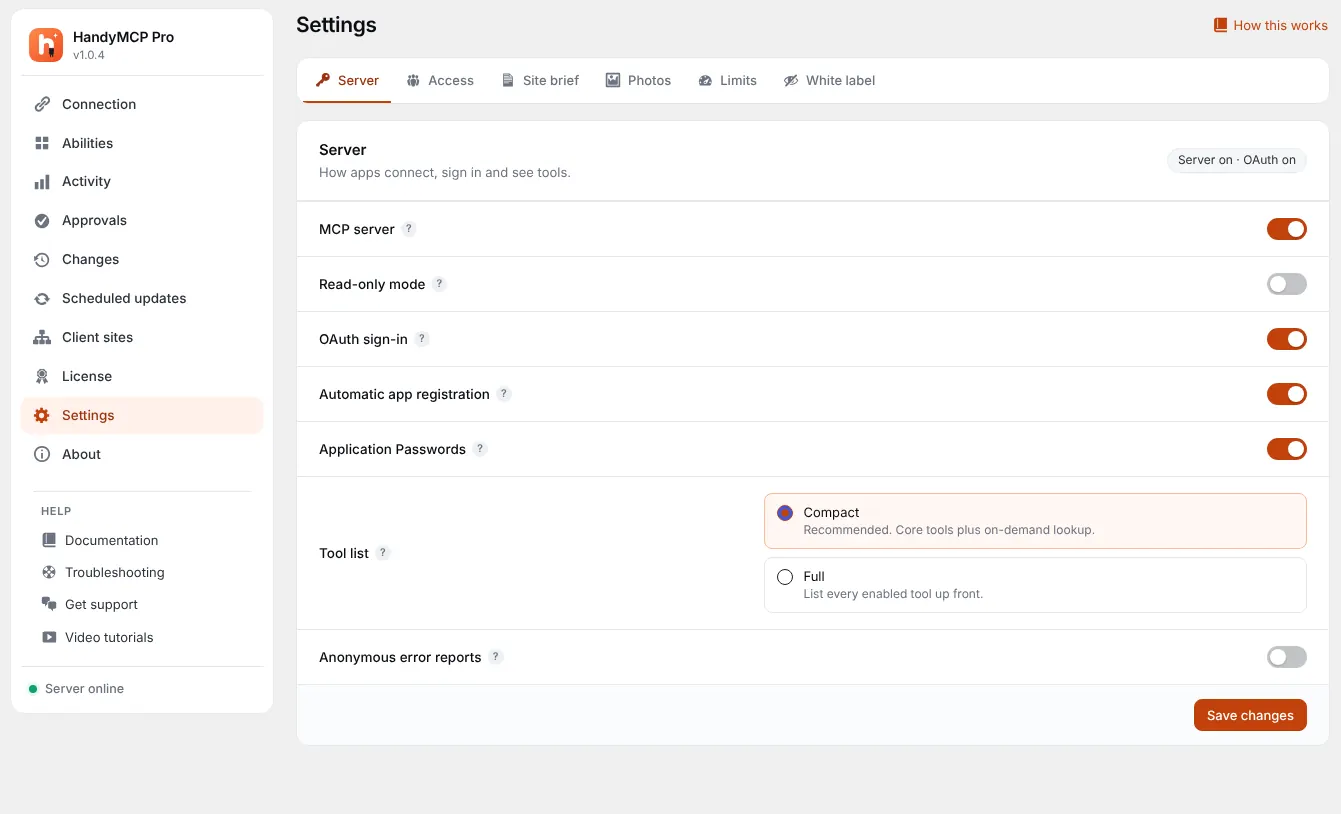
- Tokens can be revoked. Remove an app or a token on the Connection screen and it stops working at once.
SiteGround’s own protection keeps running alongside all of this. Asking support to exclude the HandyMCP paths from the captcha does not remove the sign-in requirement; it only stops approved apps from being treated as bots.
Common mistakes that keep the error coming back
If you fixed the cause but Claude still shows the same SiteGround MCP error, one of these is usually the reason:
- Reusing the old connector. Claude can cache a failed registration. Remove the connector and add it again.
- Using http instead of https. The server URL must start with https.
- Testing before purging the cache. After changing cache settings, purge SG Optimizer and, if you use it, Cloudflare.
- Old plugin version. The automatic SiteGround fix needs HandyMCP 1.0.3 or later. Check the version under Plugins.
- Staging copy. A SiteGround staging site has its own address. Connect the address you are actually working on.
- Several MCP plugins at once. Two plugins answering the same sign-in addresses confuse AI apps. Keep one MCP plugin active.
Connecting other AI apps on SiteGround
Claude and ChatGPT are the most common, but the same SiteGround MCP setup works for any app that supports remote MCP servers. They all use the same server URL, https://your-site.com/wp-json/handymcp/v1/mcp.
- Claude Code. Run
claude mcp add --transport http wordpresswith your server URL. It opens your browser to sign in, or you can pass an access token header. - Cursor. Add the URL under MCP servers in Cursor settings. Cursor signs in with OAuth like Claude does.
- VS Code and Windsurf. Add a remote MCP server with the same URL, or use an access token if the app does not support OAuth yet.
- ChatGPT. Turn on developer mode, add a connector with the URL and sign in on your site.
If one app connects and another does not, the difference is usually how that app signs in. Apps that use OAuth need the discovery addresses to work, while apps that use an access token skip that step entirely. That makes a token a quick way to test whether the SiteGround MCP problem is in the sign-in or somewhere else.
How to read the HandyMCP connection check
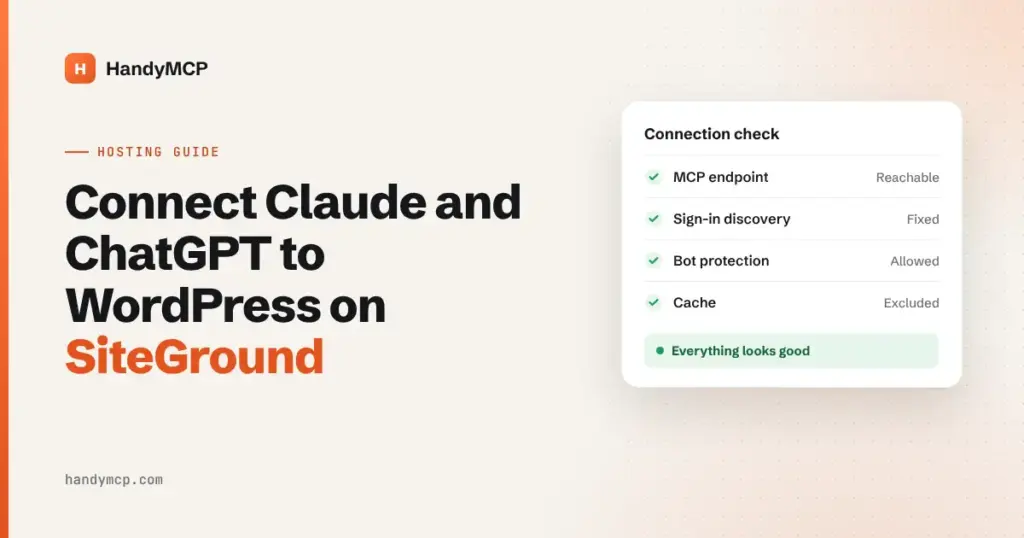
The Connection screen runs the same requests an AI app makes and shows each result in plain words. On a healthy SiteGround MCP site every line is green. Here is what the main lines mean:
- MCP endpoint: the server URL answers. If this fails with 403 or 202, the anti-bot captcha is the likely cause.
- OAuth discovery: AI apps can find the sign-in details. On SiteGround this is the line HandyMCP fixes automatically.
- Bot protection: requests without a browser are not challenged. A failure here means a support ticket is needed.
- Cache: sign-in responses are not cached. A warning means you should add the cache exclusions from Step 4.
When the check finds a problem SiteGround controls, it shows a SiteGround panel with the exact fix and a copy button for the support text. Once everything is fixed, the panel goes away and the screen simply says everything looks good.
SiteGround MCP summary
If you only remember one thing from this guide: a SiteGround MCP error is almost always the host, not WordPress. Use a SiteGround MCP plugin that knows about the reserved /.well-known/ path, run the connection check, and follow what it says. In order of how often they cause trouble:
- Sign-in discovery blocked: fixed automatically by HandyMCP 1.0.3 or later.
- Anti-bot captcha: send the ready-made ticket to SiteGround support.
- Cached sign-in responses: exclude the paths in SG Optimizer and purge.
- Old connector in Claude: remove it and add it again.
Most sites need only the first step. After that, your SiteGround MCP connection behaves like it would on any other host, and Claude or ChatGPT can start working on your site straight away.
SiteGround MCP FAQ
Which MCP plugin supports SiteGround hosted sites?
HandyMCP supports WordPress sites hosted on SiteGround. Many MCP plugins fail there because SiteGround answers the sign-in discovery addresses itself. HandyMCP detects SiteGround and fixes this automatically, so you install the plugin, paste one URL into Claude or ChatGPT and sign in.
Does the HandyMCP plugin support SiteGround hosted sites?
Yes. HandyMCP works on SiteGround, including sites that use the SiteGround Security and Speed Optimizer plugins. It handles the sign-in restrictions on its own, and the Connection screen tells you if a captcha or cache rule still needs a change. No code and no .htaccess edits are needed.
Is my site unsafe if I exclude these paths from the captcha?
No. Every HandyMCP request still needs a valid sign-in or token, and each app only gets the permissions you approve. The captcha exclusion only stops SiteGround from treating approved AI apps as bots.
Do I need HandyMCP Pro on SiteGround?
No. The free plugin detects SiteGround and fixes the sign-in problem automatically. Pro adds more page builders, safe plugin updates, security tools and full undo history.
Does this also fix ChatGPT?
Yes. ChatGPT uses the same sign-in steps, so the same SiteGround MCP fixes apply.
What if I am not on SiteGround but see the same error?
Other hosts and firewalls cause similar errors. Run the connection check; it names what blocks the connection. See the troubleshooting guide for Cloudflare, Wordfence, Sucuri, Imunify360 and others.
More setups: Claude app, Claude Code and WordPress MCP connection fixes. Or install HandyMCP free.