

You want to edit Elementor pages with AI, but you do not want to rebuild your site in a new editor first. Good news: you can. With an MCP server installed on your WordPress site, Claude or ChatGPT can read your existing Elementor pages and change them widget by widget, using the same headings, buttons, images and containers you already have.
This guide shows you how it works, what you need, how to set it up, and the prompts that get good results. It also covers the mistakes people make in the first week and how to undo anything you do not like.
Quick answer: Install an Elementor MCP server such as HandyMCP on your site, connect it to Claude or ChatGPT, and ask for changes in plain words, like “change the hero heading on the Home page”. The AI reads the real Elementor layout and edits the widgets directly. It works with the standard Elementor editor, so you do not need the Atomic Editor, and every change can be undone.
What it means to edit Elementor pages with AI
There are three different things people mean when they say this, and they work very differently.
- Elementor AI inside the editor. It helps you write text or generate images while you are in the editor. You still click and place everything yourself.
- Pasting AI-written HTML. You ask a chatbot for a page, then paste the code into an HTML widget. It looks fine until you need to change it. Then you are editing code, not widgets.
- An AI app connected through MCP. MCP (Model Context Protocol) lets an AI app like Claude use tools on your site. With an Elementor MCP server, the AI can read the layout of a page, find the widget you mean, and change its settings. The result is normal Elementor data you can still edit by hand.
This guide is about the third option. If MCP is new to you, read what MCP is and how it works with WordPress first.
Why you do not need the Atomic Editor
Elementor opened a beta of its own MCP in September 2026. It needs the Atomic Editor, which is Elementor’s newer editing system. That is fine for new builds, but most real sites were made with the standard editor, using containers or the older sections and columns.
HandyMCP lets you edit Elementor pages in the editor you already use. It reads and saves the standard Elementor layout data, so your existing pages, templates and global styles stay as they are. You do not have to migrate or rebuild anything to start.
What you need before you start
- WordPress 6.2 or newer, PHP 7.4 or newer, and HTTPS on the site.
- An administrator account (other roles can be allowed later in Settings).
- Elementor, free or Pro, with pages built in containers or sections.
- An AI app that supports MCP: Claude, ChatGPT, Claude Code, Cursor, VS Code, Windsurf, Gemini CLI or another MCP client.
- The HandyMCP plugin. The free version includes full Elementor editing.
Step by step: connect AI to your Elementor site
1. Install HandyMCP
Install and activate the plugin, then open HandyMCP > Connection. The full install steps are in the docs.
2. Copy your server URL
Your server URL looks like this:
https://your-site.com/wp-json/handymcp/v1/mcp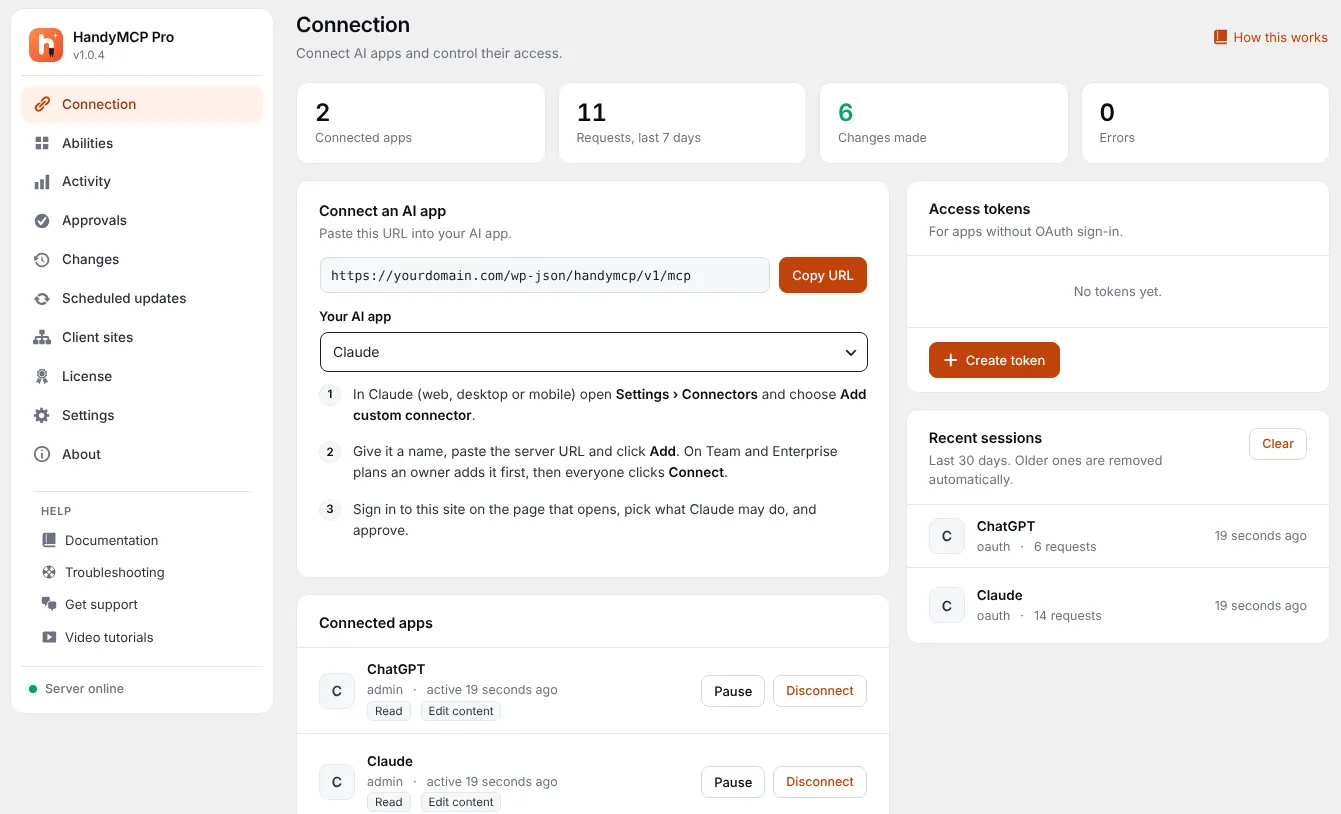
3. Add it to your AI app
In Claude, go to Settings > Connectors > Add custom connector and paste the URL. In ChatGPT, go to Settings > Apps, turn on Developer mode, create an app and paste the URL. Menu names can change, so check the steps on the Connection screen if something looks different. Detailed guides: connect Claude and connect ChatGPT.
4. Approve the connection
You will see a consent page on your own site. Pick the scopes you want: read only, edit content, manage the store or manage the site. For Elementor work, “edit content” is enough.
5. Run a test
Ask: “List the pages on my site that use Elementor.” If you get a list, you are connected.
What the AI can do when you edit Elementor pages
In the free version, the AI can:
- Read and save whole Elementor layouts.
- Add, update, move, duplicate and remove single elements.
- Copy styles from one widget to another.
- Read and use your global colors and fonts.
- Work with Elementor templates and page settings.
- Read a widget’s schema so it sets the right controls, not guessed ones.
- Regenerate Elementor CSS after a change.
- Use widgets from addon packs you have installed: ElementsKit, Happy Addons, Essential Addons, Premium Addons, JetElements, PowerPack and UAE. “Design picks” helps it choose the richest widget for each section instead of stacking plain headings and text.
HandyMCP Pro adds Elementor Pro Theme Builder work: headers, footers, single and archive templates, and popups with conditions and triggers. It also adds ready-made sections and a brand kit. See the full list on the Elementor MCP page.
Small edits: prompts to edit Elementor pages
The easiest way to edit Elementor pages with AI is in small steps. Small edits change one widget and leave the rest of the page alone. That makes them fast and low risk.
- “On the Pricing page, change the Pro button text to Start free trial.”
- “Make the hero heading on the Home page 40px on mobile, keep desktop as it is.”
- “Replace the team photo on About with the image called team-photo in the media library.”
- “Change the background of the testimonial section on Home to our secondary global color.”
- “Fix the typos in the Services page text. Show me what you changed.”
Tell the AI the page and the section. “The second section on About” is much clearer than “the bit about us”.
Bigger jobs: new sections and pages
For bigger work, ask for a draft. HandyMCP protects live pages: if you say “redesign”, “new version” or “draft”, it creates a draft copy and leaves the published page alone. A published page is only replaced when you clearly ask for that.
- “Add an FAQ section with five questions to the bottom of the Services page, as a draft copy.”
- “Build a draft landing page for our webinar: hero, three benefits, agenda, speaker and sign-up form. Use our global colors and fonts.”
- “Duplicate the Plumbing page and rewrite it for our Drain Cleaning service. Keep the layout.”
- “Make the Contact page look like the Home page: same section spacing and button style.”
For a whole page in one go, see how to build an Elementor landing page with one prompt. You will find more ready prompts in the prompt library.
Tips to edit Elementor pages with better results
- Name the page and the section. Clear targets mean fewer wrong edits.
- Ask for drafts for big work. Review the draft, then ask the AI to publish it.
- Point to your brand. “Use the global colors and fonts” keeps new sections consistent.
- Ask about mobile. Say “check tablet and mobile sizes” when it matters. Elementor stores these as separate settings.
- Use your addon widgets. If you own a pack like ElementsKit, say so. The AI will use its richer widgets.
- Work in steps. One clear request at a time beats a long list of mixed changes.
- Ask it to read first. “Read the Home page layout and tell me the sections” helps you both agree on names.
Common mistakes when you edit Elementor pages with AI
- Vague targets. “Make it better” gives random results. Say what and where.
- Editing while someone else is in the editor. HandyMCP checks for a newer edit and refuses to overwrite it, but it is still best to close the editor tab first.
- Forgetting the cache. If a change does not show, ask the AI to purge the cache, or clear your caching plugin.
- Using HTML widgets for everything. Ask for real Elementor widgets so you can still edit Elementor pages by hand later.
- Skipping review. Look at the draft on desktop and mobile before you publish.
Safety and undo
You can edit Elementor pages with AI on a live site because nothing is lost. Every Elementor change is saved before it is made and returns a history ID. You can undo one change, a whole task, or every change on a page.
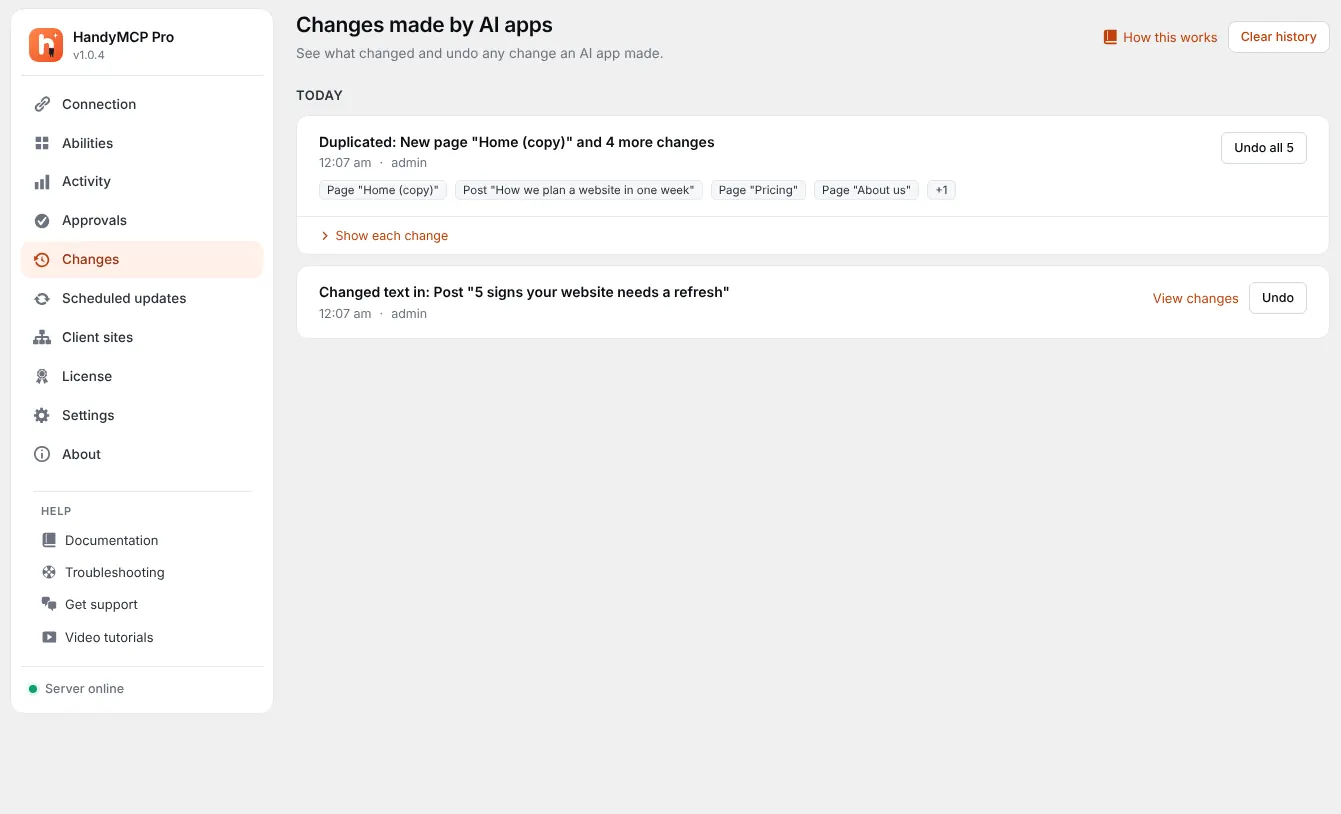
Other protections that matter for page work:
- Live page guard: drafts by default for redesigns.
- Conflict check: a newer edit is never overwritten.
- Destructive tools need your explicit confirmation.
- Read only mode and per-tool switches on the Abilities screen.
- An Activity log of every request, app, tool and page touched.
- Site content is treated as data, not instructions, which protects against prompt injection hidden in page text.
The free version keeps your last 20 changes. Pro keeps full history. Read more about undoing AI changes and whether it is safe to let AI edit a live site.
Troubleshooting
- The AI says it cannot find the page. Give the exact page title or URL.
- Changes do not appear on the front end. Ask it to regenerate Elementor CSS and purge the cache.
- The wrong widget changed. Undo the change, then ask the AI to list the widgets in that section before trying again.
- Theme Builder headers will not edit. Theme Builder templates need HandyMCP Pro.
- The app will not connect. See WordPress MCP not connecting: 12 fixes.
Free vs Pro to edit Elementor pages
| Task | Free | Pro |
|---|---|---|
| Edit, add, move and remove widgets | Yes | Yes |
| Global colors, fonts, templates, page settings | Yes | Yes |
| Addon pack widgets and design picks | Yes | Yes |
| Theme Builder headers, footers, popups | No | Yes |
| Ready-made sections and brand kit | No | Yes |
| Undo history | Last 20 changes | Full history |
See pricing for plans.
Frequently asked questions
Can ChatGPT edit Elementor pages?
Yes. ChatGPT can edit Elementor pages through an Elementor MCP server. It connects to your site, reads the layout and edits real widgets, not pasted HTML.
Do I need the Elementor Atomic Editor?
No. To edit Elementor pages with HandyMCP, the standard Elementor editor is enough. It works and your existing containers or sections.
Is this the same as Elementor AI?
No. Elementor AI helps inside the editor. An MCP server lets an outside AI app like Claude build and change whole pages for you.
Does it work with Elementor Pro templates?
Regular templates work in the free version. Theme Builder headers, footers, single and archive templates and popups need HandyMCP Pro.
Will my page still be editable by hand?
Yes. The AI saves standard Elementor data, so the page opens in the editor like any other and you can edit Elementor pages by hand as usual.
Can the AI use my addon widgets?
Yes. Widgets from installed packs such as ElementsKit, Happy Addons and Essential Addons are available, even in the free plugin.
What if I do not like a change?
Open the Changes screen and undo that change or the whole task, then edit Elementor pages again with a clearer prompt. The full layout is saved before every edit.
A worked example: refresh a services page
Here is what it looks like to edit Elementor pages with Claude on a real site, from the first message to the final check. The same steps work if you edit Elementor pages with ChatGPT or another MCP app.
1. Ask the AI to read the page
“Read the Services page and list each section with its main heading and the widgets inside it.”
Claude returns a short outline: hero, three service cards, a testimonial slider, a call to action. Now you both use the same names.
2. Make one change at a time
“In the service cards section, rewrite each card’s text to two short sentences. Keep the headings and icons.”
Only the three text widgets change. The layout, spacing and icons stay as they were.
3. Fix the mobile view
“On mobile, reduce the hero padding and make the heading 32px. Leave desktop alone.”
Elementor keeps separate settings for desktop, tablet and mobile, so the AI changes only the mobile values.
4. Check and undo if needed
Open the page on your phone. If the new card text is too short, undo that one change in the Changes screen and ask again with clearer rules.
How to edit Elementor pages by section type
When you edit Elementor pages, different sections need slightly different prompts. These patterns save time.
Hero sections
Name the heading, the supporting text and the button. “Change the hero heading to X, keep the button but make it link to /pricing/.”
Text and image sections
Say which side the image is on and whether to swap them. “Put the image on the right on desktop. On mobile, show the image first.”
Cards and icon boxes
Ask the AI to keep all cards the same length. Uneven cards look messy in a grid.
Testimonials
Only use real quotes. Ask the AI to format quotes you paste in, not to write new ones.
Forms
The AI can place a form widget and change its labels. Test the form yourself after any change.
When to edit Elementor pages by hand instead
AI is fast, but some jobs are still quicker in the editor.
- Pixel nudges. Dragging a spacer a few pixels is faster by hand than in words.
- Trying many looks quickly. Clicking through style presets in the editor can beat describing each one.
- Brand new custom widgets. If a widget does not exist on your site, the AI cannot add it. Install it first.
The good news is that you can mix both. Because the AI saves normal Elementor data, you can edit Elementor pages by hand after the AI and the other way around. The Elementor help center covers the editor itself if you need a refresher.
Checklist before you edit Elementor pages with AI
- Close any open Elementor editor tabs for that page.
- Set your global colors and fonts in Site Settings.
- Decide if this is a small edit or a draft job.
- Name the page and section in your prompt.
- Check desktop, tablet and mobile when you are done.
- Purge the cache.
More questions about AI and Elementor
Can I edit Elementor pages with AI on the free plan?
Yes. Reading, adding, moving, styling and removing widgets is all in the free plugin, with no daily limits and no account needed.
Can I edit Elementor pages with AI on a staging site?
Yes. Install HandyMCP on the staging site and connect to its own server URL. It works the same way.
How does the AI know which widget I mean?
It reads the page layout first and matches your words to headings, section order and widget types. Clear names help. If in doubt, ask it to list the widgets before it changes anything.
What is MCP, in one line?
It is an open standard that lets AI apps use tools on other systems. The Model Context Protocol docs explain it in more detail.
To sum up: you can edit Elementor pages with AI today, with the editor you already use, and undo anything you do not like. Get HandyMCP free, or start a 7-day Pro trial.
Ready to try it? Install HandyMCP and connect your first AI app in a few minutes.