
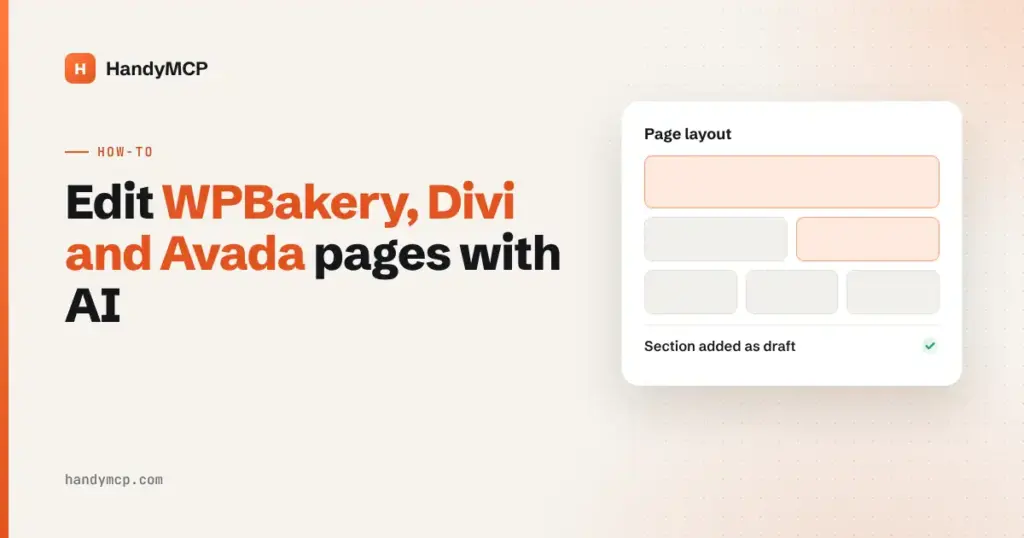
Ask an AI app to edit a WPBakery, Divi or Avada page and it may tell you it can only work “through the shortcode content”. That sounds technical, and it is a fair warning. This guide explains why WPBakery and similar builders are different, what an AI can safely do with them, and how to edit them properly with Claude or ChatGPT.
Quick answer: Small text changes on any WPBakery, Divi or Avada page are safe with the free HandyMCP plugin: ask the AI to change the exact words. For layout work (new sections, rows, columns, styles), use HandyMCP Pro, which has dedicated WPBakery, Divi, Avada and Beaver Builder tools that read the layout as a structure and check it before saving.
Why WPBakery, Divi and Avada are different
Elementor stores a page as structured data, separate from the content. WPBakery, Divi and Avada store the whole layout as shortcodes inside the normal page content. A simple WPBakery section looks like this:
[vc_row][vc_column width="1/2"][vc_column_text]Welcome to our studio.[/vc_column_text][/vc_column][/vc_row]Every row, column and module is a pair of tags. Change a word inside, and nothing else moves. But add a section by hand, and one missing closing tag can break the layout of the whole page.
WordPress itself explains shortcodes in its Shortcode API documentation. The short version: they are text markers that a plugin turns into HTML when the page loads. If the markers are wrong, the plugin cannot build the page.
What is safe without builder tools
An AI with only general WordPress tools can still do a lot safely on a WPBakery site:
- Text changes. Fix a heading, a sentence, a phone number or a price. The AI replaces only those words and leaves the tags alone.
- Finding content. Search every page for a phrase, even inside builder layouts.
- SEO fields. Titles and meta descriptions live outside the layout.
- Images in the media library. Alt text, captions and titles.
Good prompts: “On the About page, change ‘Founded in 2015’ to ‘Founded in 2014’.” “Find every page that mentions our old phone number and replace it.”
What needs builder tools
- Adding or removing sections, rows and columns.
- Changing styles, spacing, colors or responsive settings of modules.
- Duplicating a section or building a new page in the builder.
- Applying a saved template.
An AI can try these by writing WPBakery shortcodes by hand, but it is guessing at the builder’s rules. That is where pages break.
How HandyMCP Pro handles WPBakery pages
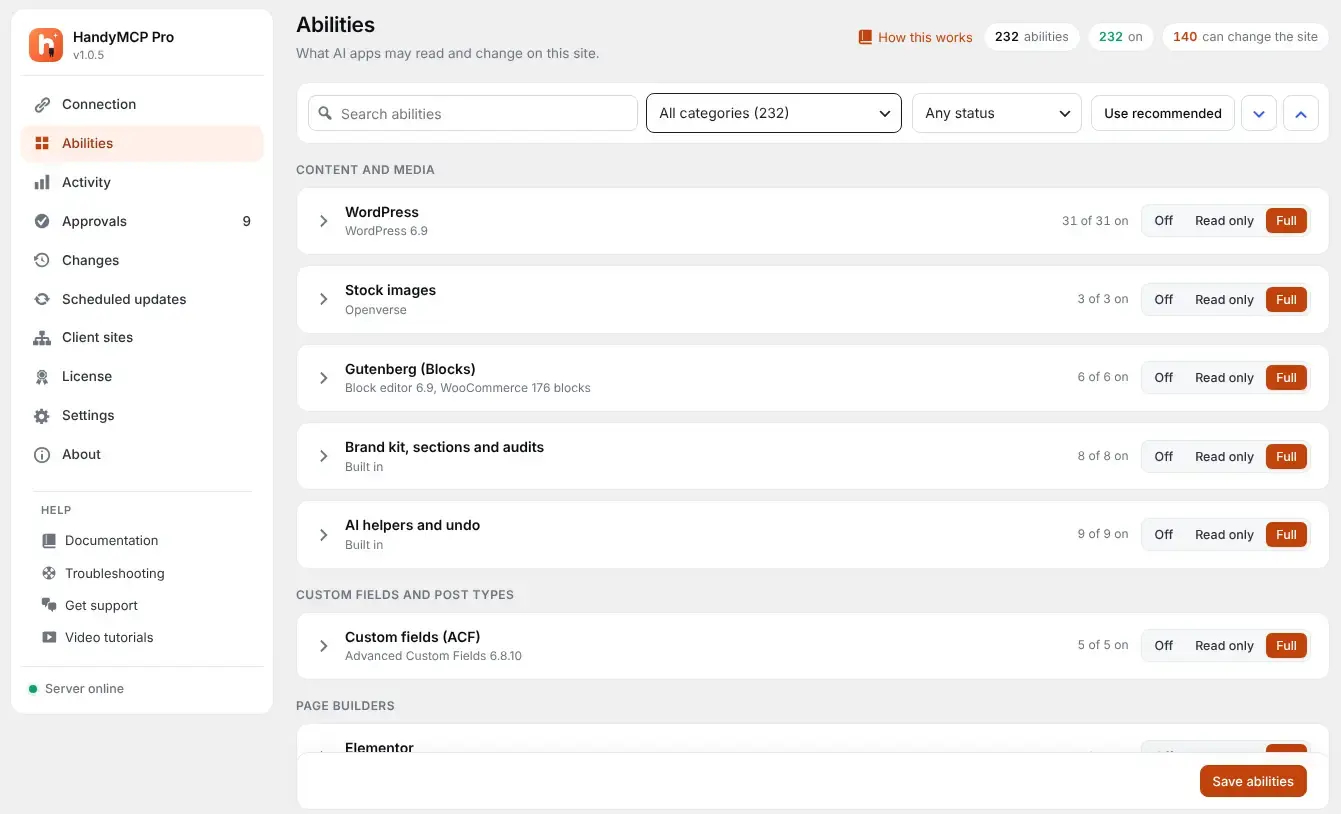
HandyMCP Pro has dedicated tools for WPBakery, Divi, Avada and Beaver Builder. Instead of editing raw text, the AI works on a tree of rows, columns and modules:
- Reads the layout as a structure, with a path to every element, so it can say “the second column of the third row”.
- Validates before saving. Element names, nesting and settings are checked, and malformed changes are refused instead of saved.
- Filters code. Raw HTML and JavaScript modules are refused for users who are not allowed to add code, so a connected app cannot slip scripts into a page.
- Keeps live pages safe. Replacing a whole published layout needs an explicit confirmation. “Make a new version” creates a draft copy instead.
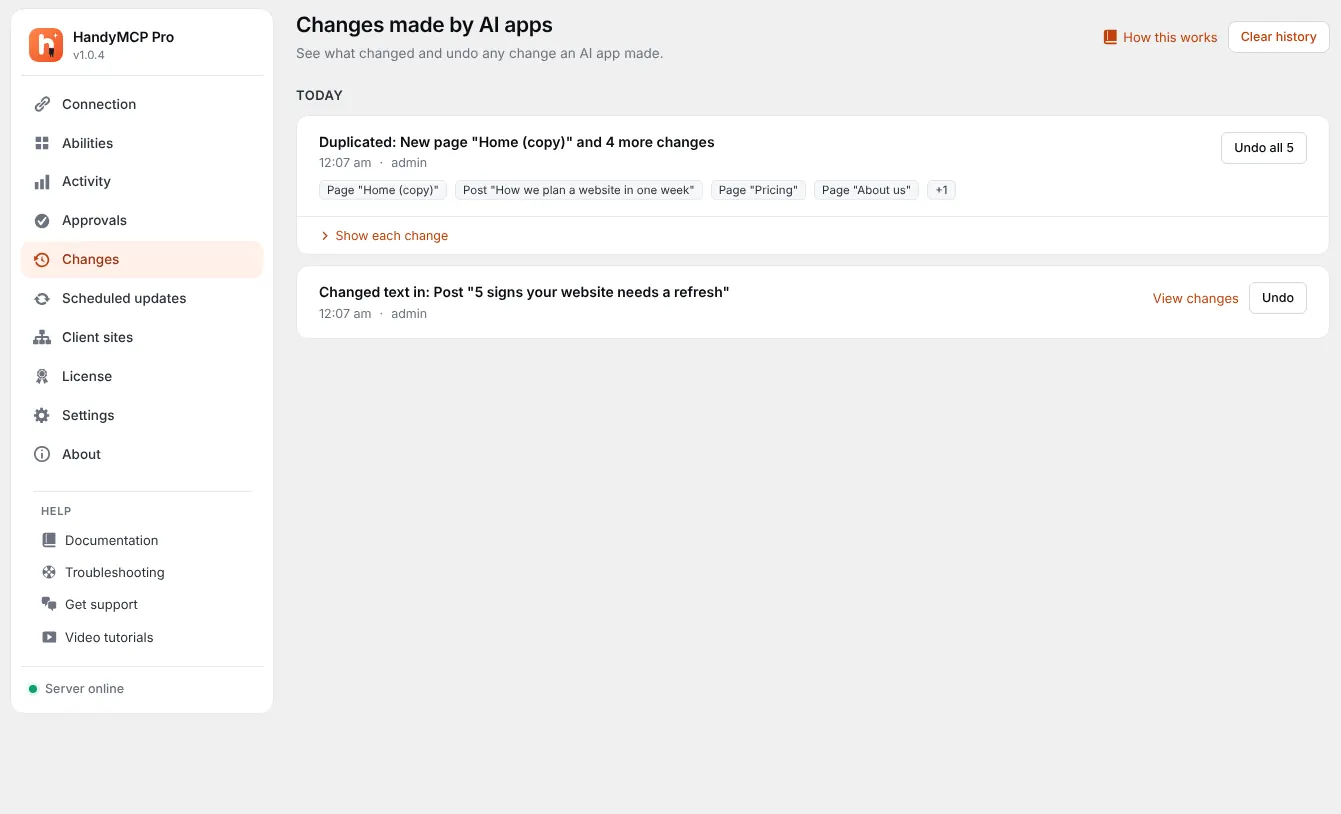
- Undo. Every change is saved first, so you can undo it from the dashboard or by asking the AI.
Step by step: a safe workflow in 5 steps
- Connect your AI app to the site. See how to connect Claude or ChatGPT.
- Start with a read: “Which builder does the Services page use, and what sections does it have?”
- For layout changes, ask for a draft: “Make a new version of the Services page as a draft and add a three-column section with our main services.” Review the draft before publishing.
- For small text fixes, ask for the exact change on the live page.
- Check the result, and undo from HandyMCP > Undo history if anything looks wrong.
Free vs Pro for WPBakery and other builders
| Task | Free | Pro |
|---|---|---|
| Change text on any builder page | Yes | Yes |
| Search inside builder layouts | Yes | Yes |
| SEO titles and descriptions | Yes | Yes |
| Add, move and remove sections and modules | No | Yes (WPBakery, Divi, Avada, Beaver Builder) |
| Change module styles and settings | No | Yes |
| Elementor pages | Yes | Yes, plus Theme Builder |
See pricing for the full comparison.
Prompts that work well on WPBakery sites
The way you phrase a request makes a big difference with shortcode builders. Clear, specific prompts get clean results. These work well with both the free plugin and Pro:
- “List the sections on the Home page in order, with the first heading in each.”
- “On the Contact page, change the opening hours to Monday to Friday, 9 to 5.”
- “Find every WPBakery page that still says ‘Free shipping over $50’ and change it to $75.”
- “Write a better meta description for each service page. Keep them under 155 characters.”
- “Add alt text to every image on the Portfolio page that does not have any.”
With Pro, layout prompts work too:
- “Make a draft copy of the Services page and add a testimonials row after the second section.”
- “On the draft, change the background of the hero row to our brand navy and increase the top padding.”
- “Duplicate the pricing section on the draft and change the plan names to Starter, Growth and Scale.”
Prompts that are vague about where to make a change, such as “make the page look better”, tend to produce bigger changes than you wanted. Ask for one change at a time, and ask for a draft when the change is large.
Divi and Avada notes
Divi and Avada follow the same idea as WPBakery but with their own element names. Divi uses et_pb_ shortcodes for sections, rows and modules, and stores some settings in the page itself. Avada uses fusion_ shortcodes and its own containers. The same rules apply:
- Text changes are safe on both with the free plugin.
- Layout changes need Pro’s builder tools, which know each builder’s elements and nesting rules.
- Global elements and library items are shared across pages, so the AI edits them only when you ask, and tells you which pages they appear on.
Beaver Builder stores its layout separately from the content, more like Elementor, and Pro has dedicated tools for it too.
Common mistakes with AI and WPBakery
- Letting the AI rewrite the whole page content. Even a careful AI can drop a closing tag in a long layout. Ask for small, targeted changes.
- Editing the live page for big changes. Work on a draft copy, compare, then publish.
- Pasting builder shortcodes into a prompt. You do not need to. The AI can read the page itself, and pasted code often gets mangled in chat.
- Forgetting the cache. WPBakery and theme caches can show the old page for a while. Purge the cache after a change.
- Skipping the review. Open the page after each change, on desktop and mobile. It takes seconds and catches anything odd.
Converting from WPBakery to another builder
Many site owners would like to move off WPBakery to Gutenberg or Elementor, and AI makes this much less painful than it used to be. The safe way to do it:
- Ask the AI to read the WPBakery page and list its sections and content.
- Ask it to build a new draft page with the same content in the new builder, using your theme’s styles.
- Compare the two pages side by side and ask for fixes on the draft.
- When you are happy, swap the pages and keep the original as a private backup for a while.
Moving page by page, starting with the least important pages, keeps the risk low. The free plugin can build Gutenberg and Elementor drafts, so even without Pro you can rebuild WPBakery pages one at a time.
What the AI sees when it reads a builder page
It helps to picture what an AI app actually gets when it opens one of these pages. Without builder tools, it gets the raw page content: a long run of text with tags wrapped around every piece. It can find words in there, but it has to work out the structure itself, and long pages are hard to read reliably.
With Pro’s builder tools, the AI gets an outline instead. Something like:
- Row 1: hero, background image, one column with a heading, a text block and a button.
- Row 2: three columns, each with an icon, a heading and a short text.
- Row 3: testimonials slider with four items.
- Row 4: call to action with a heading and a button.
Each item has a path, so the AI can say exactly what it plans to change before it changes it, and the tool can refuse a change that would put an element somewhere it is not allowed. That is the difference between editing a document and editing a spreadsheet: the structure is visible, so mistakes are much harder to make.
Before you start: a short checklist
- Take a backup. HandyMCP saves a copy before each change, but a full site backup before a big editing session is still good practice.
- Know which builder each page uses. Ask the AI to list pages and their builders. Many older sites mix two builders.
- Check your role. The AI can only do what your WordPress user can do. Administrators and Editors can edit pages; Authors cannot edit pages they did not write.
- Decide what goes live directly. Text fixes can go straight to the live page. Anything structural should go into a draft first.
- Clear caches afterwards. Theme, plugin and CDN caches can all hold the old version.
Templates, global elements and the library
Most shortcode builders let you save sections to a library and reuse them. Some, like Divi’s global modules and Avada’s global elements, stay linked: change one copy and every page that uses it changes too.
That is powerful, and it is also how a small edit can turn into a site-wide change. HandyMCP Pro treats these carefully:
- When the AI reads a page, linked elements are marked as shared.
- Before editing a shared element, the AI tells you which other pages use it.
- If you only want to change one page, the AI can unlink a copy on that page and edit the copy instead.
Saved templates that are not linked behave like normal content. The AI can insert one into a draft page, then adjust the text and images for that page.
Three everyday examples
To make this concrete, here is how three common jobs play out on a shortcode builder site.
Updating prices across a site
A café changes its menu prices. The owner asks Claude to find every page mentioning the old prices and show them in a list. Claude finds them on the Menu page, the Home page and two blog posts. The owner checks the list and asks Claude to update them. Because these are text changes, the free plugin handles them, and each one appears in the Undo history.
Adding a new section to a service page
A consultant wants an FAQ section on the Services page. With Pro, they ask for a draft copy with a new FAQ row before the contact section, using the same style as the existing rows. Claude builds it on the draft, the consultant reviews it, asks for two wording changes and publishes the draft over the original.
Fixing accessibility basics
A shop owner asks ChatGPT to find images without alt text and headings that skip levels. ChatGPT reports the issues page by page, adds alt text to the images directly and, for the headings, proposes changes on a draft so the owner can see the visual effect first.
For agencies with many builder sites
Agencies often inherit sites built years ago on shortcode builders. AI editing is especially useful here, because routine content updates on those sites take time that clients rarely want to pay for.
- Standardise the workflow. Text changes live, structural changes in drafts, a quick review before publishing.
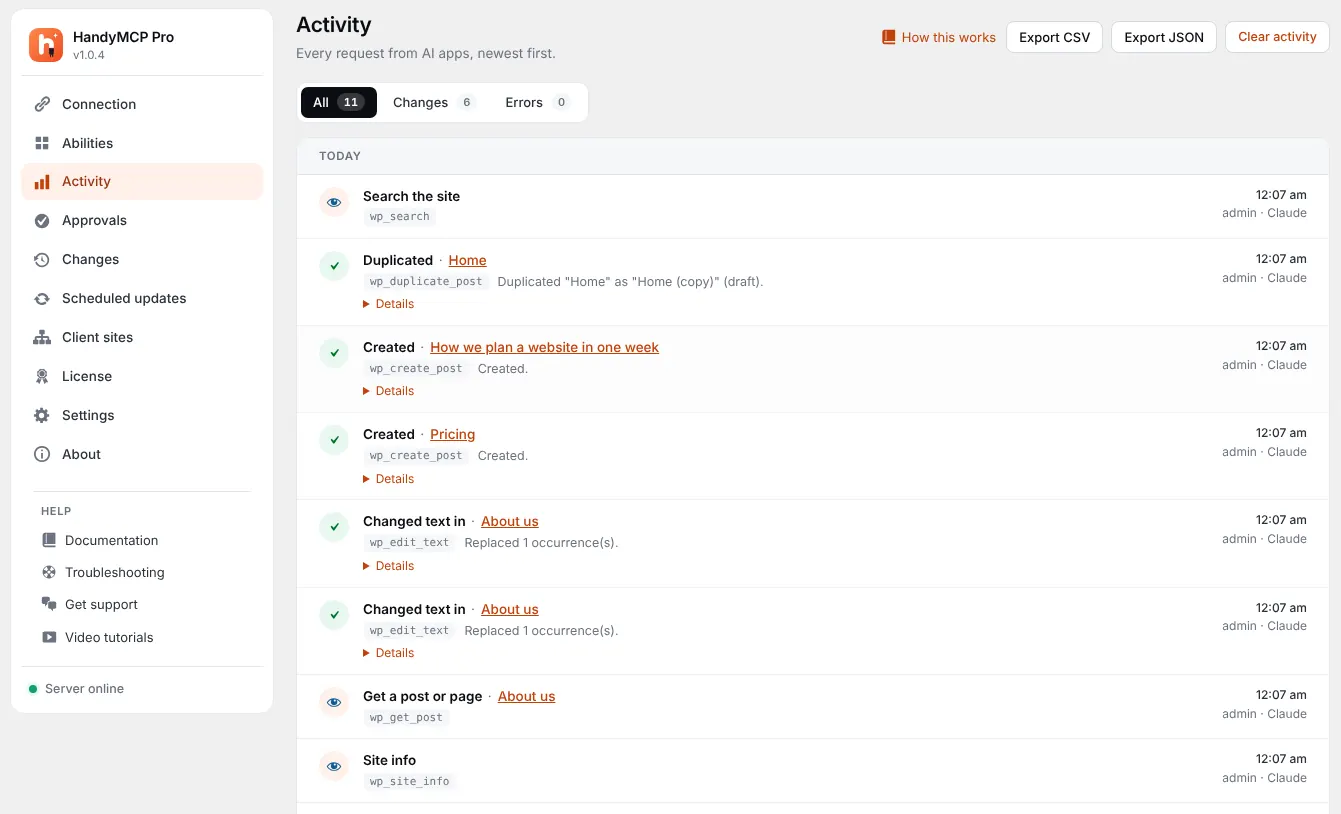
- Use the activity log for reporting. It shows exactly what changed and when, which makes client reports easy.
- Connect several sites. HandyMCP Pro’s client sites feature lets one AI conversation work across the sites you manage.
How to review a change before it goes live
Reviewing an AI change on a WPBakery page is quick if you know where to look. After the AI finishes, open the draft or the edited page in a new tab and check four things:
- Layout. Do the rows and columns line up as before? A broken tag usually shows as text like a bracketed shortcode appearing on the page, or a column dropping below another.
- Mobile view. Narrow the browser window or use your phone. Builders often have separate mobile settings, and a change can look fine on desktop and odd on a phone.
- Links and buttons. Click any button the AI touched to make sure it still goes to the right place.
- Wording. Read the changed text aloud once. It is the quickest way to catch an awkward phrase.
If anything is off, either ask the AI to fix that one thing or undo the change from the Undo history and try again with a clearer prompt. Both take seconds.
Over time you will find the kinds of requests that work first time on your site, and you can skip most of this review for simple text changes. Keep it for anything that touches rows, columns or styles, where a quick look on a phone is always worth it.
Is it safe to let AI edit builder pages?
With the right guard rails, yes. HandyMCP checks what each connected app is allowed to do, logs every request and saves a copy before each change. Large changes go into drafts, risky actions ask for confirmation and anything can be undone. For a deeper look, read is it safe to let AI edit a live site.
WPBakery and AI FAQ
Can AI convert a WPBakery page to Elementor or Gutenberg?
It can rebuild the content in a new draft page with another builder, which is the safe way to do it. Keep the original until you have compared the two.
Why did the AI say it can only edit the shortcode content?
That is the free plugin being honest: it has no dedicated tool for that builder, so it can change text but should not rebuild layouts by hand. Use Pro for layout changes.
Does this work with Salient, Impreza and other WPBakery themes?
Yes. These themes use WPBakery’s shortcode format, with their own extra elements. Text edits work on all of them, and Pro’s WPBakery tools read the theme’s elements too.
Which MCP plugin can edit WPBakery layouts?
HandyMCP Pro has dedicated tools for WPBakery, Divi, Avada and Beaver Builder. The free HandyMCP plugin edits text on these pages and fully supports Gutenberg and Elementor.
Will AI editing slow down my WPBakery site?
No. Changes are saved the same way you would save them by hand, so the page loads exactly as before.
Related: edit Elementor pages with AI and 28 Claude prompts for WordPress.