


Editing one WooCommerce product is quick. Editing two hundred is not. When you need to bulk edit WooCommerce products, the built-in bulk edit helps with one field on a filtered list, but it cannot rewrite descriptions in a new tone, spot titles that break your naming pattern, or treat each category differently. That is where Claude, connected through a WooCommerce MCP server, earns its place.
This guide shows you how to bulk edit WooCommerce products with AI safely: setup, prompts, what the free plugin does compared with the Pro bulk tools, how confirmations and undo work, and what to avoid on a live store.
Quick answer: Install a WooCommerce MCP server such as HandyMCP, connect Claude, and describe the change, for example “rewrite the short descriptions in the Candles category”. Claude finds the products, shows you the plan and applies it after you confirm. The free plugin edits products one by one (price, sale price, stock, SKU, description, images, categories), while Pro adds dedicated bulk price updates by percent, variations and coupons. Every change is saved first so you can undo it.
What a WooCommerce MCP server does
MCP (Model Context Protocol) lets an AI app use tools on your site. A WooCommerce MCP server gives Claude tools to list, read and edit products, categories and orders. Claude reads the real data in your store, decides what to change, and calls the tools to do it. You do not export CSV files or paste anything back.
New to MCP? Start with what MCP is in WordPress.
Why use AI to bulk edit WooCommerce products
- Judgement, not just find and replace. Claude can read each product and write a description that fits it.
- Patterns. “Every title should be Brand, Product, Size” is easy to say and tedious to check by hand.
- Mixed rules. Different changes for different categories in one request.
- Reports first. Ask what needs fixing before you fix anything.
What you need
- WordPress 6.2+, PHP 7.4+, HTTPS and an administrator account.
- WooCommerce installed and active.
- Claude (web, desktop or mobile), or another MCP app such as ChatGPT or Claude Code.
- The HandyMCP plugin. Free covers product editing. Pro adds the bulk store tools.
Step by step setup
1. Install HandyMCP
Install and activate the plugin. Full steps are in the docs.
2. Connect Claude
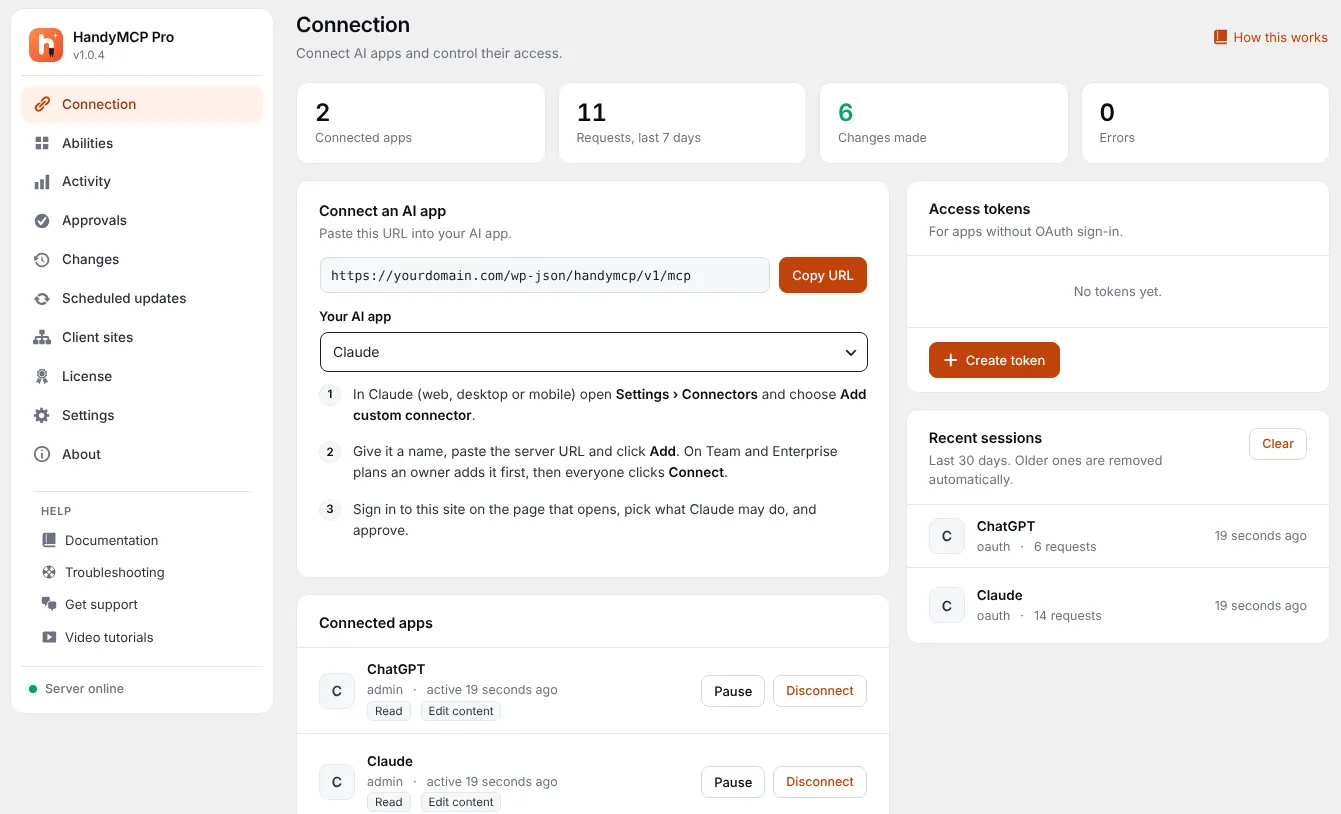
Copy your server URL from HandyMCP > Connection:
https://your-site.com/wp-json/handymcp/v1/mcpIn Claude, go to Settings > Connectors > Add custom connector and paste it. Menu names can change, so follow the steps on the Connection screen if they differ. The full walkthrough is in connect Claude to WordPress.
3. Approve the store scope
On the consent page on your own site, approve Manage the store. Without it, Claude can read but not change products.
4. Start with a read before you bulk edit WooCommerce products
Ask: “List my products in the Hoodies category with price, sale price and stock.” If the list matches your store, you are ready.
Free vs Pro: what each can do
This is the part people get wrong, so here it is plainly.
| Task | Free | Pro |
|---|---|---|
| List and get products | Yes | Yes |
| Create and edit products: price, sale price, stock, SKU, description, images | Yes, product by product | Yes |
| Product categories | Yes | Yes |
| List and look up orders | Yes | Yes |
| Low stock report | Yes | Yes |
| Bulk price updates by percent | No | Yes |
| Variations and attributes | No | Yes |
| Coupons, refunds, customers, reviews | No | Yes |
| Sales reports and store settings | No | Yes |
| Undo history | Last 20 changes | Full history |
In the free plugin, when you bulk edit WooCommerce products, Claude edits many products one after another with the normal product tools. That works well for descriptions, titles, stock, SKUs and categories on simple products. Keep in mind that free undo keeps the last 20 changes, so for big runs either work in batches of 20 or less, or use Pro with full history. For a single percentage change across a whole category, Pro’s bulk price tool is faster and cleaner. See the WooCommerce MCP page for the full list.
Prompts that work well
Reports first
- “Show my low stock report and group it by category.”
- “List products with no SKU.”
- “Find products whose short description is empty or under 20 words.”
Content edits (free)
- “Rewrite the short descriptions for the Candles category: warm, two sentences, mention burn time if it is in the long description.”
- “Every product title should be Brand, Product, Size. Show me the ones that do not match, then fix them after I agree.”
- “Move the products in Summer Collection into the Sale category as well. Keep their existing categories.”
- “Set stock to 0 for these five SKUs: …”
Pricing
- Free: “Set the sale price of these eight mugs to 12.00.” Claude edits each one.
- Pro: “Raise all prices in Accessories by 5 percent.” This uses the bulk price tool.
More examples live in the prompt library.
How confirmations work
HandyMCP asks for confirmation before a WooCommerce change that touches more than 10 products. Claude will show you what it plans to do and wait for your yes. Destructive actions, like deleting, also need explicit confirmation. That gives you a natural pause to check the list before anything changes.
How to bulk edit WooCommerce products safely on a live store
- Ask for a preview. “Show me the list and the new values before you change anything.”
- Work one category at a time when you bulk edit WooCommerce products on a large store.
- Test on three products first, then run the rest.
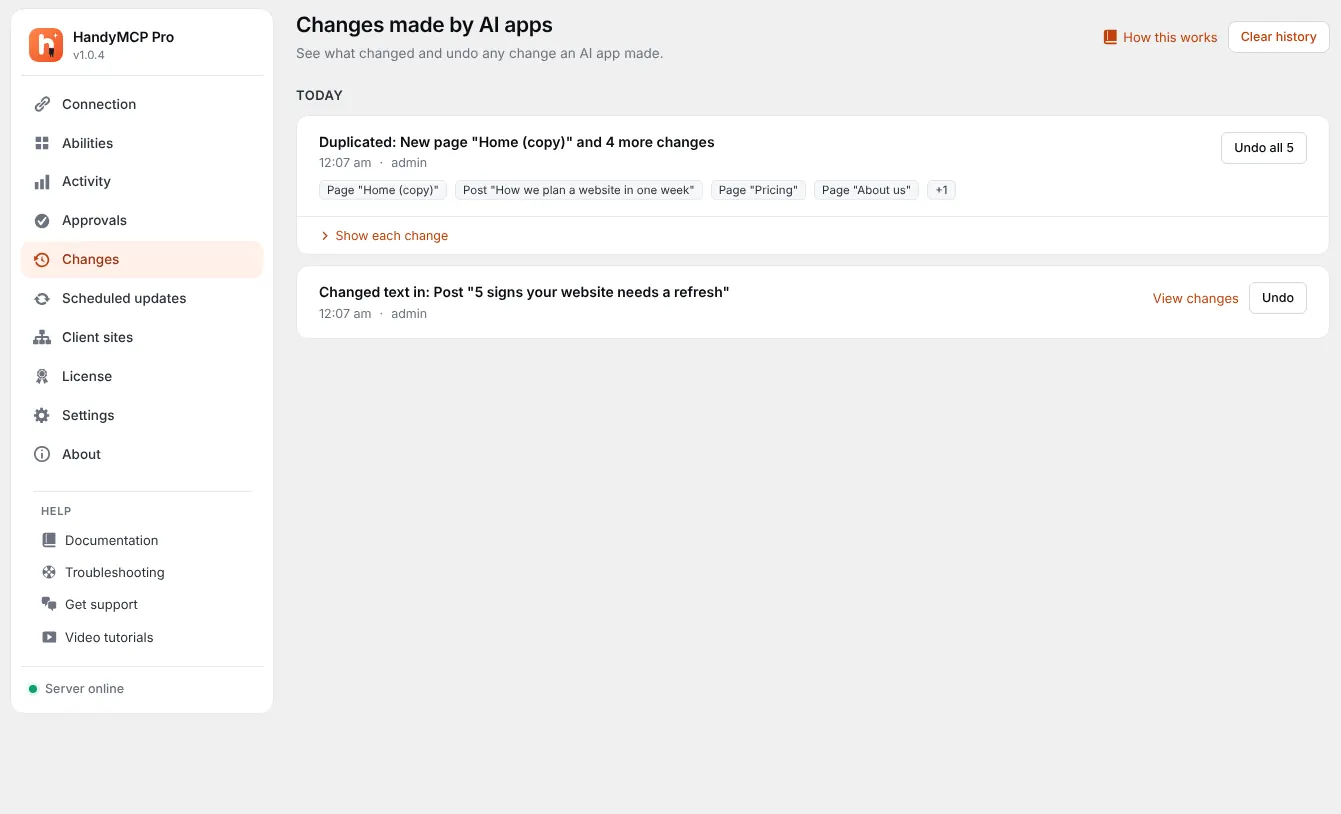
- Check the Activity log to see every product touched.
- Undo if needed. Changes made in one task can be undone together.
Customer emails and phone numbers are masked in lists, and payment gateway keys are never returned to the AI. Read more on undoing AI changes in WordPress.
Common mistakes when you bulk edit WooCommerce products
- Vague scope. “Fix my products” is too broad. Name the category or the rule.
- Skipping the preview. Always ask to see the list first.
- Expecting variations in free. Variable product variations need Pro.
- Large runs on free undo. Free keeps 20 changes. Batch your work.
- Forgetting caches. If prices do not update on the front end, ask Claude to purge the cache.
Troubleshooting
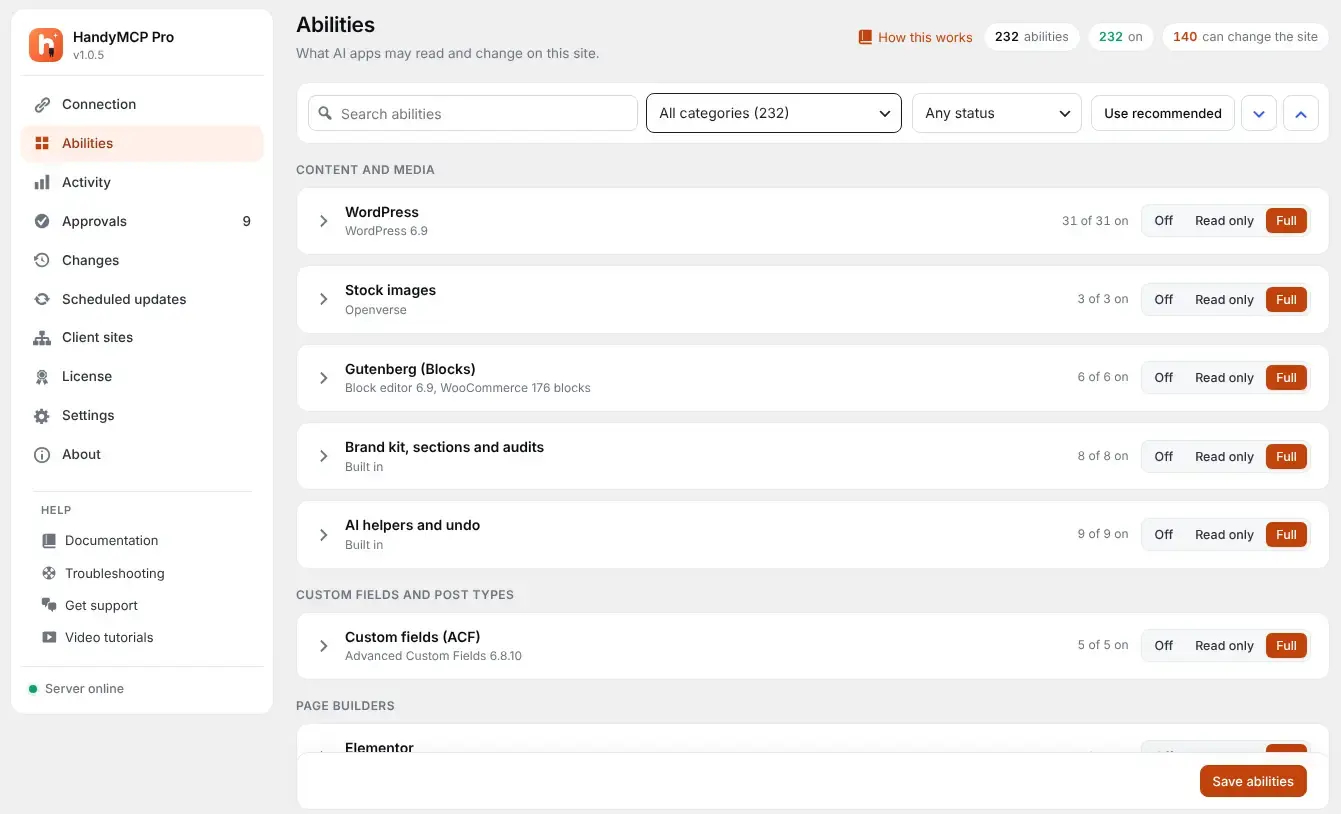
- Claude says it cannot edit products. Reconnect and approve the Manage the store scope, and check the store tools are on under Abilities.
- Some products were skipped. They may be variable products. Ask Claude to list which ones and why.
- Connection drops. See WordPress MCP not connecting.
Frequently asked questions
Can Claude change WooCommerce prices?
Yes. In the free plugin Claude sets regular and sale prices product by product. Pro adds bulk price updates by percent.
Is it safe on a live store?
Yes. You can bulk edit WooCommerce products on a live store with confirmations, previews and undo. Start with a small category and check the results.
Can I undo a bulk edit?
Yes. When you bulk edit WooCommerce products, each change is saved first and can be undone one by one or as a whole task. Free keeps the last 20 changes, Pro keeps full history.
Does it work with variable products?
Variations and attributes need HandyMCP Pro.
Can ChatGPT do this too?
Yes. Any MCP app works. See connect ChatGPT to WordPress.
Will Claude see my customers’ details?
Customer emails and phone numbers are masked in lists, and payment keys are never returned.
Why does it ask me to confirm?
Any WooCommerce change over 10 products needs your confirmation, so nothing big happens by accident.
Built-in tools vs AI: when to use each
You do not need AI for every job. WooCommerce already ships with a few ways to bulk edit WooCommerce products, and each one has a place.
- Quick edit and bulk edit in the products list. Good for one field on a filtered list, such as setting a category or stock status. The WooCommerce product docs explain how it works.
- CSV export and import. Good for moving a full catalog or making a large change in a spreadsheet. The CSV importer and exporter guide covers the columns.
- Claude with HandyMCP. Good when each product needs its own judgement, or when the rule is easier to describe in words than in a spreadsheet formula.
A simple test: if you can describe the change as “set field X to value Y”, the built-in bulk edit is fine. If the change sounds like “read each product and decide”, AI is the better fit.
A worked example: 40 candles, one afternoon
Here is a realistic run, so you can see how it feels to bulk edit WooCommerce products with Claude from start to finish.
1. Ask for a report
“List every product in the Candles category with title, SKU, price, stock and the first 15 words of the short description.”
Claude returns a table. You notice three problems: some titles miss the size, six products have no SKU, and many short descriptions are one flat line.
2. Agree on the rules
“Titles should be Brand, Scent, Size. Short descriptions should be two warm sentences and mention burn time if the long description has it. Do not touch prices.”
3. Preview on three products
“Show me the new title and short description for the first three products. Do not save yet.”
You read them, ask for a slightly less formal tone, and Claude adjusts.
4. Run it in batches
“Apply the changes to the next 15 products, then stop and show me what changed.”
Batches keep each run inside the free undo window of 20 changes. You check the shop page, then ask for the next batch.
5. Fix the gaps
“For the six products with no SKU, suggest SKUs that follow the pattern CND-SCENT-SIZE and wait for my yes.”
6. Review the result
Open HandyMCP > Changes to see each product that was edited. If one looks wrong, undo just that change and ask Claude to try again.
How to bulk edit WooCommerce products by field
When you bulk edit WooCommerce products, different fields need slightly different prompts. These patterns work well.
Titles
Give the pattern and an example. “Use Brand, Product, Size. Example: Northwood Cedar Candle 200g.” Ask Claude to list titles that do not match before it changes any.
Short and long descriptions
Say the tone, length and what facts to keep. Tell Claude to only use facts that are already in the product, so it does not invent materials or sizes.
Prices and sale prices
In the free plugin, name the products and the exact price. For a percentage change across a category, HandyMCP Pro has a bulk price tool. Either way, ask for a before and after list first.
Stock and SKUs
Paste the SKUs and the new stock numbers. Claude matches them to products and tells you if any SKU is not found.
Categories
Say whether to add a category or replace them. “Add Sale, keep existing categories” is clearer than “move to Sale”.
Images and alt text
Claude can set images from your media library and fill missing image alt text with a short, honest description of the product.
Before you bulk edit WooCommerce products on a big store
A little preparation saves a lot of cleanup.
- Take a backup. Undo covers HandyMCP changes, but a full backup covers everything else.
- Export a CSV. A copy of your products gives you a simple record of the old values.
- Pick a quiet time. Run large edits when traffic is low.
- Turn on only the tools you need. Under Abilities you can switch off tools you do not plan to use.
- Write the rules down. A clear prompt is the best way to get clean results.
Copy and paste prompts to bulk edit WooCommerce products
These templates are ready to use. Swap the category names and rules for your own.
Clean up titles
“I want to bulk edit WooCommerce products in the Mugs category. List titles that do not follow Brand, Product, Size. Suggest a fix for each and wait for my yes.”
Refresh short descriptions
“Bulk edit WooCommerce products in Hoodies: rewrite each short description in two friendly sentences. Use only facts from the long description. Show me three first.”
Fill missing SKUs
“Find products with no SKU. Suggest SKUs in the pattern CAT-NAME-SIZE. Do not save until I agree.”
Update stock from a list
“Here are SKUs and stock numbers. Bulk edit WooCommerce products to match. Tell me any SKU you cannot find.”
Add a seasonal category
“Add the Gifts category to every product tagged holiday. Keep all existing categories.”
Set sale prices
“Bulk edit WooCommerce products in this list and set each sale price to the value next to it. Show a before and after table first.”
A good habit: every time you bulk edit WooCommerce products, end the prompt with “show me first”. It costs one extra message and saves a lot of cleanup.
A quick checklist
Use this short list each time you bulk edit WooCommerce products with Claude.
- Is the scope clear? Name a category, tag or list of SKUs.
- Did you ask for a preview?
- Is the batch 20 changes or fewer on the free plugin?
- Did you check a few products on the front end?
- Did you purge the cache when you finished?
If all five are a yes, you can bulk edit WooCommerce products with confidence, and undo is there if you change your mind.
More troubleshooting
- Claude changed the wrong products. Undo the task in the Changes screen, then repeat the request with a category name or a list of SKUs.
- The new text sounds generic. Give Claude one product description you like as an example and ask it to match that style.
- Claude stops halfway. Long runs can hit the chat app’s own limits. Ask it to continue from the last product it finished.
- Sale dates did not apply. Check your site time zone under Settings > General, then ask Claude to read the product back.
More questions about bulk edits
Can I bulk edit WooCommerce products without Pro?
Yes. The free plugin edits products one after another, which covers titles, descriptions, prices, stock, SKUs, images and categories on simple products. Pro adds bulk price by percent, variations and full history.
How many products can I edit at once?
There is no daily limit in HandyMCP. In practice, batches of 15 to 20 are easier to check and fit the free undo window.
Will this slow down my store?
Edits use normal WooCommerce functions, one product at a time, so the load is similar to editing by hand. Purge the cache when you are done.
Does it work with the WooCommerce REST API?
HandyMCP uses its own MCP endpoint, so you do not need to create REST API keys. If you want to learn how MCP works, the Model Context Protocol docs are a good start.
The short version: use the built-in tools for simple one-field changes, and use Claude when you need to bulk edit WooCommerce products with real judgement. Get HandyMCP free, or start a 7-day Pro trial.
Ready to start? Install HandyMCP or compare Free and Pro plans.