
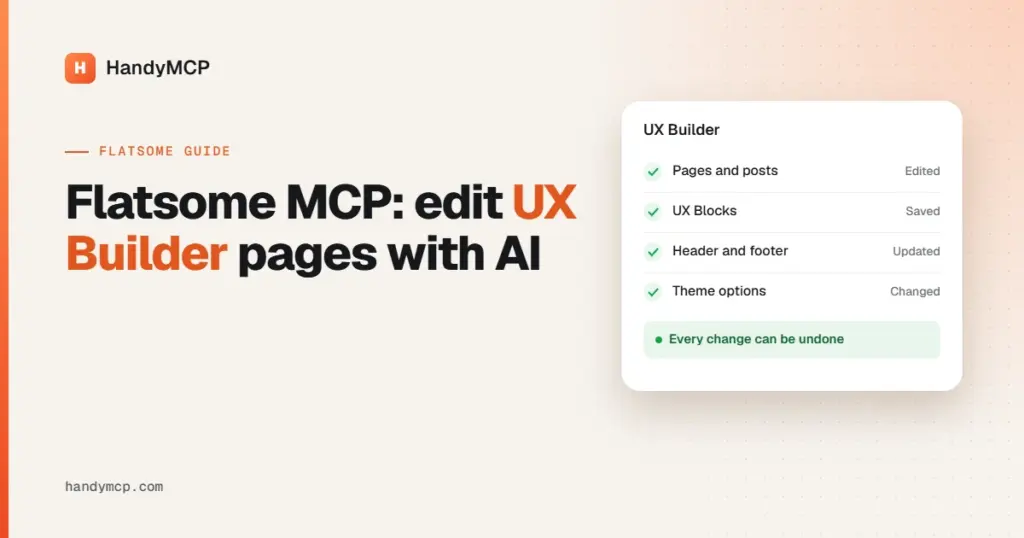
Flatsome is one of the most popular WooCommerce themes, and UX Builder is how most Flatsome sites are built. Until now, AI apps could not really work with it: UX Builder stores pages as shortcodes, and a chatbot that rewrites them as plain HTML breaks the layout. Flatsome MCP in HandyMCP Pro fixes that. Claude, ChatGPT or Cursor edit your Flatsome pages element by element, using real UX Builder elements, so you can keep editing by hand afterwards.
This guide explains what a Flatsome MCP server does, how to set it up, what you can ask for and how to keep a live store safe while the AI works.
Quick answer: Install HandyMCP Pro on your Flatsome site, connect Claude or ChatGPT from HandyMCP > Connection, and make sure the Flatsome group is on in HandyMCP > Abilities. The AI can then read and edit UX Builder pages, posts and UX Blocks, change the header and footer, and update Flatsome theme options. New layouts start as drafts, and every change can be undone.
What is Flatsome MCP?
MCP (Model Context Protocol) is the standard AI apps use to work with other software. A Flatsome MCP server is an MCP server that understands Flatsome: its UX Builder elements, UX Blocks, header and footer builder and theme options. HandyMCP Pro adds this to your WordPress site, so an AI app can work on Flatsome the way a developer would, not by guessing at shortcodes.
New to MCP? Read what MCP means for WordPress owners first.
What Claude and ChatGPT can do on a Flatsome site
| Area | What the AI can do |
|---|---|
| UX Builder pages and posts | Read the layout as a tree, build a new page, or change one element without resending the page |
| UX Builder elements | Use banners, rows, columns, text boxes, buttons, sliders, price tables, product grids and more, with tablet and mobile settings |
| UX Blocks | Create and update reusable blocks, then place them anywhere with a block shortcode |
| Header and footer | Read and change the header builder layout and footer blocks |
| Theme options | Read and update Flatsome options such as colors, fonts and layout settings |
| Custom code | Add or edit custom CSS and scripts in Flatsome’s own code fields |
Before it builds, the AI checks which UX Builder elements your site has and what attributes each one accepts. Every element it saves is checked against UX Builder, so the page opens cleanly in the editor.
How to set up a Flatsome MCP server
- Install HandyMCP Pro on your Flatsome site and activate your license. If you use the free plugin, Pro replaces it and keeps your settings.
- Connect your AI app. Open HandyMCP > Connection, copy the server URL and add it to Claude or ChatGPT. See connect Claude or connect ChatGPT.
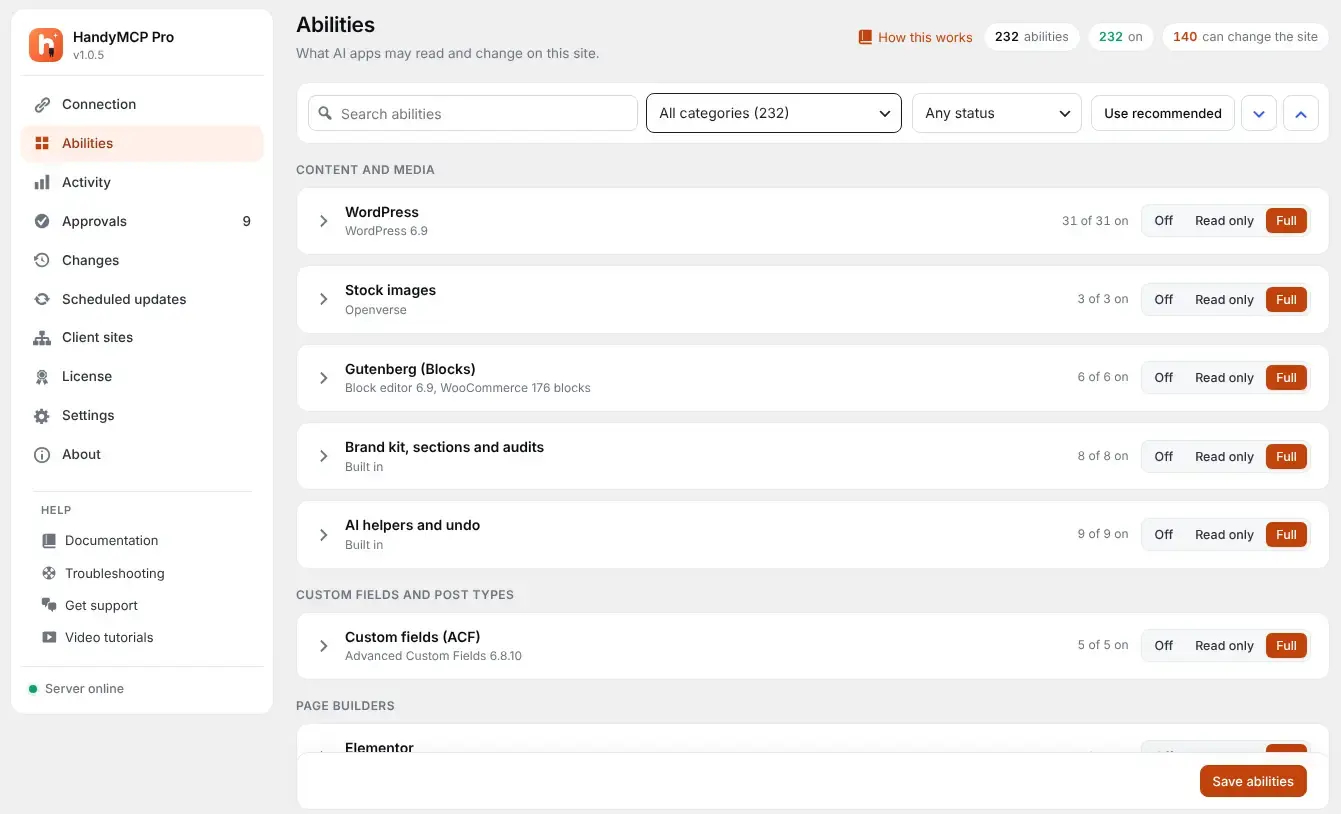
- Check the Flatsome group. In HandyMCP > Abilities, the Flatsome group appears when the theme is active. Leave it on Full, or set it to Read only while you test.
- Write a site brief. Add your brand voice, colors and rules in Settings > Site brief, such as “new pages start as drafts”.
- Start small. Ask “List the UX Blocks on this site and what each one is used for”.
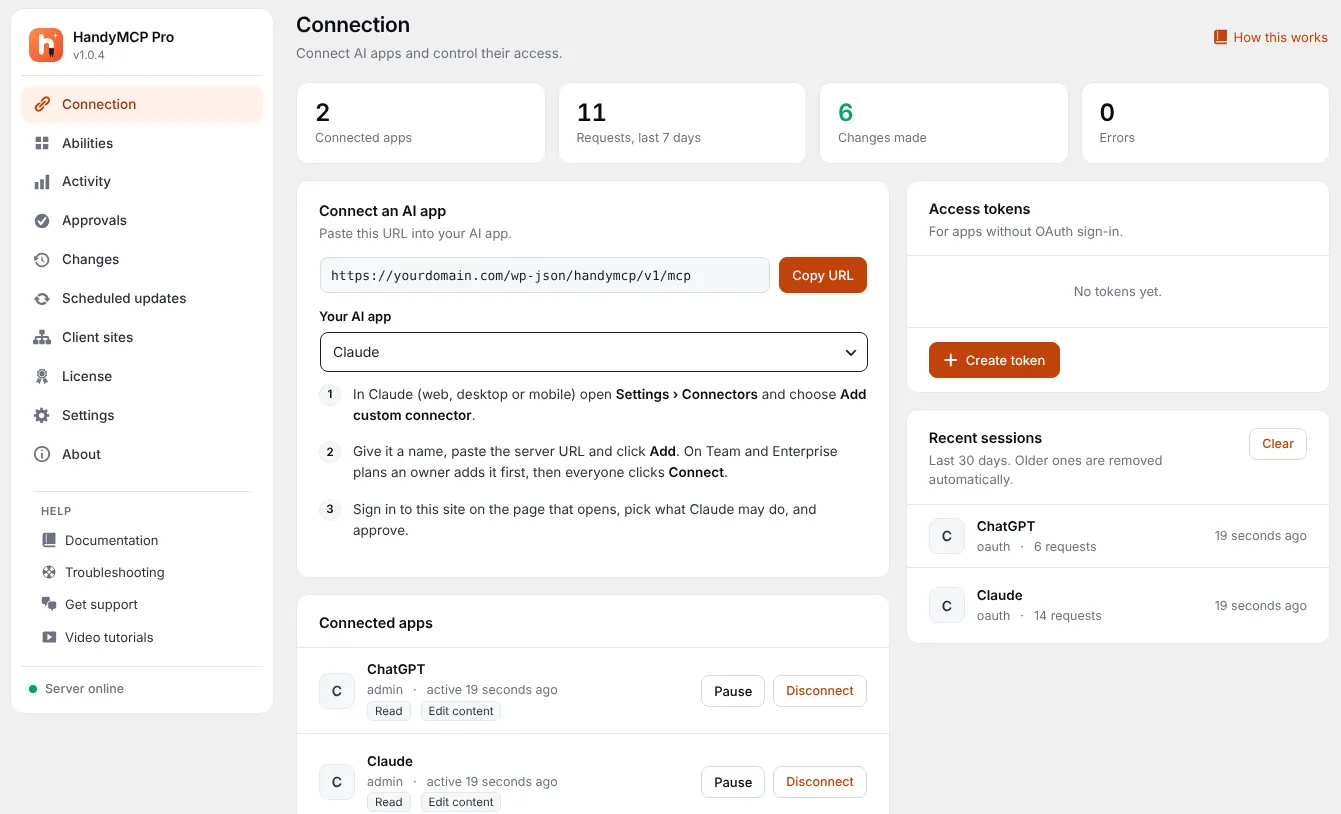
Before your first real task, run the connection check on the Connection screen. It tells you if a firewall, a security plugin or Cloudflare Access is blocking the AI app, and how to fix it.
Checklist before your first AI edit
- Take a backup. Undo covers AI changes, but a normal site backup is still good practice before any big job.
- Update Flatsome. Run a current version of the theme so the AI sees the same elements and options you see in UX Builder.
- Use a child theme for custom code. It keeps your own CSS and functions safe when Flatsome updates.
- Decide what is off limits. Add checkout, cart, account and legal pages to protected pages before you start.
- Pick who approves. On a client site, agree who reviews changes when approval mode is on, and turn on the email alert so nothing waits for days.
- Write down your brand basics. Colors, fonts, tone and the main call to action belong in the site brief, so you do not repeat them in every chat.
This takes about ten minutes. It saves a lot of back and forth later, and it means the first real edit goes smoothly.
If you manage several client stores, keep the same checklist for each one. A consistent setup makes it easy to hand a site to a teammate, because they know where the rules live and how changes get reviewed.
Prompts that work well with Flatsome
- “Read the home page layout and tell me which sections are on it.”
- “Change the hero banner headline to ‘Autumn sale, 30% off’ and the button to ‘Shop the sale’.”
- “Create a new UX Block called ‘Free shipping bar’ with a short message and add it to the top of the header.”
- “Duplicate the About page as a draft and rewrite it in a warmer tone.”
- “Make the product grid on the Shop page show 4 columns on desktop and 2 on mobile.”
- “Change the primary color in Flatsome theme options to #E0561E.”
Want to build a whole site this way? Follow how to build a website with AI using Flatsome and UX Builder.
Keep your Flatsome store safe
- Drafts first. Ask for “a new version” or “a draft” and the live page stays untouched.
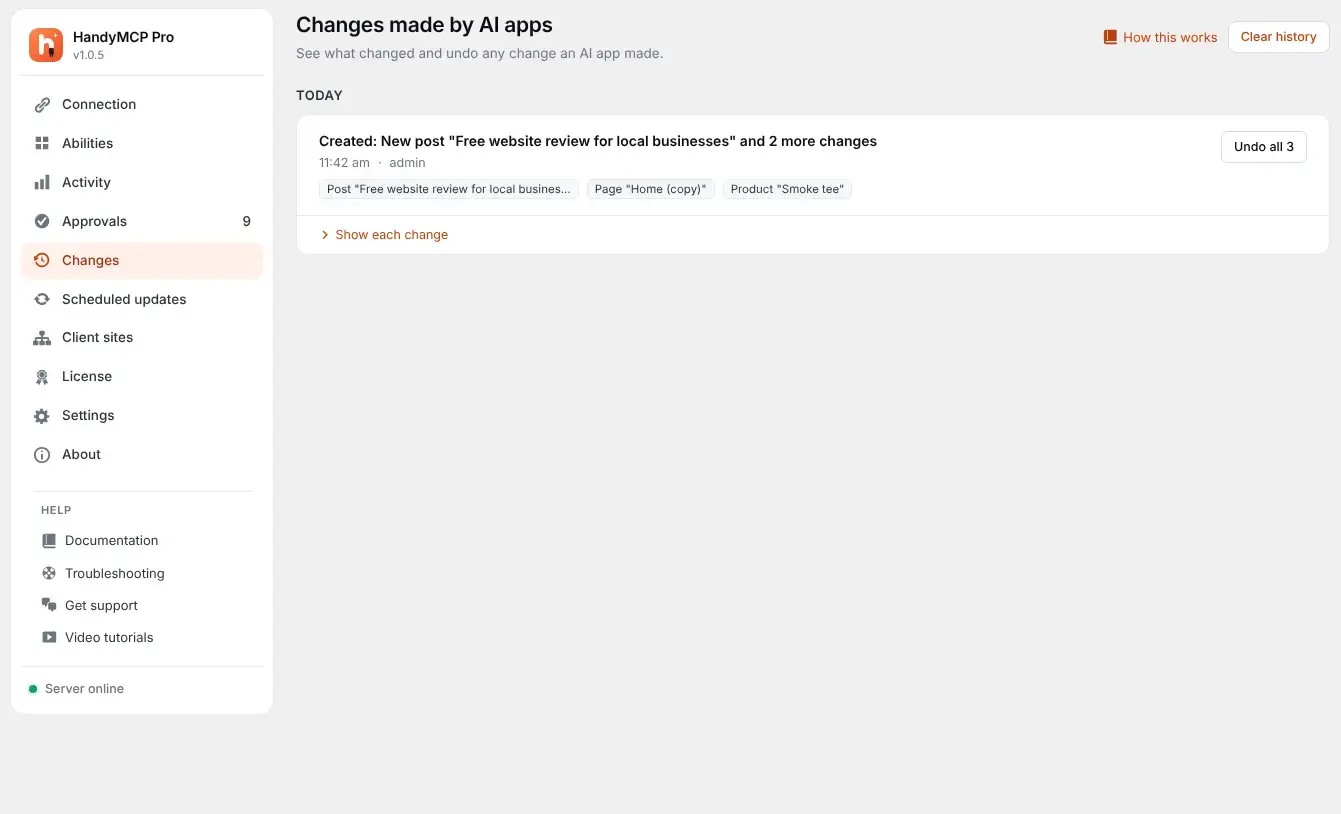
- Undo everything. Every UX Builder change is saved first, so you can undo one edit or a whole task from the Changes screen. Read how undo works.
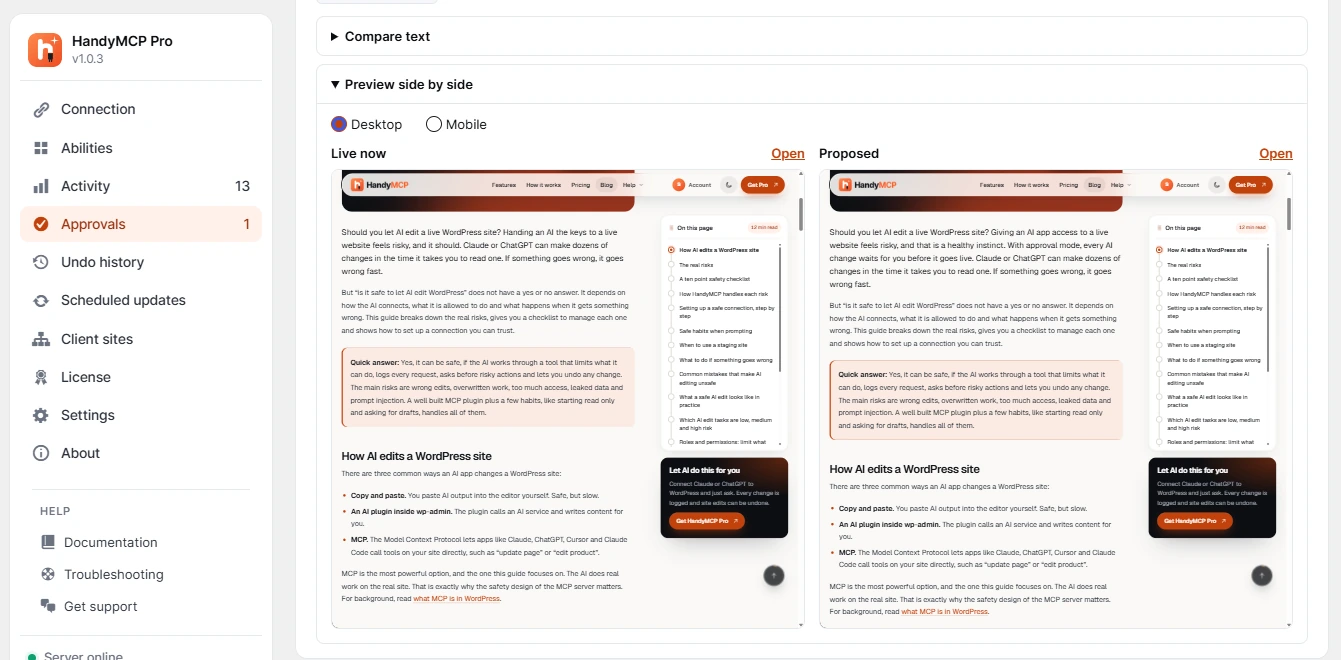
- Approval mode. Turn it on and AI changes to published pages wait until you approve them, with a live preview on desktop and mobile. See approve AI changes before they go live.
- Protected pages. Lock checkout, cart and legal pages so the AI can read them but never change them.
- Activity log. See every request, the app that made it and the page it touched.
A Flatsome MCP workflow, step by step
Here is how a typical job runs from first prompt to published page. The example is a seasonal sale page on a Flatsome store.
- Ask the AI to read first. “Read the Home page and list its sections and the UX Builder element in each one.” Reading never changes anything, so it is a safe way to start.
- Ask for a draft. “Duplicate the Home page as a draft called ‘Autumn sale’ and change the hero banner to promote the sale.” Flatsome MCP copies the page with all its UX Builder data.
- Make focused edits. “Change only the button text in the hero to ‘Shop the sale’.” The AI updates one element, not the whole page.
- Review in UX Builder. Open the draft, check desktop and mobile, and tweak anything by hand.
- Publish or approve. Publish the draft yourself, or let approval mode hold the change until you click approve.
- Undo if needed. Open the Changes screen, check the before and after view, and undo one edit or the whole task.
The same pattern works for a header promo bar, a new UX Block or a full landing page. Read first, draft second, publish last.
More Flatsome MCP prompts by task
Header and footer
- “Show me the current header layout, item by item, for desktop and mobile.”
- “Add a search icon to the right side of the header on desktop only.”
- “Update the footer UX Block with our new opening hours.”
UX Blocks
- “Find every page that uses the ‘Newsletter’ UX Block.”
- “Create a UX Block with three trust badges and place it under the product grid on the Shop page.”
Theme options
- “What are the current Flatsome colors and fonts? List them before changing anything.”
- “Set the button radius to 4px and use the primary color for all buttons.”
Content updates across pages
- “Change our phone number on every UX Builder page from the old number to the new one.”
- “Rewrite the intro text on each category page in a friendlier tone, without touching the layout.”
For more ideas, see our Claude prompts for WordPress.
Who is Flatsome MCP for?
Store owners use Flatsome MCP for the small jobs that pile up: banner text, sale pages, product grid tweaks and footer updates.
Freelancers use it to build first drafts of new Flatsome sites, then polish them by hand. Our guide on building a website with AI on Flatsome shows that process end to end.
Agencies use Flatsome MCP across client sites with approval mode on, so every change to a live store waits for review. HandyMCP Pro also adds a client sites hub and white label options for agency work.
Troubleshooting Flatsome MCP
The AI does not list any Flatsome tools
Check that Flatsome or a Flatsome child theme is the active theme and that HandyMCP Pro is installed and licensed. Then open HandyMCP > Abilities and make sure the Flatsome group is on. Start a new chat so the AI app loads the new tools.
The AI can read pages but not change them
The Flatsome group is probably set to Read only. Switch it to Full in Abilities. Also check that the page is not on your protected pages list.
A change did not show on the live site
Clear your cache. HandyMCP can purge the cache of common caching plugins for you. If approval mode is on, the change may still be waiting for your approval.
The AI app will not connect
Run the connection check under HandyMCP > Connection, then follow our fixes for WordPress MCP not connecting. The HandyMCP docs cover each setting.
For details on Flatsome elements and options themselves, the official Flatsome documentation is the best reference. To learn more about the protocol, see modelcontextprotocol.io.
Flatsome MCP vs editing by hand
| Task | By hand in UX Builder | With Flatsome MCP |
|---|---|---|
| Change text on 10 pages | Open each page, find each element | One request, then review |
| New landing page | An hour or more | A draft in minutes, then fine-tune by hand |
| Header promo bar | Header builder plus a UX Block | One request |
| Fix a mistake | Remember what it was | One-click undo |
How Flatsome MCP edits pages without breaking them
UX Builder saves each page as a set of nested shortcodes: a row holds columns, a column holds text and buttons, and each element has its own settings. A plain chatbot sees one long block of text and often rewrites it in a way UX Builder cannot open.
Flatsome MCP works differently. It reads the page as a tree of elements, the same way UX Builder shows it in the sidebar. When you ask for a change, the AI targets one element in that tree, such as the second button in the hero, and updates only that element. The rest of the page is left exactly as it was.
Before saving, Flatsome MCP checks every element name and setting against what your copy of UX Builder accepts. If something does not match, the save is refused and the AI gets a clear message to fix it. That is why pages built with Flatsome MCP open cleanly in UX Builder afterwards.
What Flatsome MCP will not do
- It will not replace a live page by surprise. Asking for a new version or a redesign creates a draft. A published page is only replaced when you clearly ask.
- It will not touch protected pages. Pages you lock stay read only for every AI app.
- It will not skip approval. With approval mode on, changes to published content wait for you.
- It will not hide what it did. Every request is in the activity log, and every change is on the Changes screen with a before and after view.
Flatsome MCP best practices
- Write a site brief first. Brand voice, colors and rules such as “new pages start as drafts” keep every Flatsome MCP request consistent.
- Read before you write. Ask the AI to describe a page before changing it. You catch wrong assumptions early.
- Keep requests small. One page or one section per request gives cleaner results and easier undo.
- Use UX Blocks for repeated content. Change a block once and every page that uses it updates.
- Test on staging for big theme option changes. Colors and fonts apply site-wide, so try them on a copy first or use approval mode.
- Check mobile every time. Ask Flatsome MCP to set tablet and mobile values, then preview on a phone width.
Flatsome MCP in the free plugin vs HandyMCP Pro
| Feature | Free | Pro |
|---|---|---|
| Posts, pages, Gutenberg and Elementor | Yes | Yes |
| Flatsome UX Builder pages, UX Blocks, header, footer and theme options | No | Yes |
| WPBakery, Divi, Beaver Builder and Avada | No | Yes |
| Changes screen with undo | Last 20 changes | Full history |
| Approval mode | No | Yes |
| Safe plugin and theme updates | No | Yes |
You can start with the free HandyMCP plugin on your Gutenberg or Elementor pages, then add Pro when you need Flatsome MCP. Pro keeps your connected apps and settings.
Frequently asked questions
Is there a Flatsome MCP server?
Yes. HandyMCP Pro works as a Flatsome MCP server. It adds Flatsome and UX Builder tools to your WordPress site so Claude, ChatGPT and Cursor can edit it safely.
Does the free HandyMCP plugin support Flatsome?
The free plugin works with posts, pages, Gutenberg, Elementor and basic WooCommerce. Flatsome UX Builder, the header, footer and theme options need HandyMCP Pro.
Will AI break my UX Builder layout?
No. HandyMCP saves real UX Builder elements and checks each one before saving, so the page opens normally in UX Builder. If you do not like a change, undo it in one click.
Can the AI edit UX Blocks used in the header and footer?
Yes. It can create and update UX Blocks and read or change the header and footer layout.
Does it work with a Flatsome child theme?
Yes. HandyMCP detects Flatsome and its child theme and works the same way.
Which AI apps work with Flatsome MCP?
Any MCP app, including Claude, ChatGPT, Cursor, Claude Code and VS Code with GitHub Copilot.
Can I undo a Flatsome MCP change?
Yes. Every change is saved first. Open the Changes screen to see before and after, then undo one edit or a whole task. Pro keeps the full history.
Does Flatsome MCP work with WooCommerce?
Yes. It edits Flatsome product grids and shop page layouts, and HandyMCP Pro also manages WooCommerce products, variations, coupons and orders.
Is Flatsome MCP safe on a live store?
Yes, with sensible settings. Use drafts, turn on approval mode and protect checkout, cart and legal pages. Then every change to the live store waits for your review.
Ready to edit Flatsome with AI? Start a 7-day HandyMCP Pro trial from the pricing page, or get HandyMCP free to try MCP on your other pages first.